Site meetings
On the construction site, the mobile app is used to run the meeting on a phone or a tablet: attendance, notes, decisions, actions and closing, even without a network. Preparing, convening, sending and the settings are done in the web app.
Open the meetings
Tap More, then Meetings. The section appears when meetings are turned on in the project and you are allowed to see them (see Give members access).
The meetings are listed in two groups: Coming and in progress, then Past. Each one shows its date, its stage (Being prepared, Convened, In progress, Closed) and, when a device holds it, Held on this device or Held on another device.
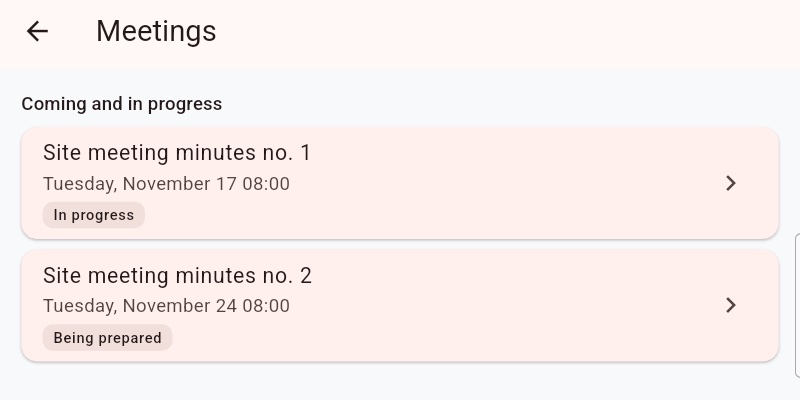
Tap a meeting to read it: participants and agenda, with the state of each item. For a closed meeting, Minutes (Word) and PDF open the minutes (with a network).
Hold the meeting on the device
Before the meeting, with a network, open it and tap Hold on this device. The button appears when you are allowed to manage meetings.
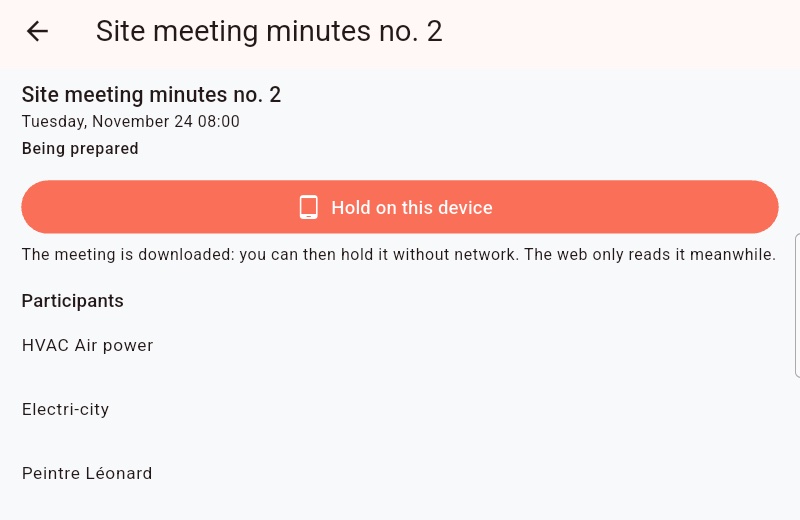
The meeting is then downloaded to the device, which reserves it: you can run it without a network, and the web becomes read-only while you hold it (see Meanwhile, on the web).
Then tap Start the meeting. This works without a network too: the web learns it as soon as the device has a network.
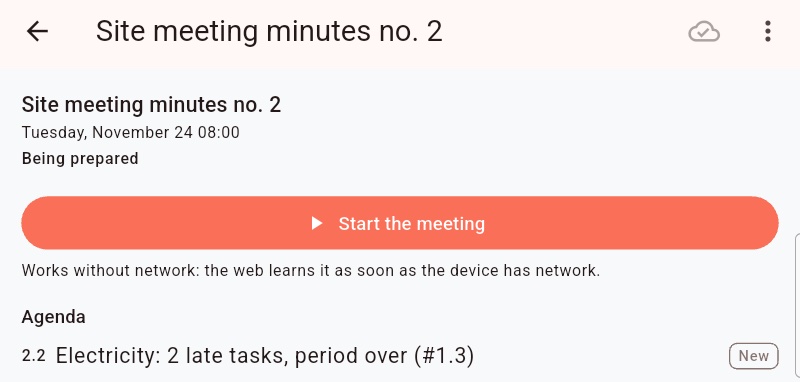
The meeting runs in three tabs at the top of the screen: Attendance, Items and Close.
On a tablet
In landscape, a tablet shows the list of items on the left and the open item on the right.
Attendance
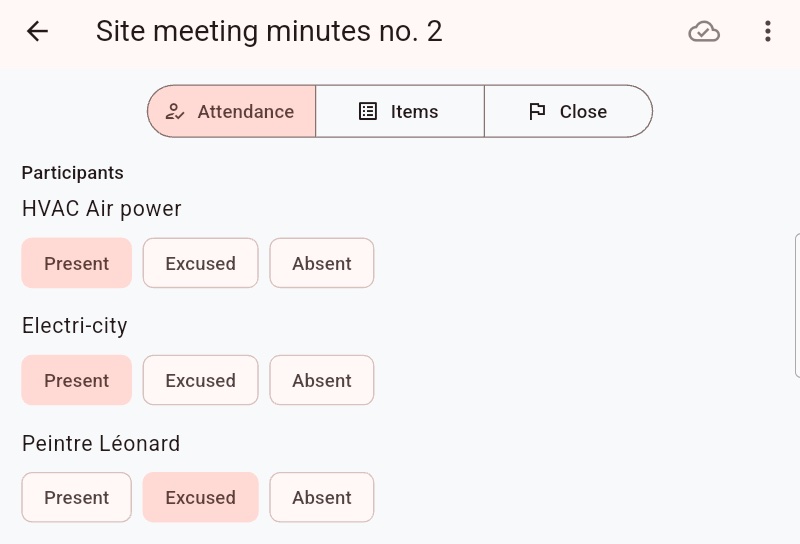
For each participant, tap Present, Excused or Absent.
The items
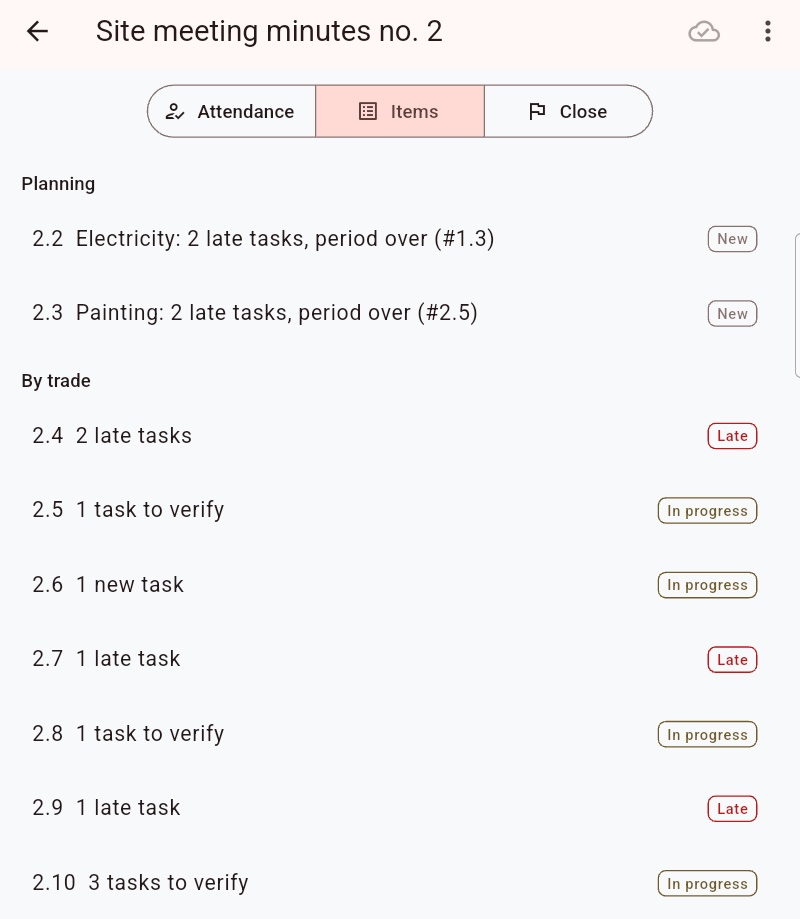
The Items tab lists the agenda by section, with the state of each item. Tap an item to open it; the arrows at the top right go to the previous or next item.
In an item:
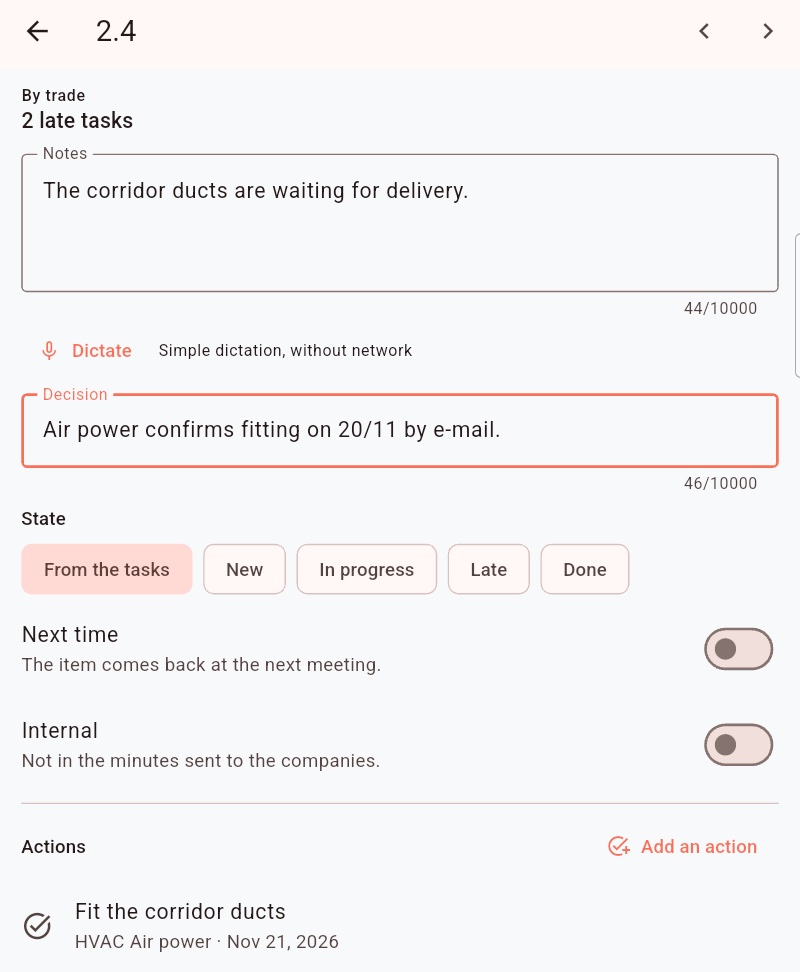
- Last time recalls what was said at the previous meeting, for an item carried over;
- Notes and Decision: what is said and what is decided;
- State: From the tasks (worked out from the linked tasks), or New, In progress, Late, Done chosen by hand;
- Next time: the item comes back at the next meeting;
- Internal: the item is left out of the minutes sent to the companies;
- Actions: the actions decided on this item;
- Linked tasks: the project tasks the item is about, with their company.
Everything you enter is kept on the device as you go, with no Save button.
Add an action
Tap Add an action, then fill in What to do, Who does it and the date. Tap Add.
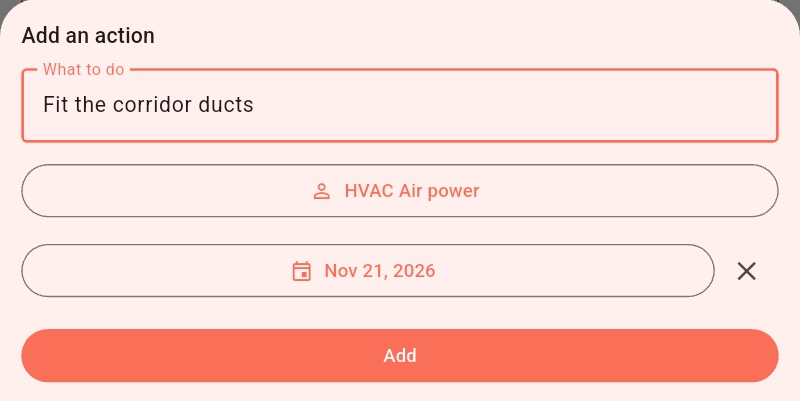
As on the web, each action becomes a project task, assigned to the company, as soon as the device has a network. Until then, it is marked not sent yet.
Add an item
Something unplanned? In the Items tab, tap Add an item, at the bottom right.
Dictate
The Dictate button, under the notes of an item, changes with the network. The line next to the button says which mode is on.
- Dictation with layout (network)
- The same dictation as on the web (see Dictate an item). Touch2build draws the notes, the decision and the actions from it, in a From your dictation card. Read it, then tap Add it, or Set aside.
- Simple dictation, without network
- The device's speech recognition writes down what you say, as plain text, after the notes of the item. Speak, pause if you need to, then tap Stop. Correct the text with the keyboard if needed: there is no sorting into decision and actions, and punctuation is not always there.
“This device cannot recognise this language without network”
Dictation without network uses the language downloaded on the device. On Android, download the language in the device settings (language and keyboard dictation, or On-device speech recognition); on iPhone and iPad, in Settings, General, Keyboard, Dictation. The message Allow the microphone and speech recognition asks you to allow Touch2build in the device settings.
Close the meeting
The Close tab sums up, under Before closing: attendance taken or not, items with nothing written, actions decided. These are only reminders.
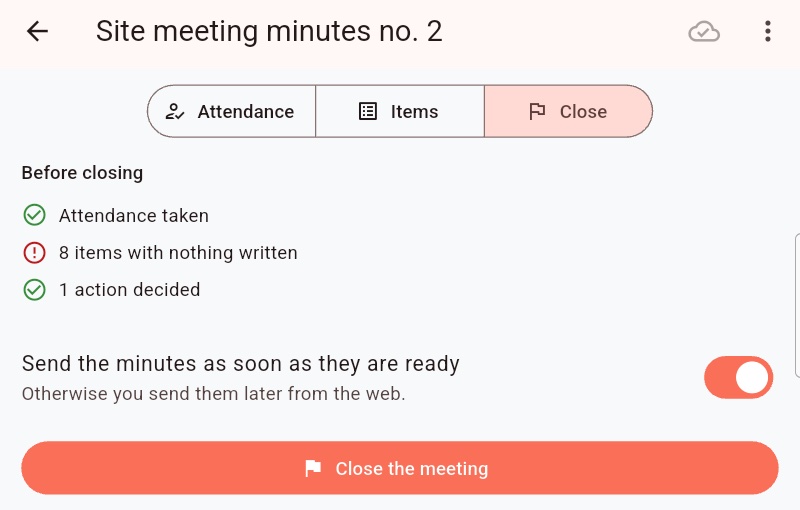
Send the minutes as soon as they are ready is ticked by default. Untick it to read the minutes and send them later from the web.
Tap Close the meeting. With a network, the minutes are written at once. Without a network, the meeting is closed on the device, and the minutes go out as soon as the device has a network, with the real closing time.
Without a network
Once the meeting is held on the device, everything works without a network: starting, attendance, notes, decisions, actions, simple dictation and closing. The changes stay on the device, even if the app is closed.
The cloud icon, at the top right of the meeting, shows where the sending stands (a long press shows the details):
- Everything is sent;
- N changes to send: send now, with a network; tap it to send at once;
- No network: N changes kept on this device.
With a network, changes go out as you go: the web follows the meeting almost live, read-only.
Holding the meeting, however, needs a network: open the meeting and tap Hold on this device before you leave for the site.
Meanwhile, on the web
While a device holds the meeting, the web shows a banner: This meeting is held on the device, by whom and since when. There, it can only be read.
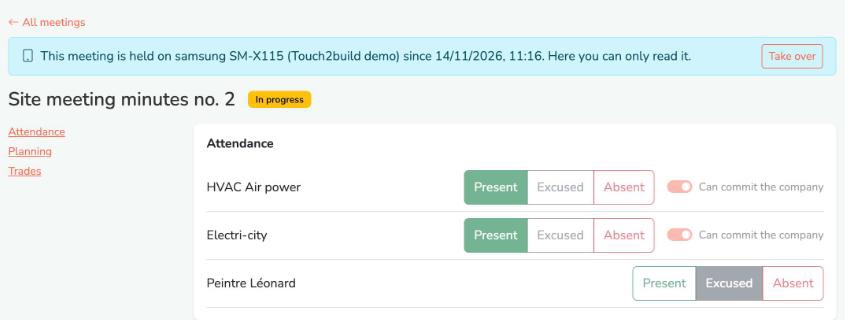
Take over frees the meeting for the web, for example if the tablet stayed in the site hut. The web can then write in the meeting again.
If someone took over
When the device gets a network back after a take-over on the web, its changes are merged with the web's:
- what the web did not touch is written as it is;
- when the web and the device changed the same field, nothing is overwritten: the change goes to Changes to check.
A banner says so, with two choices: Hold it again (reserve the meeting again and carry on) or Stop here.
In Changes to check, choose for each change what stays: Keep mine or Keep the web one. A change that can no longer be written (item removed from the agenda, meeting closed on the web, and so on) shows the reason: Send again, Drop it, or Copy the text to put it somewhere else.
The meeting cannot be closed while changes are left to check.
Give the meeting back
To free the meeting without closing it, open the ⋮ menu of the meeting, then Give the meeting back. The web can write in it again, and the device keeps nothing of it: changes not sent yet are lost, and the app reminds you before you confirm.