Form templates
A template describes the questions of a form, in the order in which they are filled in on site. You prepare it once, then use it to create as many forms as you need.
To manage templates you need the Prepare level to view them and Prepare + templates to create or edit them: see permissions.
The list of templates
In Forms, open the Templates tab and choose Forms:
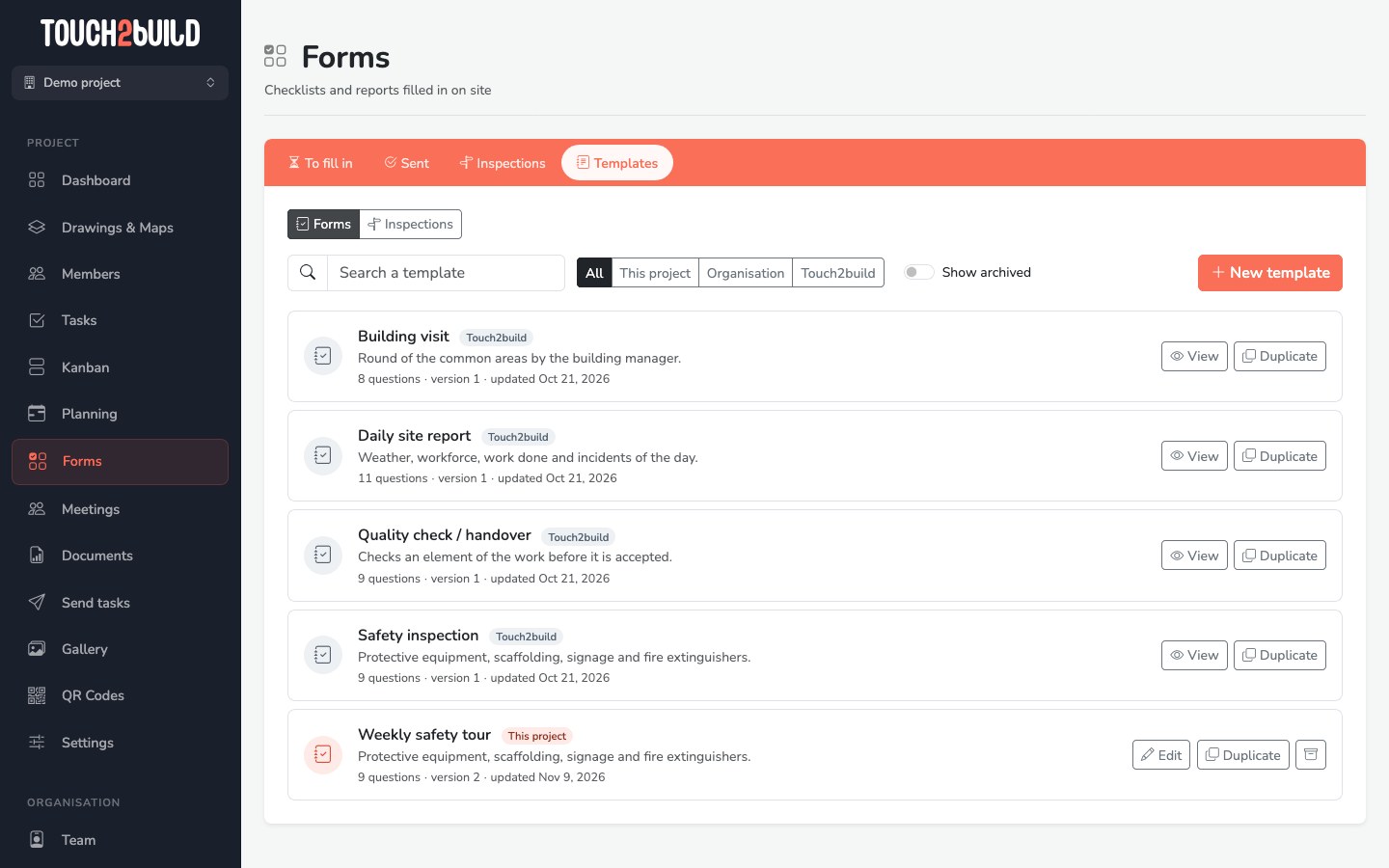
A badge shows where each template comes from:
| Badge | Origin | Can you edit it? |
|---|---|---|
| Touch2build | Provided by Touch2build. | No: duplicate it to adapt it. |
| Organisation | Shared by all the projects of your organisation. | Not from a project: duplicate it to adapt it to this project. |
| This project | Used only in this project. | Yes. |
The All, This project, Organisation and Touch2build filters and the search help you find a template. Each line shows the number of questions, the version and the date of the last change.
The Touch2build templates
Four templates are ready to use:
- Safety inspection: protective equipment, scaffolding, signage and fire extinguishers, with the inspector's signature;
- Daily site report: weather, workforce, work done and incidents of the day;
- Quality check / handover: check of a piece of work before its acceptance, with a measure and signatures;
- Building visit: round of the common areas by the property manager.
Use them as they are, or duplicate them to adapt them to your site.
Actions on a template
- Edit opens the editor. For a template you cannot edit, the button is called View.
- Duplicate creates an editable copy in this project.
- The archive icon removes the template from new forms. Existing forms keep it, with their answers and reports. Show archived, then Restore, puts it back into use.
A template cannot be deleted: it is archived.
Create a template
Click New template, then choose:
- Start from scratch: an empty template, to fill in question by question;
- or start from a copy of an existing template: pick it from the list.
Start from an existing template
The quickest way is often to duplicate a Touch2build template close to your need, then remove or add a few questions.
The template editor
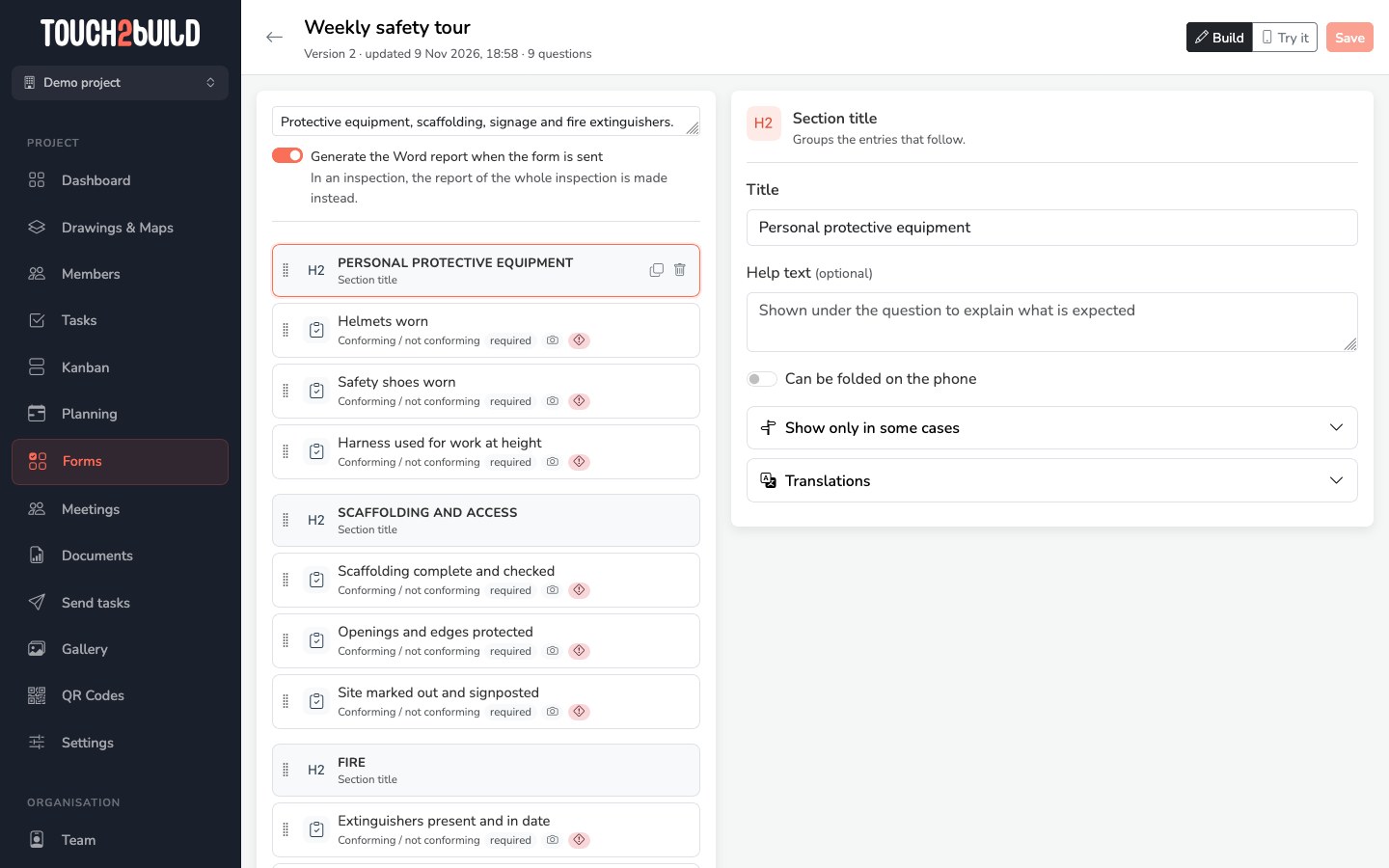
- At the top
- The name of the template, which you edit in place. Below it: the version, the date of the last change and the number of questions. On the right: the Build and Try it modes, the saving status and the Save button.
- On the left
- The description of the template, the Generate the Word report when the form is sent option, then the list of entries. Drag an entry by its handle to move it. When you hover over an entry, you can duplicate or delete it.
- On the right
- The settings of the selected entry. Click an entry in the list to set it.
The small icons under each entry sum up its settings: required, photos, shown only under a condition, task if not conforming. A ⚠ triangle marks an entry to fix: click it to see what is missing.
Add an entry
Add an entry opens the choice of type:
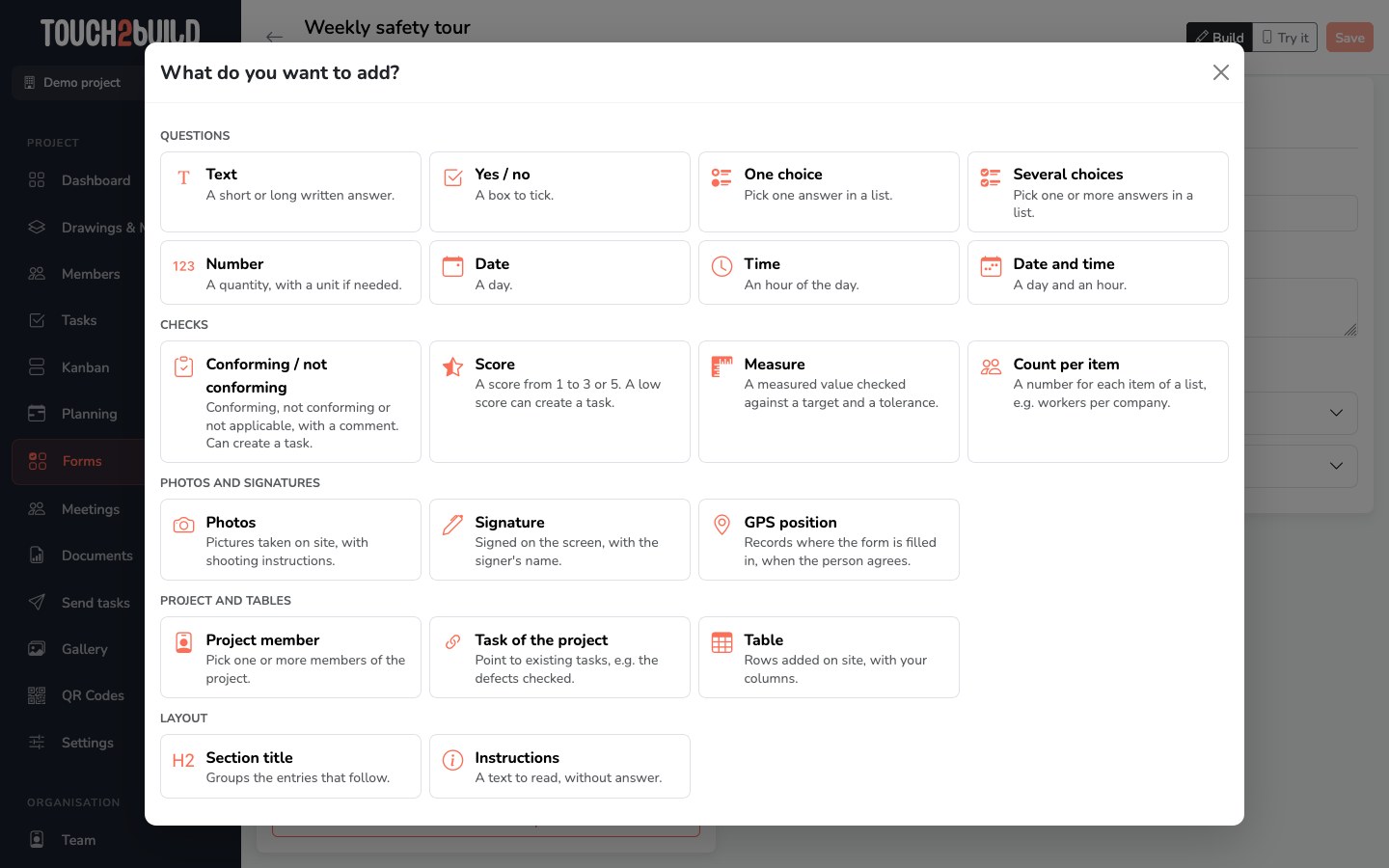
| Family | Types |
|---|---|
| Questions | Text (short or long), Yes / no, One choice, Several choices, Number (with unit, minimum and maximum), Date, Time, Date and time. |
| Checks | Conforming / not conforming (with "N/A" and a comment), Score (from 1 to 3 or from 1 to 5), Measure (compared with a target and a tolerance), Count per item (for example workers per company). |
| Photos and signatures | Photos taken on site, Signature on the screen with the signer's name, GPS position of the person filling in, if they agree. |
| Project and tables | Project member, Task of the project (for example the snags being checked), Table (rows added on site, with your columns). |
| Layout | Section title to group the questions, Instructions: a text to read, with no answer. |
Set an entry
Depending on the type, the right-hand panel offers:
- Question and Help text: the help shows under the question, to explain what is expected;
- An answer is required to send the form;
- the options of the type: unit, minimum and maximum of a number; scale and threshold of a score; target value, tolerance and unit of a measure; options of a choice (shown as large buttons by default); columns and minimum number of rows of a table; "Who signs" and signer's name for a signature; current date and time prefilled and so on.
Then, in sections you can unfold:
- Photos for this question
- None, Optional, Required or If not conforming, with a minimum and maximum number of photos and shooting instructions, shown before and during the shot. On mobile, photos are taken with the camera only: they really come from the site.
- Show only in some cases
- Hides the entry unless an answer higher up asks for it. For example, "Describe the incident" appears only if "An incident occurred" is ticked. The condition relies on a question placed above. A hidden entry is not required, and its answer is not kept.
- Create a task when not conforming
-
For the checks (Conforming / not conforming, Score, Measure) and the Yes / no boxes. Switch on Offer to create a task and choose the Type of the task:
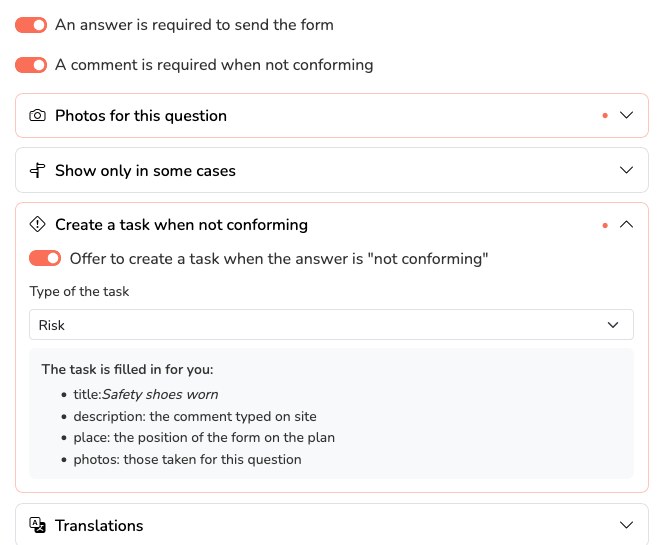
The box sums up what the task will contain: the title of the question, the comment typed on site, the position of the form on the drawing and the photos of the question.
- Translations
- The texts to show to members whose phone is set to Dutch, German or French. Left empty, they use the main text.
When is an answer not conforming?
| Type | Not conforming when… |
|---|---|
| Conforming / not conforming | the answer is Not conforming. |
| Score | the score is below the threshold you chose, for example below 3 out of 5. |
| Measure | the value differs from the target by more than the tolerance. The calculation is automatic. |
| Yes / no | the answer is No, if the entry offers a task. |
Try the template
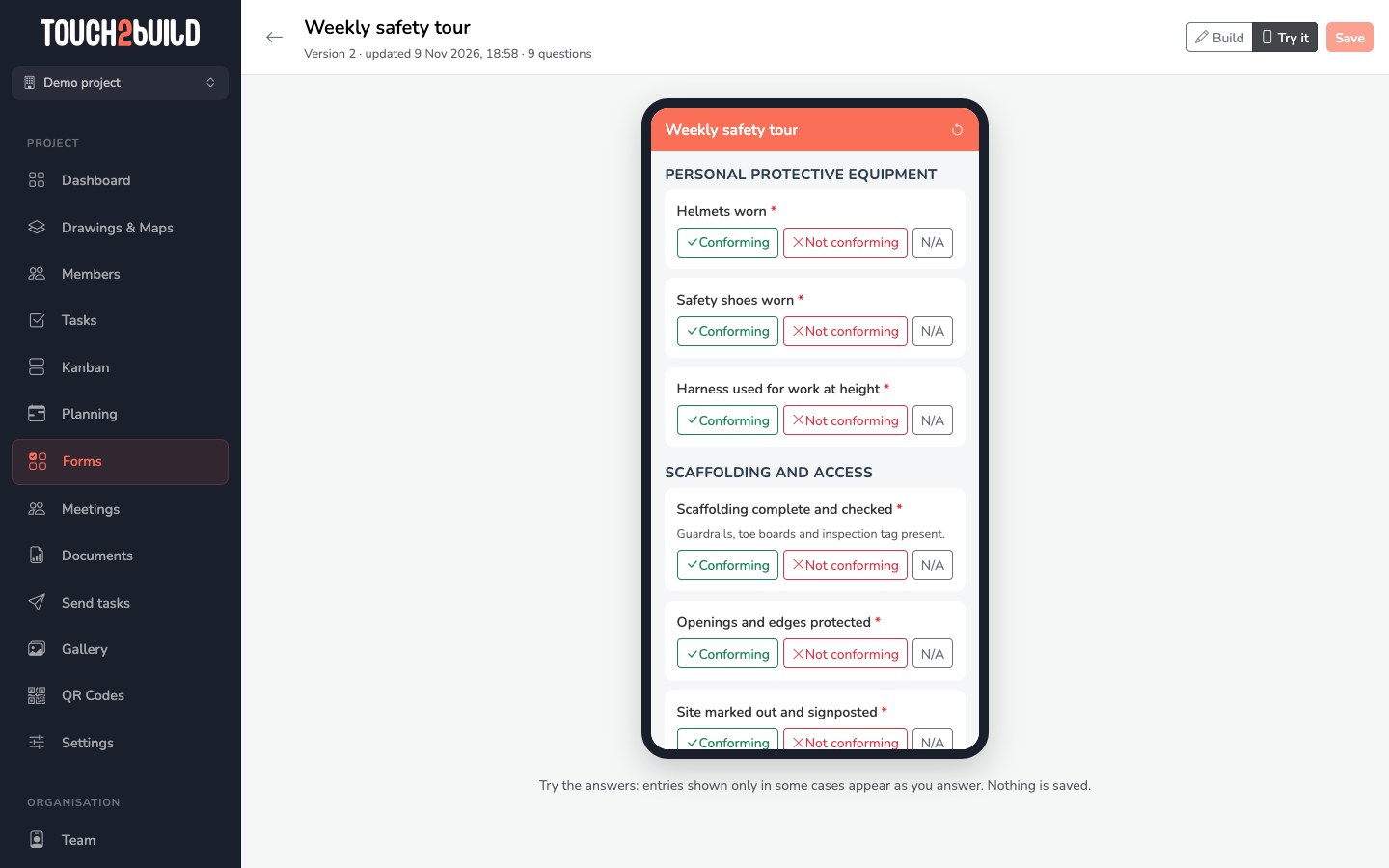
The Try it mode shows the form as it looks on a phone. Answer the questions to check the order, the display conditions and the photos required. Nothing is saved.
Save: versions
Each Save creates a new version of the template. Forms that already exist keep the version they were created with: their questions, answers and reports never change. Only new forms use the new version.
You can therefore correct a template at any time without any risk to the forms in progress.
Organisation templates
Company administrators can share templates between all their projects: in the Organisation menu, open Form templates. The list and the editor are the same as in a project.
In each project, these templates appear with the Organisation badge. Use them as they are; to adapt them to a project, duplicate them.