Share and follow up
Once the meeting is closed, the minutes are ready. This page explains what they contain, how they go out, how to correct them and how their items come back at the next meeting.
The closed meeting
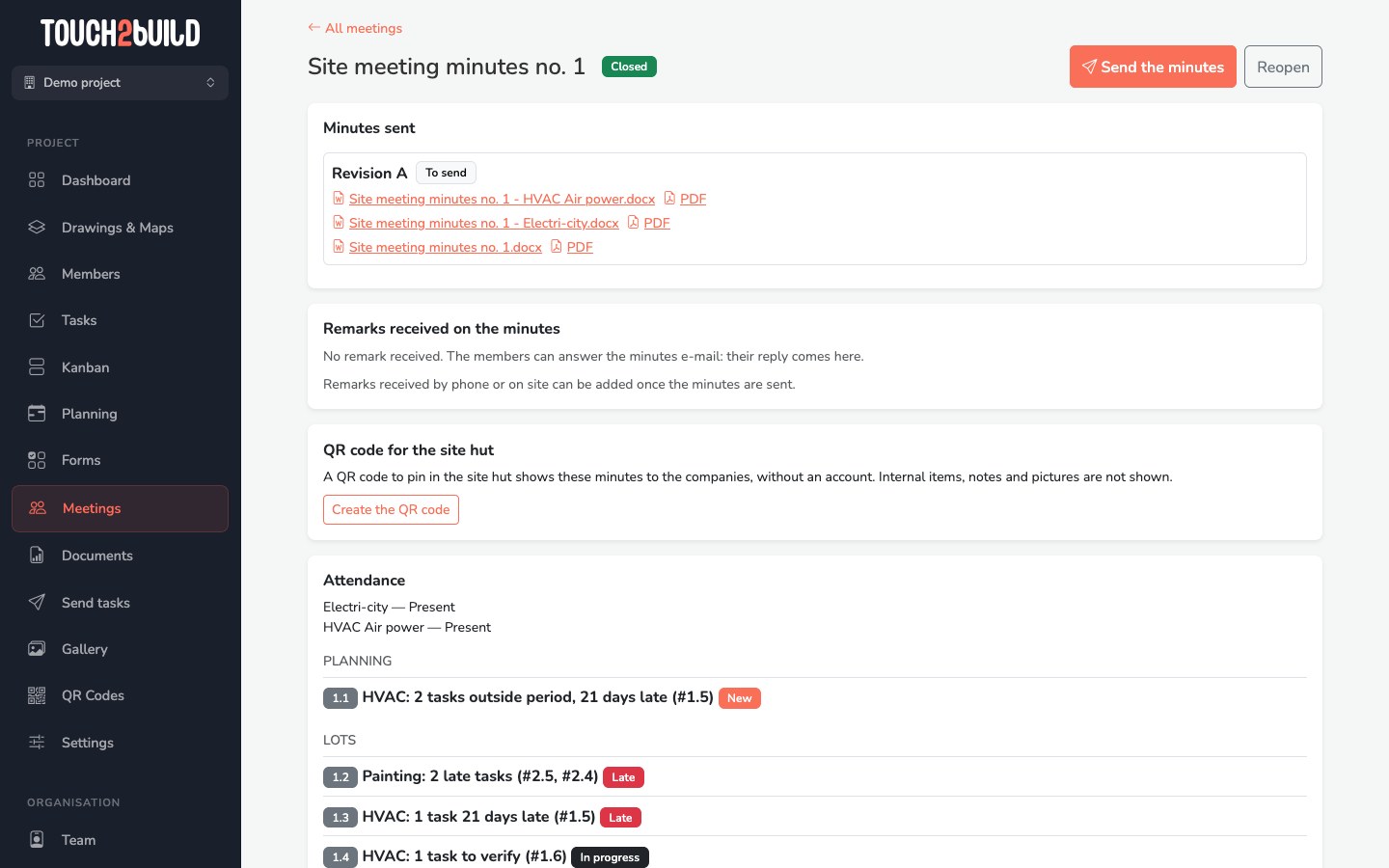
A closed meeting shows, from top to bottom:
- the Send the minutes button (until they have gone out) and Reopen;
- the Minutes sent box: the documents of each revision and the status of their sending;
- the Remarks received on the minutes box;
- the QR code for the site hut box, if the option is on;
- the content of the meeting, read-only: attendance, items, decisions, actions.
The documents
When you close the meeting, Touch2build writes several documents, each in Word and PDF:
- The full minutes
- "Site meeting minutes no. 1": all the items, except the internal ones.
- One extract per company
- "Site meeting minutes no. 1 - Electri-city": only the items and actions of that company. It is written for each participating company that has at least one item. A company thus reads in two minutes what concerns it.
Click a file name to download the Word file, or PDF for the PDF. The documents stay downloadable in the meeting, with no time limit. The Word file is for reusing the text elsewhere; the PDF is what goes to the recipients.
The minutes contain:
- the header: project, number, date, place, writer;
- the attendance table: name, company, role, attendance, authorised to commit the company, number of absences;
- the approval of the previous minutes;
- the items, by section and, in the Lots section, by lot. For each item: its number, title, state, notes, the decision in bold, the linked tasks and the new actions, with the company and the due date. A carried-over item shows for how many meetings it has been open;
- the next meeting: date, time and place;
- if the option is ticked, the weather for the next 7 days, as forecast when the meeting was closed: the minutes do not change afterwards. See The weather;
- the objection clause, with the time limit of the project.
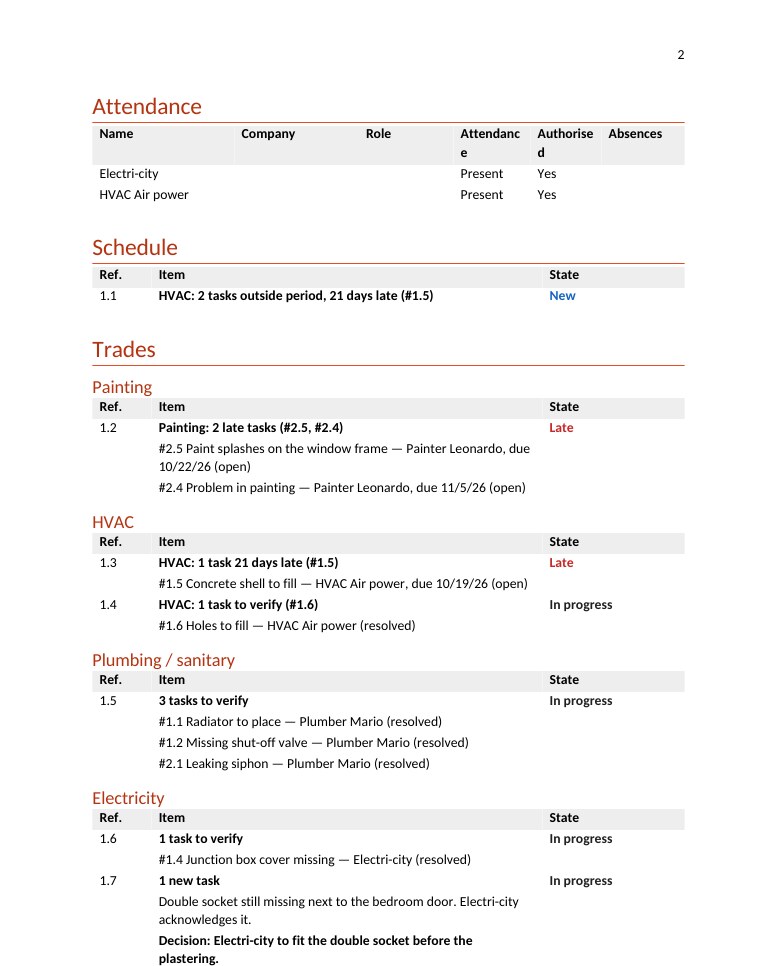
Beyond the number of items detailed per lot set in the settings, the other items of the lot are only listed by number.
Send the minutes
If you chose Send the minutes now when closing, they have already gone out. Otherwise, read the documents through, then click Send the minutes.
Each participant whose Minutes box is ticked receives an e-mail, whether they were present, excused or absent. The e-mail contains:
- the PDF of the full minutes and the PDF of the extract for their company;
- the list of their actions that are open, with their due date;
- the date of the next meeting and the objection clause;
- for the members who have access to the meetings, a link to the meeting in Touch2build.
Attachments too large for an e-mail are replaced by their name: the recipient downloads them in Touch2build.
Proof of sending
The Minutes sent box keeps, for each revision, the date and time of sending and the status of each recipient. The badges:
| Badge | Meaning |
|---|---|
| To send | The minutes are ready but have not gone out yet. |
| Being sent | The e-mails are going out. |
| Sent … | All the recipients have received them, at the date and time shown. |
| Not sent to everyone | Some sendings failed. |
| Not sent | No sending succeeded. |
After a failure, Send again sends the minutes only to the recipients who did not receive them. People without an e-mail address are flagged: pass them the PDF by other means.
Why proof matters
Minutes sent the same day, with the list of recipients and the time of sending, are authoritative. Sent a week later, they can be disputed. The time allowed for objections runs from the sending.
The remarks
A remark is a comment received on minutes that have been sent: a wrong date, a disagreement, a clarification. Remarks show in the Remarks received on the minutes box of the closed meeting, and in the Previous minutes box of the next meeting.
Each remark shows its author, the date it was received, the item number it refers to if there is one ("1.3"), and the After the deadline badge if it arrived after the time allowed for objections. The title of the box gives the number of remarks to handle.
By replying to the e-mail
When the project allows task follow-up by e-mail, the members of the project can simply reply to the minutes e-mail. Their reply, without the quoted text or the signature, becomes a remark. If they quote an item number ("On 1.3, we cannot before 5/11"), the remark is attached to that item.
No reply acts on the tasks: a remark is read by the writer, who decides what to do.
By hand
A comment arrives by phone, or comes from someone outside the project who has no account? Type it in the Add a remark received by phone or on site field, then click Add. This field accepts a remark only once the minutes have been sent.
Handle them
At the next meeting, read the remarks by opening the Previous minutes item, then click Mark handled for each one. The Handled badge shows; Not handled cancels it. If a remark changes the minutes, correct them (see below) or note the correction in the current meeting.
Correct the minutes: revision B
A mistake in minutes that have already gone out? Click Reopen. The meeting goes back to in progress: correct the notes, decisions or attendance, then click Finish again.
The minutes already sent stay as they are, as evidence. The new closing creates revision B (then C and so on), with its own documents, to be sent again. The Minutes sent box keeps the history of each revision.
The site hut QR code
The minutes are often displayed in the site hut. The QR code makes them readable on everyone's phone, always up to date, with no Touch2build account.
- Switch on QR code of the minutes for the site hut in the meeting settings.
-
In a closed meeting, the QR code for the site hut box offers Create the QR code.

-
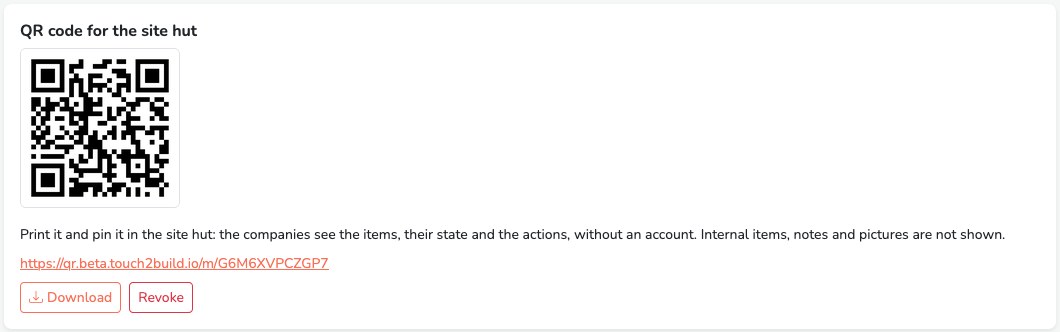
The QR code shows, with its link. Click Download to get the image to print, and display it in the site hut.
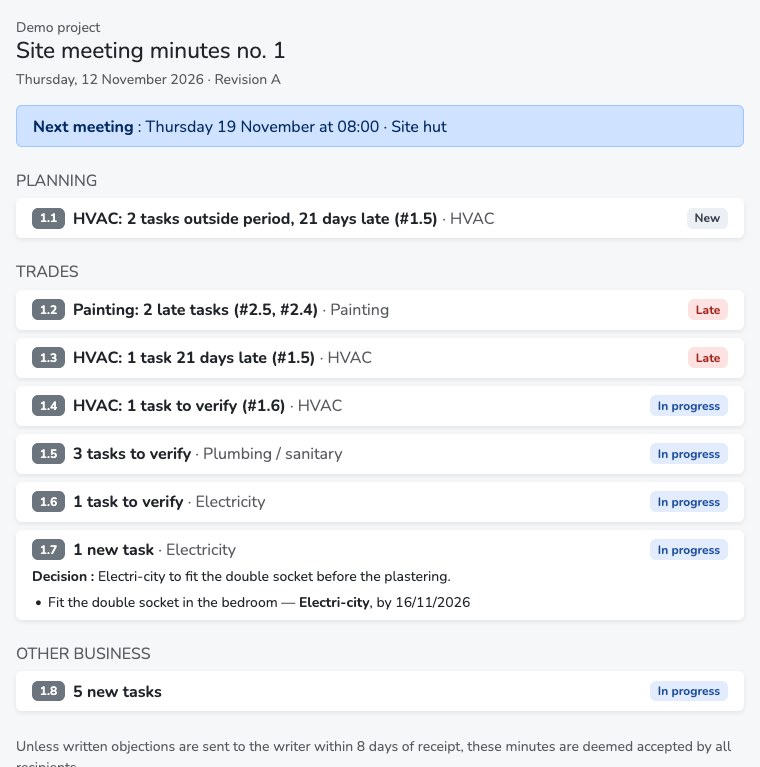
By scanning it, workers and companies see the minutes: the items with their state, the decisions, the actions and their company, the date of the next meeting and the objection clause. The internal items, the notes and the photos are not shown. The page appears in the language of the phone (French, Dutch, German or English).
Revoke deactivates the QR code: printed posters no longer show anything. Create another one for the next meeting.
The next meeting
Create the next meeting like the first one (see Prepare a meeting), or let Touch2build prepare it the day before if you entered the date of the next meeting when closing.
The carried-over items
The items of the last minutes that are not done are carried over automatically:
- with the same number: item 1.3 stays 1.3 in meeting no. 2, no. 3 and so on;
- with the Carried over badge and their state recalculated from the tasks of the day;
- with their linked tasks and the actions decided, which become linked tasks.
The notes and the decision start empty again: you note what is said this time. A carried-over item cannot be deleted, only postponed or marked done: the minutes thus keep the trace of each item until it is closed.
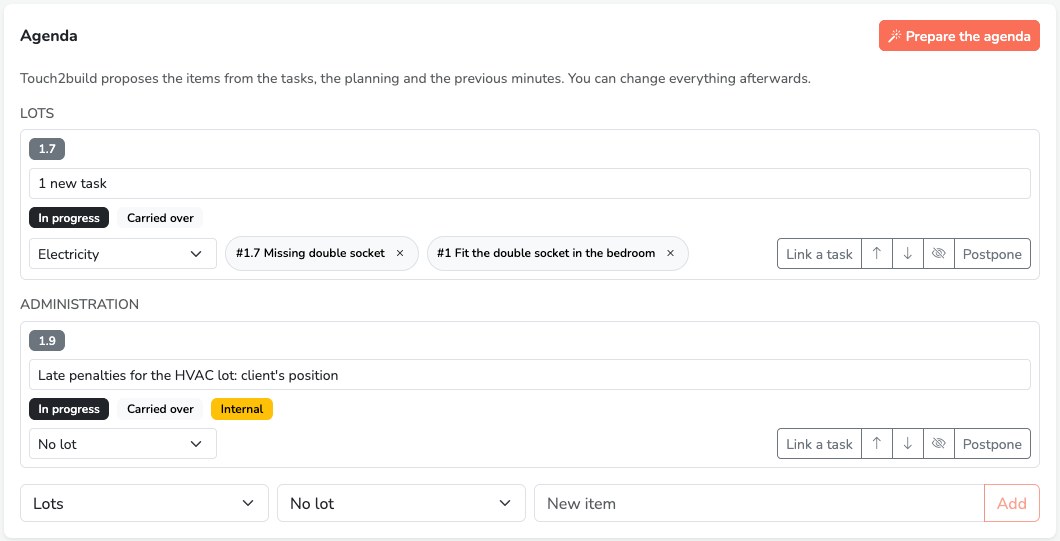
An item proposed automatically that was left without notes, decision or action is not carried over: the new proposal of the agenda says the same thing with the data of the day, without piling up alerts from one meeting to the next.
During the meeting, each carried-over item recalls Last time: its state and its decision. An item that has been dragging on for several meetings says so in the proposed agenda, and the minutes show its age.
The actions in the tasks
Actions are ordinary tasks: they appear in the task list, the Kanban and the planning, and the company handles them like the others. The detail of a task discussed at a meeting shows the meetings and item numbers concerned.
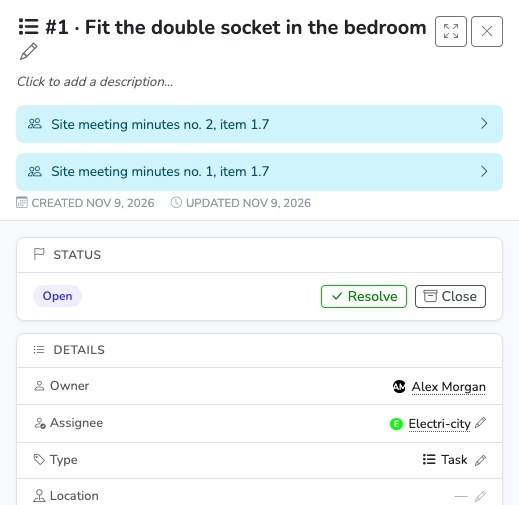
When the company resolves the task, the item is no longer late at the next meeting; when you close it after checking, the item is Done. Nobody retypes the state.