Members and permissions
The Members section lists the people and companies working on the project. For each one, you set what they can see and do.
The aim is that everyone finds their own tasks without wading through the others, and that only authorised people can edit, close or reassign. Being a member also means being able to receive tasks: a company must be part of the project before you can assign its snags to it.
Members do not need a licence
Inviting a member costs nothing. Only the person who creates and runs the project needs a licence. A guest company sees and handles its tasks for free, on the web and on mobile. See Who needs a licence?
The video shows how to add a member and a company, then set the permissions of a site manager.
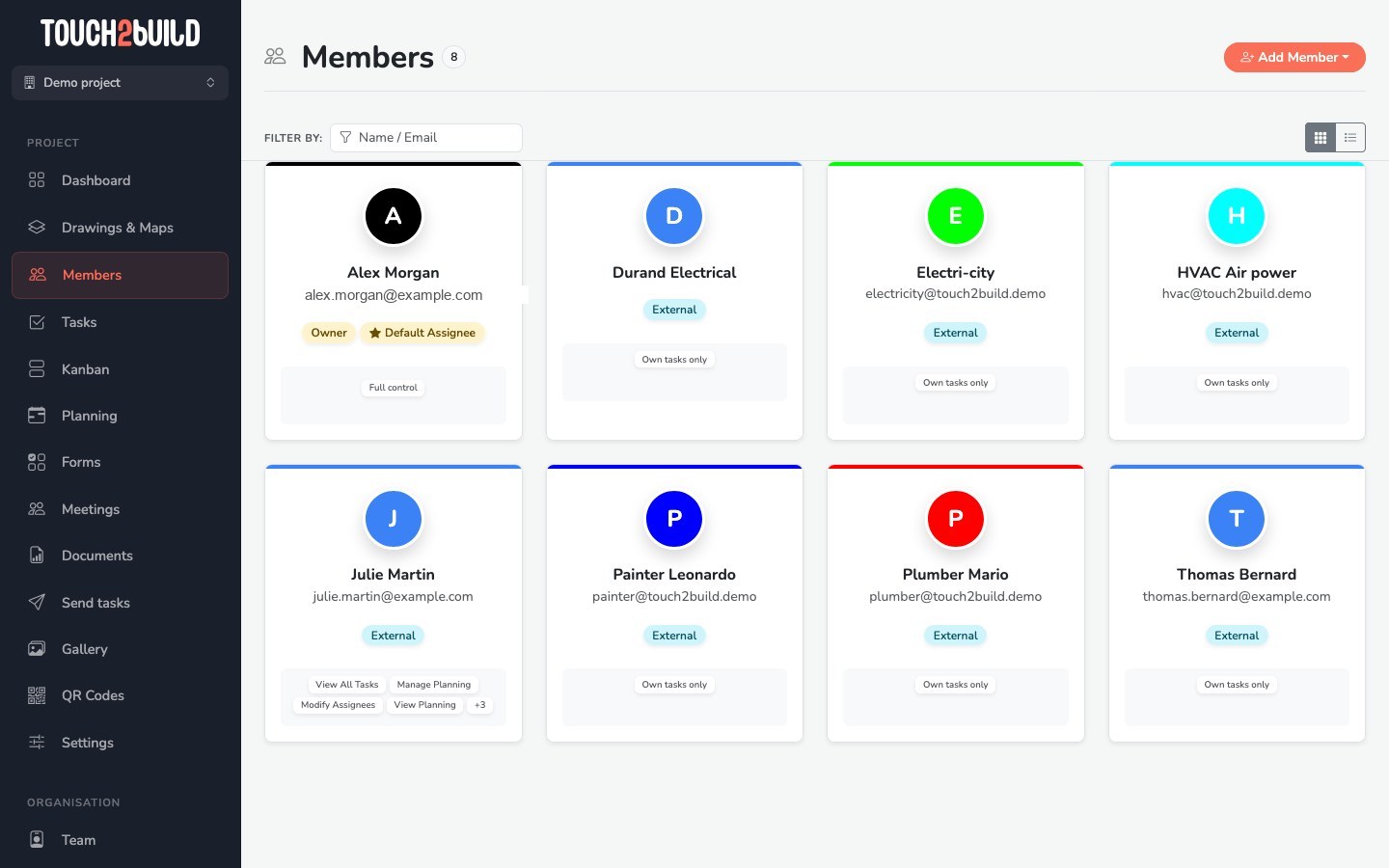
Each card shows:
- the member's name, e-mail and colour. The colour identifies them in charts and on the Kanban board;
- their role: Owner, Teammate or External;
- a summary of their permissions, for example Full control or Own tasks only;
- the Default Assignee badge if they automatically receive new tasks.
The buttons at the top right switch between the grid view and the list view. The Name / Email field filters the members.
Who can manage members?
You need the Members: Manage permission to add or remove members, and Manage + permissions to change their permissions.
Add a member
Add every person or company working on the site, even if they do not use Touch2build. This is what lets you assign tasks to them and follow their work.
Click Add Member. The menu offers two options:
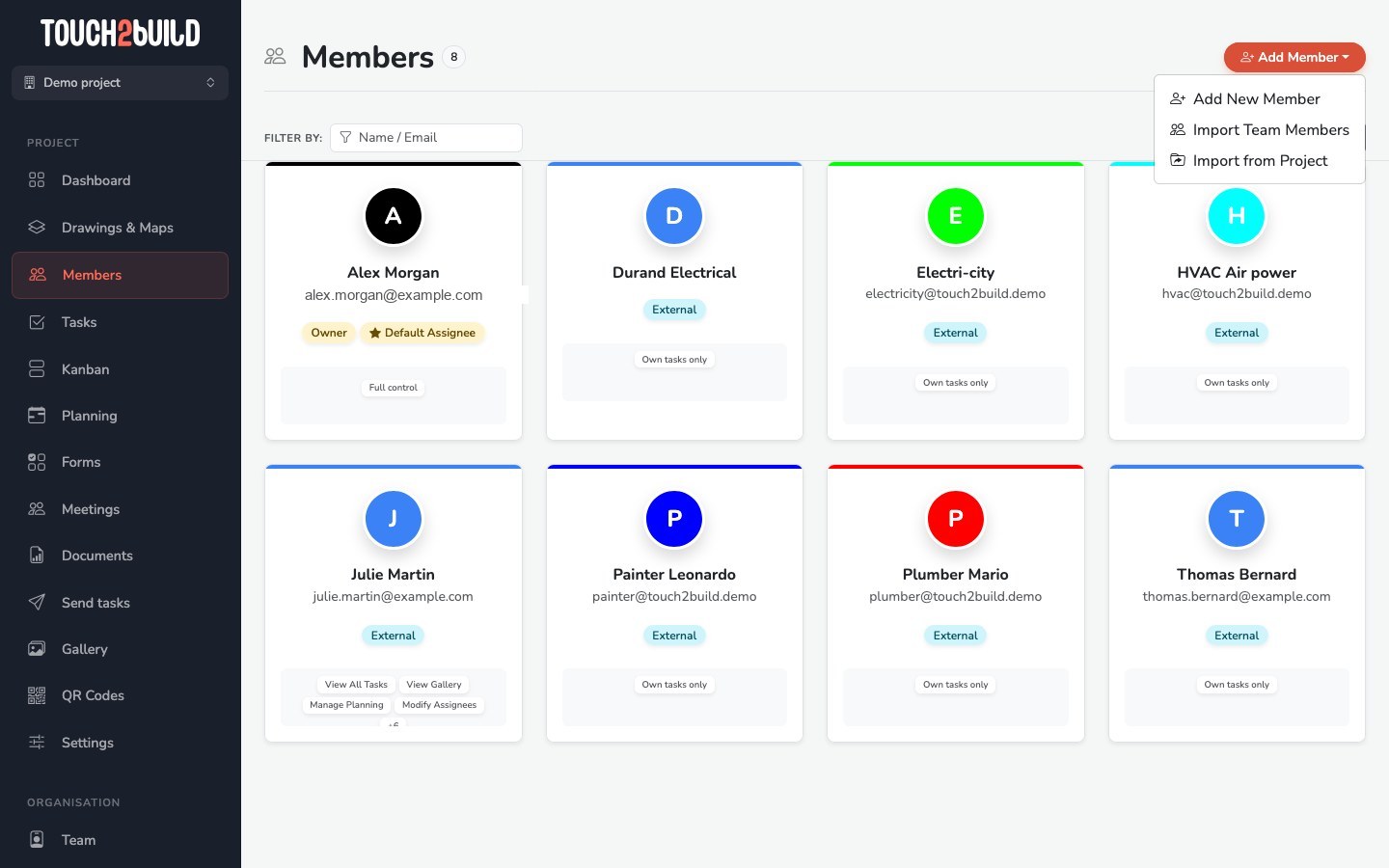
Add a new member
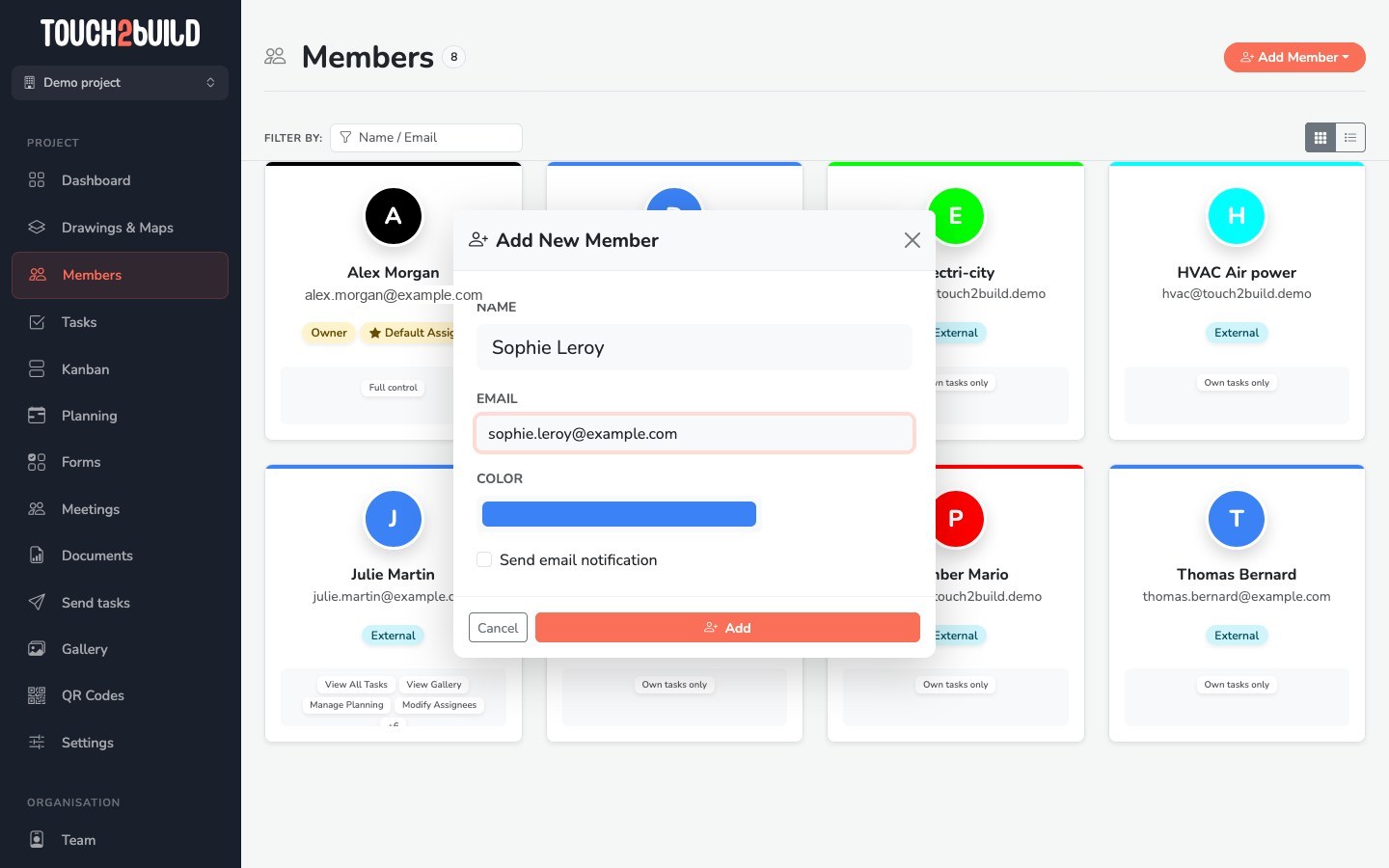
- Enter the Name.
- Enter the Email. The person uses this address to sign in.
- Choose a Colour if you wish.
- Tick Send email notification to tell the person straight away that they have access to the project.
- Click Add.
Notify now or later
If you want to set the member's permissions first, leave the box unticked and tell them yourself afterwards.
How does the member sign in?
If they do not have a Touch2build account yet, they create one with the same e-mail address you entered here. The project then appears automatically in their list, on the web and in the mobile app.
Add a company without an e-mail address
You can add a member without an e-mail address, for example a subcontracting company such as Durand Electrical. Enter only the name and click Add.
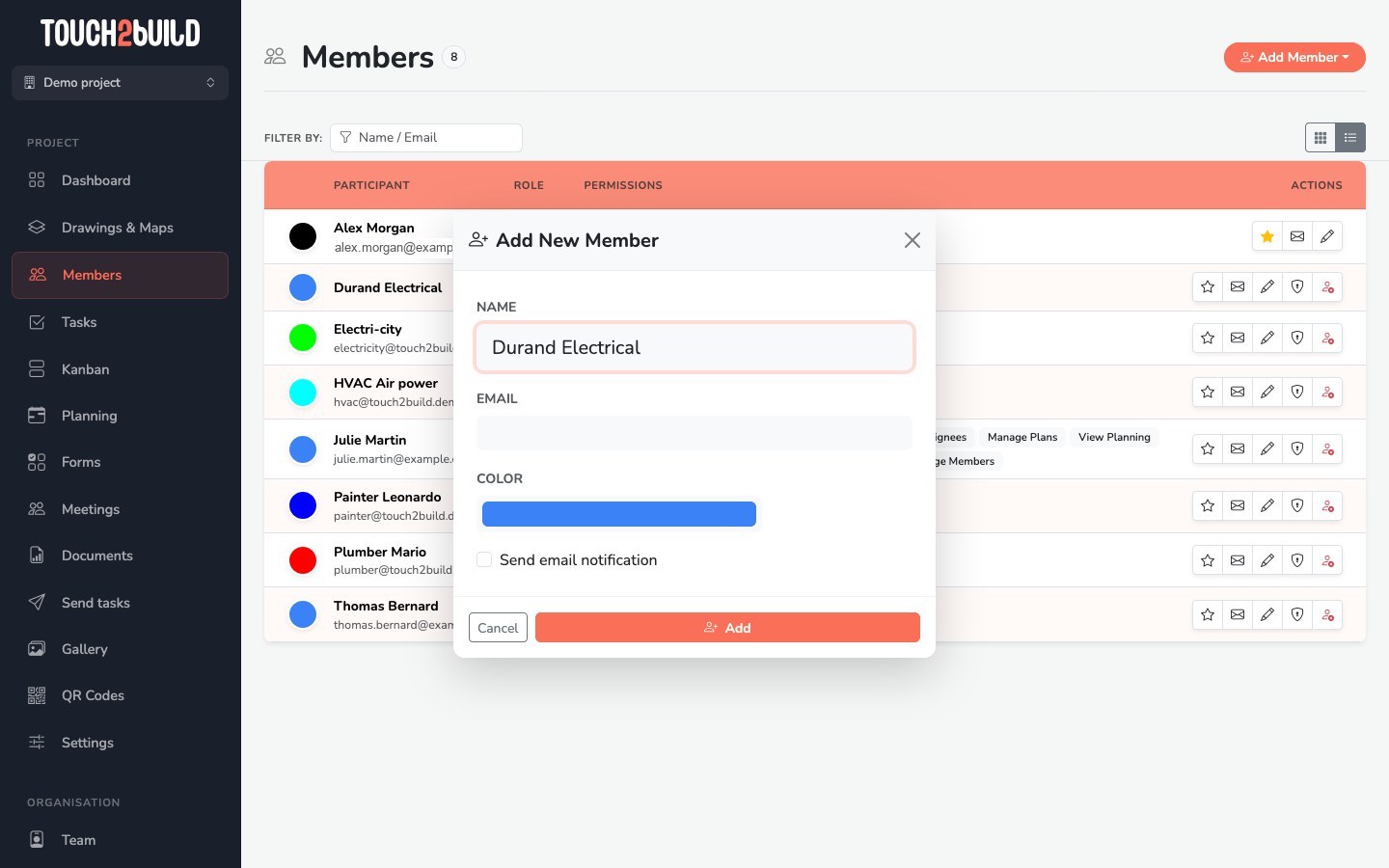
This member cannot sign in, but you can:
- assign tasks to them;
- filter tasks, the Kanban board and reports by company;
- send them a report of their tasks, exported from the task list.
This is the simplest way to follow the work of companies that do not use Touch2build.
Import from a project
To bring back a team you have already worked with:
- Click Add Member, then Import from Project.
- Choose the source project.
- Tick the members to bring over, then click Import.
The list view
The list view shows every member and their actions on a single line:
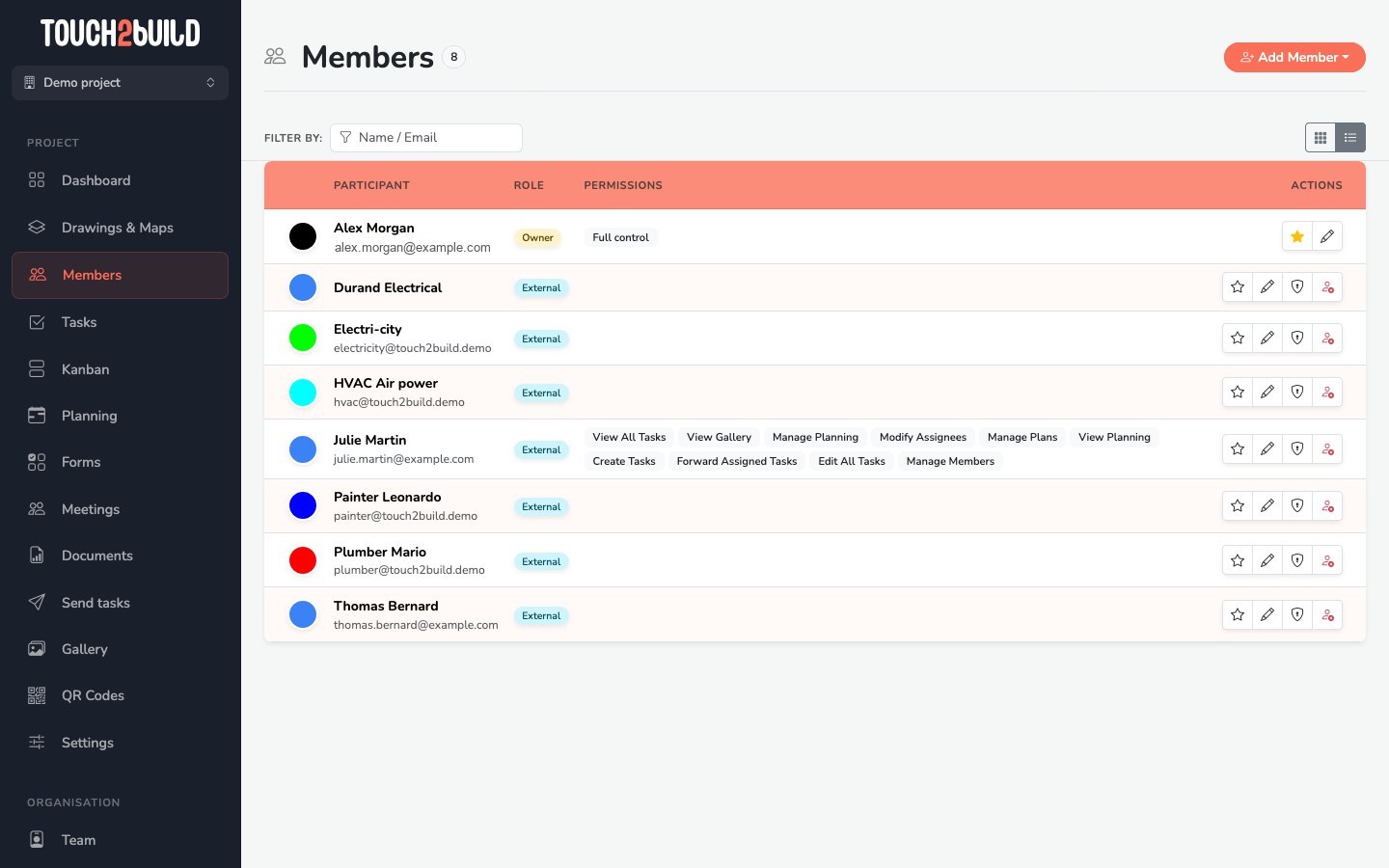
The buttons in the Actions column are, from left to right:
| Button | Action |
|---|---|
| Star | Set as default assignee: new tasks are assigned to this member unless you choose someone else. |
| Envelope | Task e-mails: send the member their tasks by e-mail, or stop. Only appears if the project allows it. See Follow your tasks by e-mail. |
| Pencil | Edit Profile: the member's name, e-mail and colour. |
| Shield | Security Rights: what the member can see and do (see below). |
| Remove | Remove Access: removes the member from the project. Their tasks are kept. |
Set permissions
Permissions decide what each member sees and does in the project. They protect your tracking: a subcontractor handles their tasks without being able to close those of others, and a client follows progress without being able to change anything.
Click the shield of a member to open the Permissions window.
A member you have just added has the minimum permissions: Own tasks, without task creation.
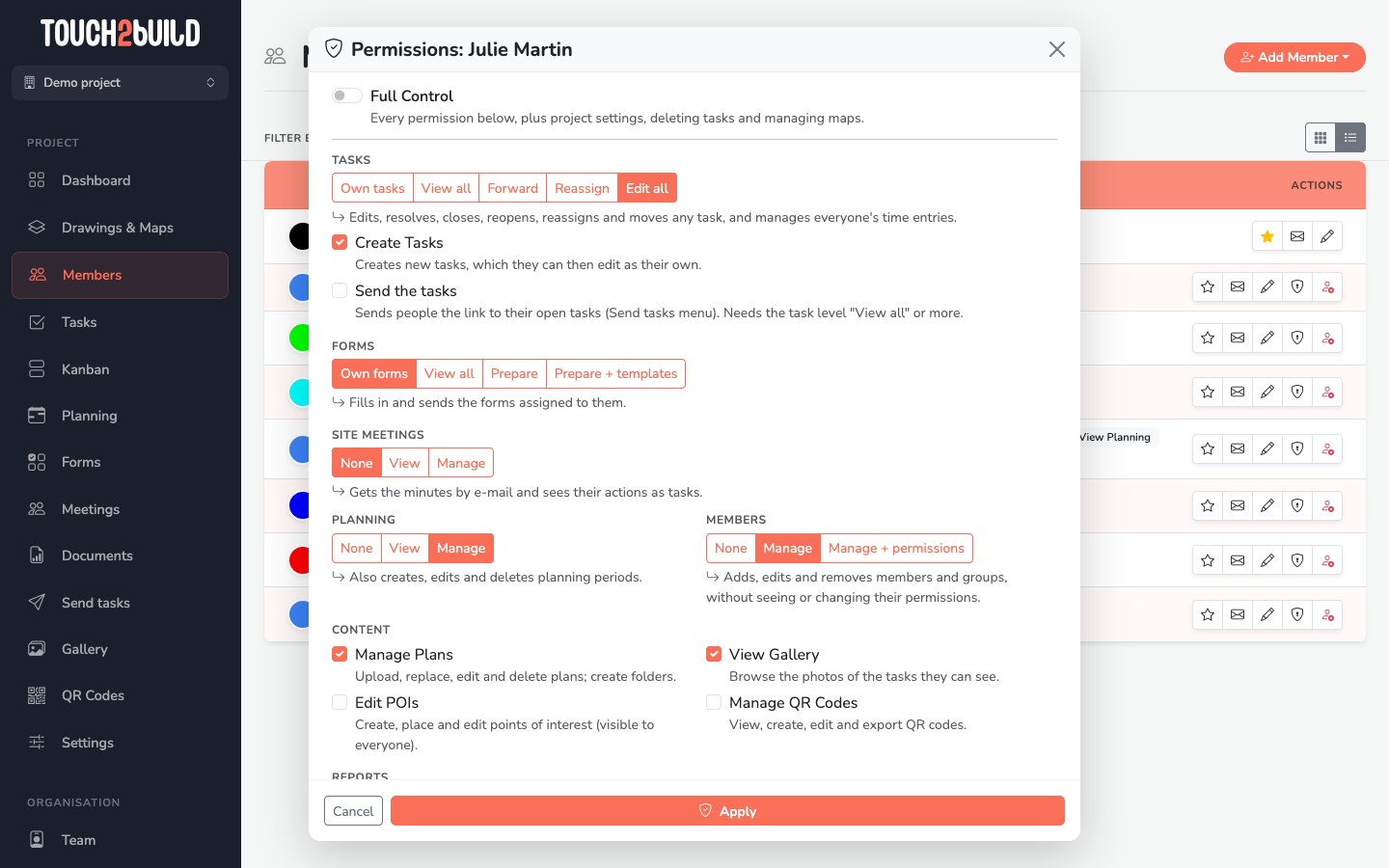
Full control
The Full control switch gives every permission in the project. It also adds editing the project settings, deleting tasks and managing maps. Keep it for the people in charge of the project.
Tasks
Choose a level. Each level includes the permissions of the levels to its left.
| Level | The member can… |
|---|---|
| Own tasks | see only the tasks they created or that are assigned to them; edit their own tasks; resolve or reopen those assigned to them. |
| View all | see every task in the project, but edit only their own. |
| Forward | pass the tasks assigned to them on to another member. |
| Reassign | change the assignee of any open task. |
| Edit all | edit, resolve, close, reopen, reassign and move any task, and manage the time logged by everyone. |
Tick Create Tasks so that the member can also create new tasks.
Planning and Members
| Section | None | View / Manage | Manage + permissions |
|---|---|---|---|
| Planning | no access to the planning | View: see and export the planning. Manage: create, edit and delete periods. | – |
| Members | cannot manage members | Manage: add, edit and remove members, without seeing their permissions. | also see and edit members' permissions. |
Site meetings
When site meetings are turned on for the project, a Site meetings section sets the level: None, View (the member gets the minutes by email and sees their actions as tasks) or Manage.
Forms
When forms and inspections are turned on for the project, a Forms section sets everyone's access: Own forms, View all, Prepare or Prepare + templates. See form permissions.
Content and reports
- Manage Plans
- Add, replace, edit and delete drawings; create folders.
- View Gallery
- Browse the photos of the tasks the member can see.
- Edit POIs
- Create, place and edit points of interest, visible to everyone.
- Manage QR Codes
- View, create, edit and export QR codes.
- Manage Report Templates
- Add and edit the project's Word and Excel templates.
- Send the tasks
- Send the people on site the link to their open tasks, from the Send tasks section. Requires the View all task level or higher. See Send tasks.
Click Apply to save.
Example settings
Edit all, Create Tasks, Planning Manage, Members Manage, Manage Plans and View Gallery.
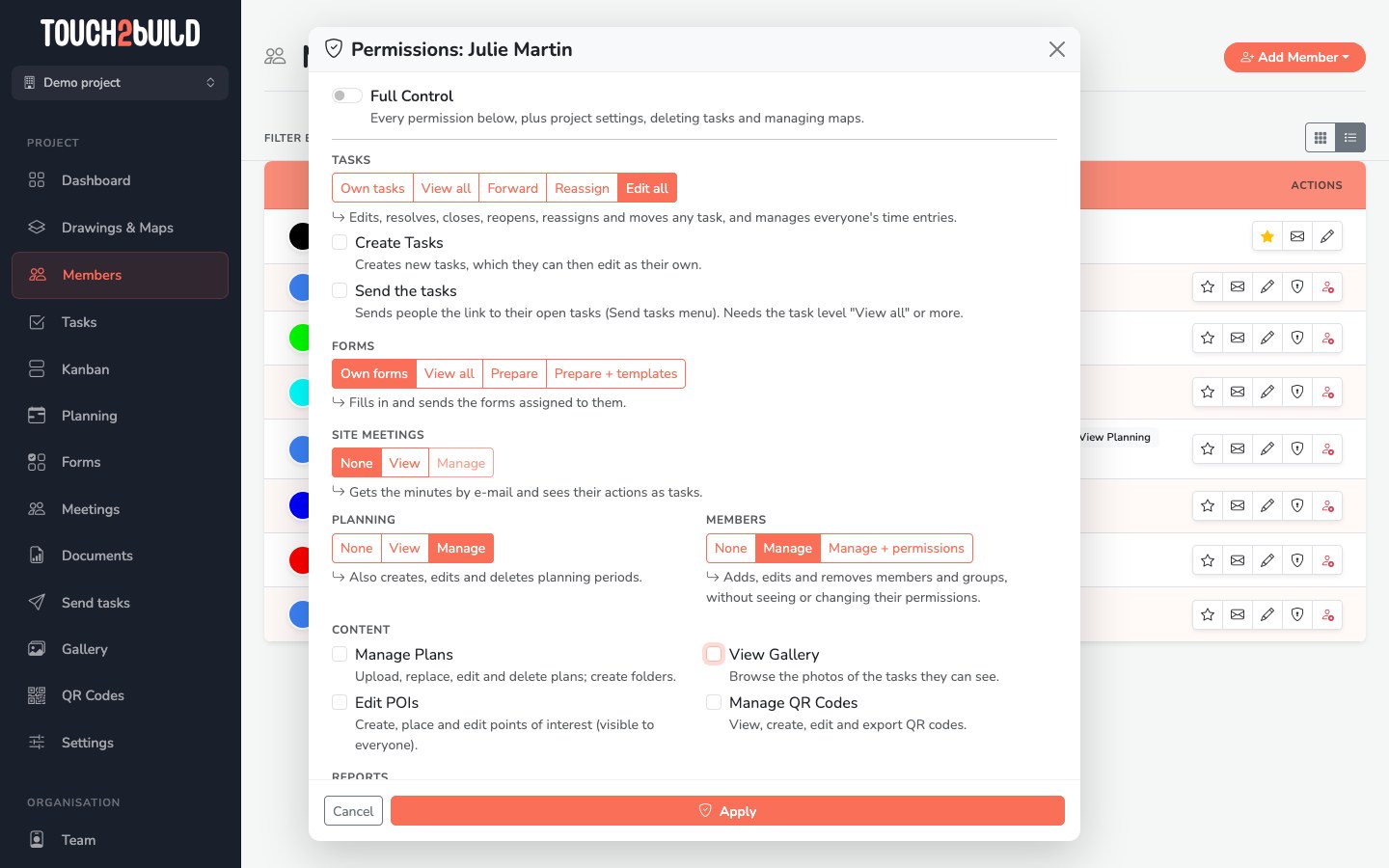
View all, Create Tasks, Planning View and View Gallery. They follow progress and report snags without changing other people's work.
Own tasks, optionally Create Tasks. They only see what concerns them and can resolve their own tasks.
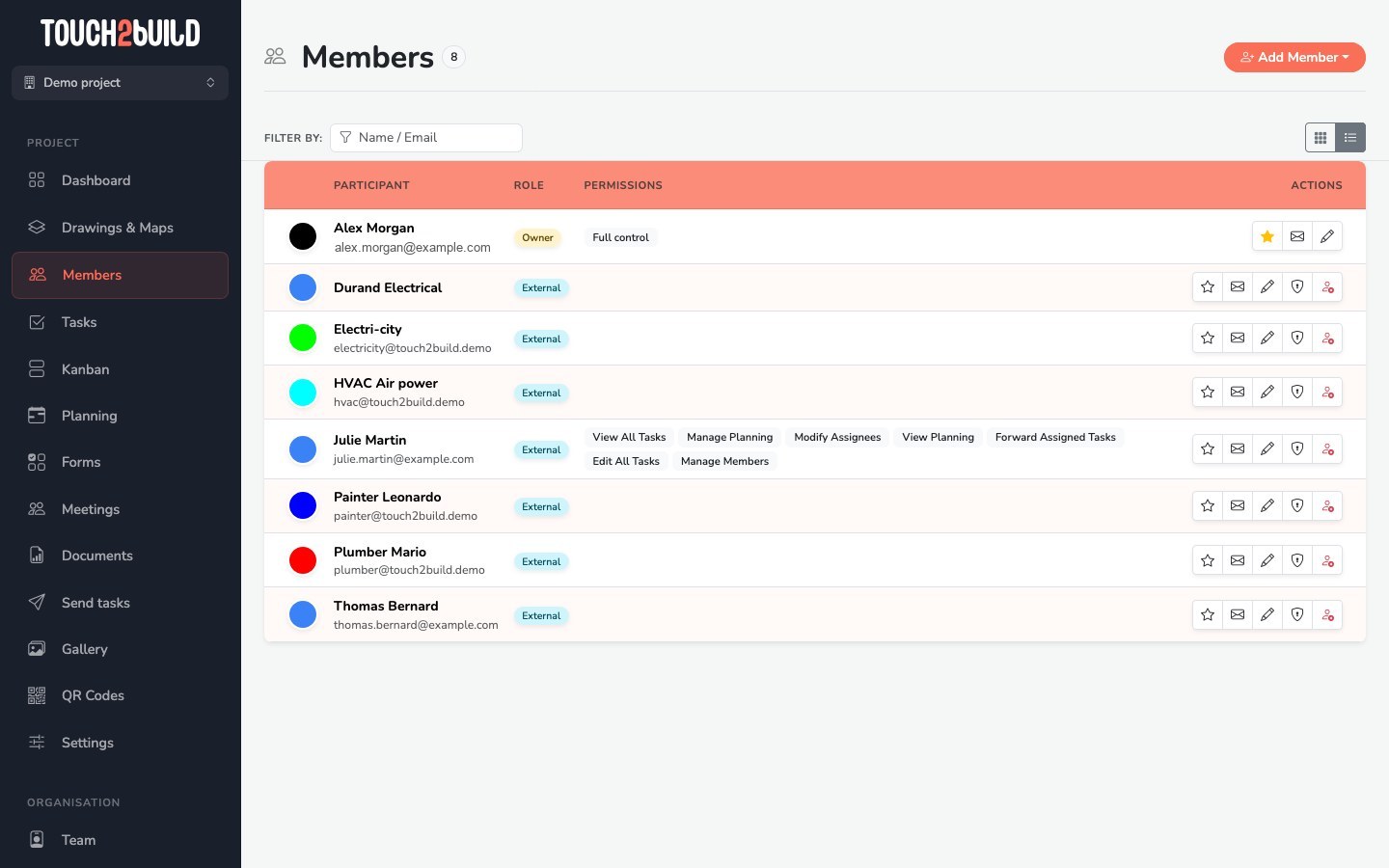
Once you confirm, the list view shows each member's permissions in detail:
Roles
| Role | Meaning |
|---|---|
| Owner | The creator of the project. They always have full control. |
| Teammate | A member of your organisation. |
| External | A person outside your organisation: client, architect, subcontractor… |
The role is for information only. What a member can do depends solely on their permissions.