Send tasks
The Send tasks section sends each person on the site the link to their open tasks in the project. They see them on the drawing and mark them as done from their phone, with no account and no app.
This is the simplest way to get tasks dealt with by a subcontractor who does not use Touch2build: one email, one button, and the list is always up to date.
The video shows a complete sending, then what the subcontractor receives.
How it works
- In Send tasks, you choose who to send to, add a message if you want, and send straight away or on a regular basis.
- Each person receives an email with the number of their open tasks, the first ones of the list and a See my tasks button.
- The button opens a page on their phone: their tasks, on the drawing, with photos and comments.
- For each task, they answer It's done or This is not for me. You see it straight away in Touch2build.
The page is not a frozen copy: it always shows the current state. A task you assign to them tomorrow appears there, a task you close disappears.
Who can send
You need the Send the tasks permission, in the member's permissions. It requires the task level View all or higher, and it is included in Full Control. The Send tasks section only appears in the project menu with this permission.
The people who receive the link are project members who have at least one open task assigned to them. Their own permissions change nothing: the page only shows their open tasks of this project.
Make a sending
Open Send tasks in the project menu and click New sending. The wizard has three steps.
1. To whom
- Everyone with open tasks: the wizard shows how many people and tasks that makes.
- Choose the people: tick the people. The number on the right of each name is their number of open tasks.
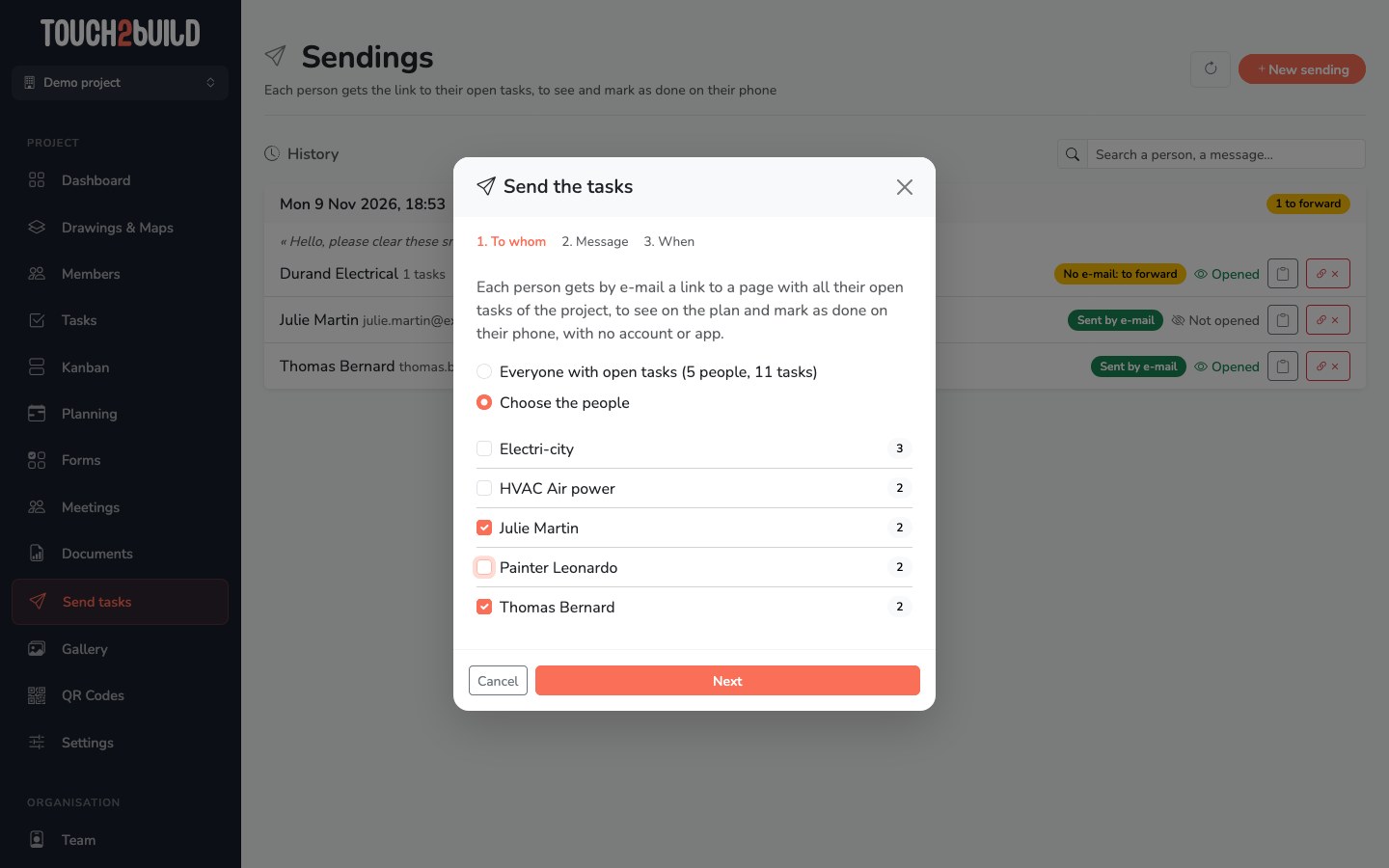
A person without an email address is marked (no e-mail: link to forward). They still get a link, but you pass it on to them yourself (see below).
2. Message
The message is optional. It is shown at the top of the email, above the button to see the tasks. For example: "Please finish these tasks before the handover on Friday."
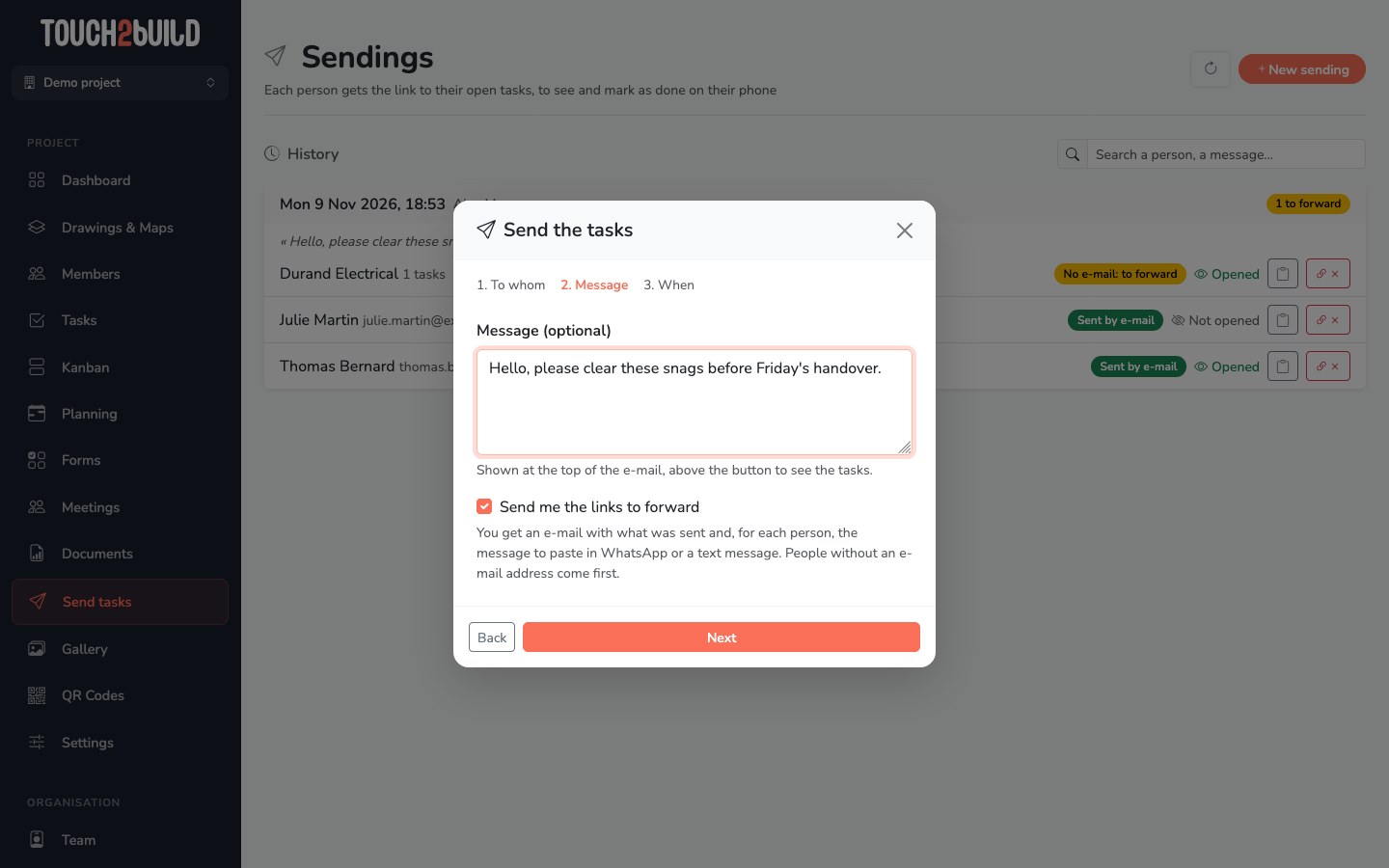
Tick Send me the links to forward to also receive a summary email: what was sent and, for each person, the ready-made message to paste into WhatsApp or a text message. People without an email address come first.
3. When
- Send now: the emails go out straight away.
- Send regularly: see Programmed sendings.
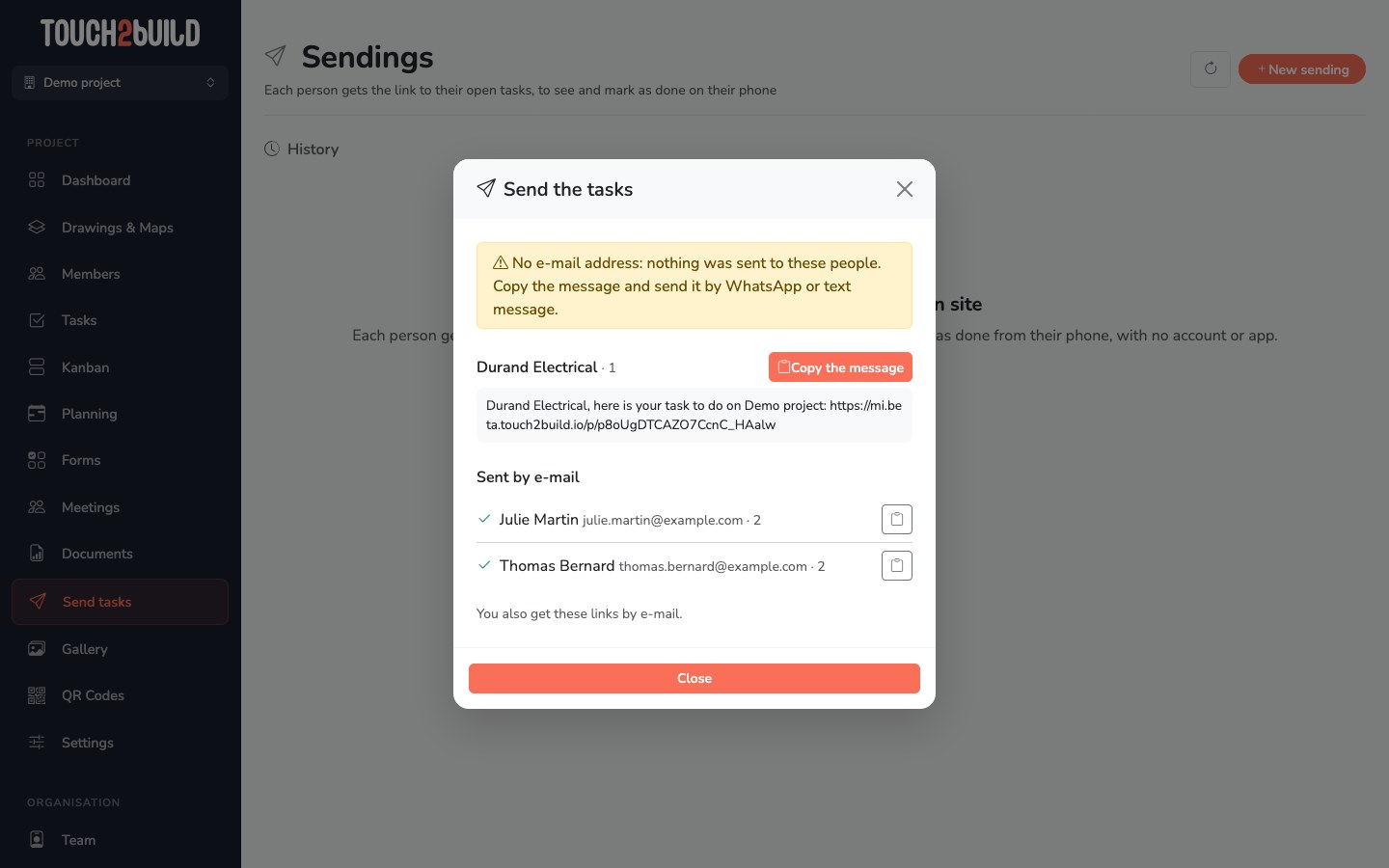
Click Send. The wizard shows the result:
- Sent by e-mail: the people who received the email;
- the people without an email address, with a Copy the message button (and Share on a phone) to send it to them by WhatsApp or text message;
- Not sent: the people who received nothing, and why.
Always sent
The email goes out even if the person has turned off their task notifications: you are the one sending it, it is not a notification. If they reply to the email, the reply reaches you directly.
What the person receives
The email
The subject gives the project and the number of tasks, for example [Résidence Les Tilleuls] 5 tasks to do. The email contains your message, the first tasks of the list, the number of late tasks and the See my tasks button. It is written in the person's language.
The page with their tasks
The page opens in the phone's browser, with no sign-in:
- at the top, the number of tasks to do and those done today;
- late tasks come first, with a Late on the planning badge (all the periods of their tag in the planning are over) or an Overdue badge;
- when they tap a task: its description, due date, photos, comments and its position On the plan. They can also add a comment;
- the Translate into English link (worded in their own language), under the title of each task, shows it in their language: see Translate a task.
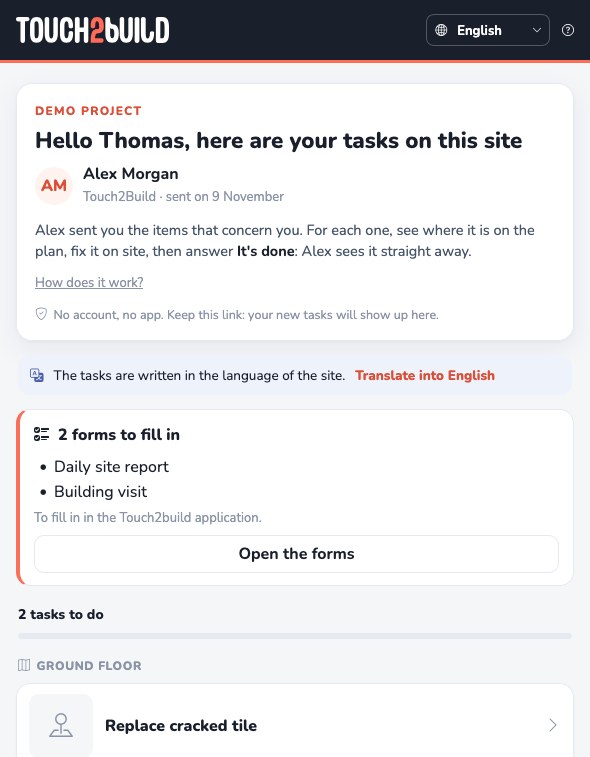
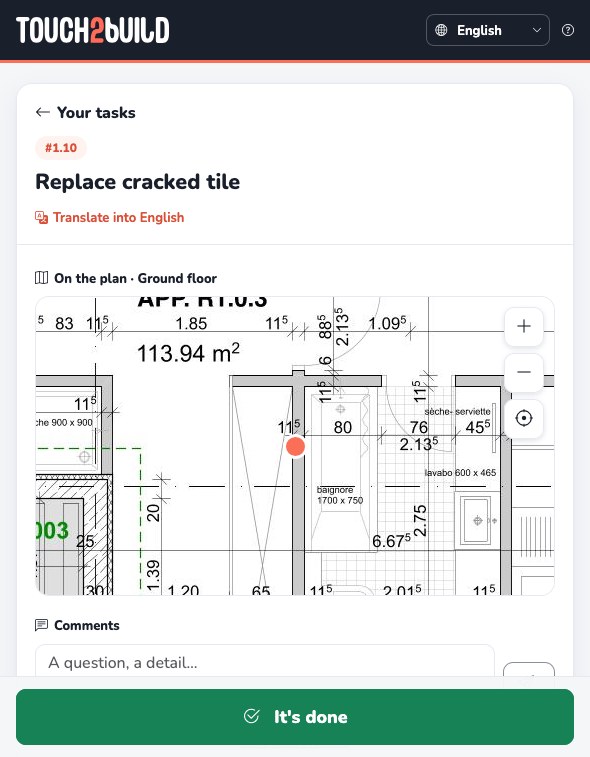
For each task, two buttons:
- It's done
-
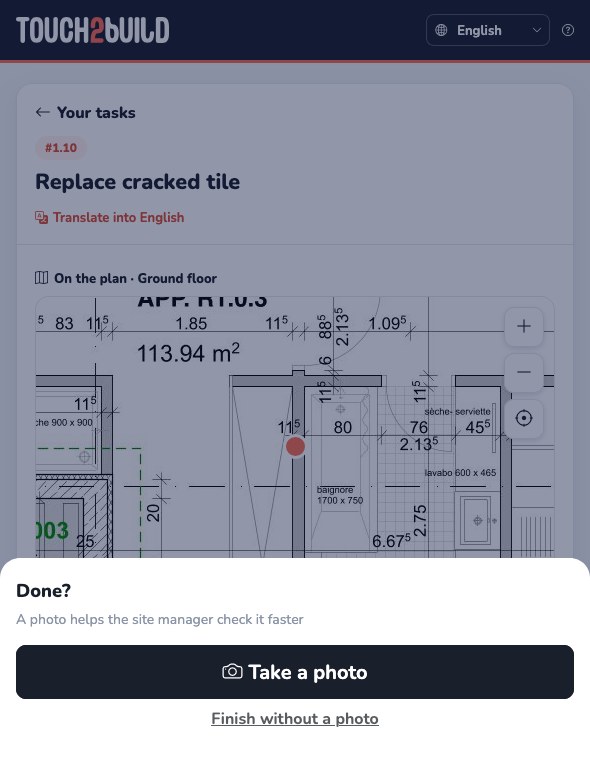
The task goes to the Resolved status: it waits for your check, as when a member resolves it in the application. The page offers to Take a photo to help you validate faster, or to Finish without a photo.
- This is not for me
- The task is handed back to the site team, with an optional comment ("Not my trade, already done by someone else…"). It is reassigned to the project's default assignee (the star in Members); if there is none, or if it is that person, to whoever sent them their tasks. The "This is not for me" comment is added to the task.
When everything is done, the page shows All done, thank you. The person keeps the link: their new tasks will appear there.
If the person does not have a Touch2build access yet, the page discreetly offers to create one, so they can in turn send their tasks to their teams. Their address is already filled in and their access picks up the tasks you assigned to them: nothing changes for you. Someone who already manages their own projects sees none of this.
Forms to fill in
When forms are active on the project, the email and the page also point out the forms the person has to fill in. They are filled in in the Touch2build application: the Open the forms button leads there.
The link
The link is personal: one person, one project. It stays valid for 60 days after the last sending. Each new sending to that person extends the same link: they can bookmark the page.
After 60 days without a sending, or if you disabled it, the page says that the link is no longer valid and invites the person to ask you for a new one.
History
The Send tasks page lists the last 50 sendings of the project, from the most recent to the oldest: date, author, message and a Scheduled badge for automatic sendings. The N to forward badge points out links that you still have to pass on yourself.
For each person, you see their number of tasks, what happened and whether they Opened their page (hover for the date) or not.
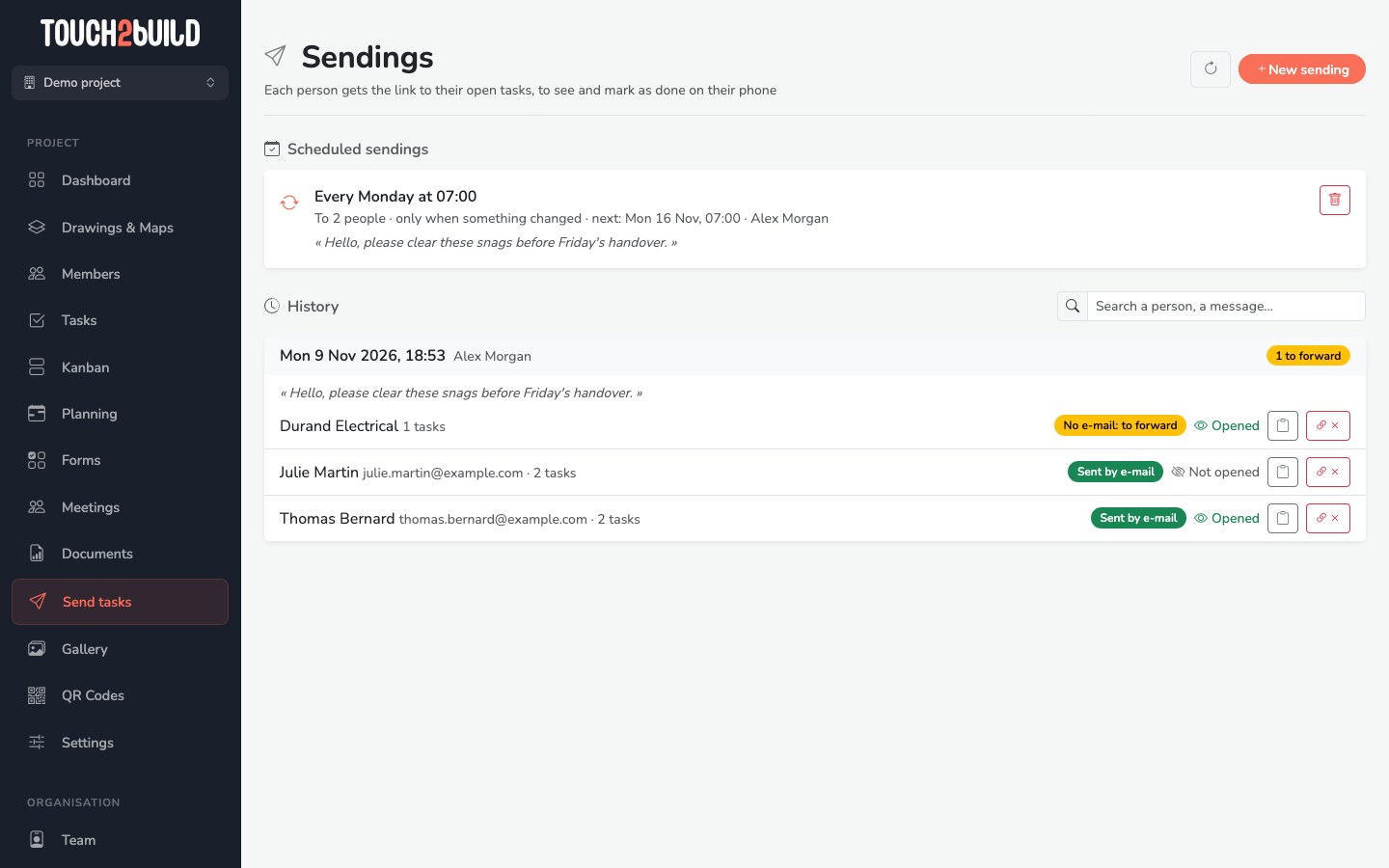
| State | Meaning |
|---|---|
| Sent by e-mail | The email went out. |
| No e-mail: to forward | The person has no address: copy the message and send it to them. |
| E-mail failed | The email could not be sent. Copy the message to pass it on another way. |
| No open task | The person had no open task left at the time of the sending. |
| Nothing new | Programmed sending with Only when something changed: no new task since their last sending. |
The buttons on the right:
- Copy the message: the text with the link, to paste into WhatsApp or a text message;
- Share (on phone and tablet): opens the system share sheet;
- Disable the link: the page stops working until the next sending of that person's tasks. Useful if the link was passed to the wrong person.
Search a sending
The Search a person, a message… field, to the right of the History title, searches the whole history of the project, even sendings older than the 50 shown. It finds a sending by:
- the name or email address of a person who received it;
- the name of the person who sent it;
- a word of the message.
Capitals and accents do not matter: "electricite" finds "Électricité". With several words, the sending must contain them all: "dupont friday" finds the sendings to Dupont whose message mentions Friday. In the sendings found, the matching people are highlighted.
Find a company's link
A company lost its link? Type its name, then Copy the message on the most recent sending: the link is always the same.
Programmed sendings
On the last step of the wizard, choose Send regularly, then:
- Every: the days of the week (at least one);
- at: the sending time;
- Only when something changed: a person only receives the email if they have tasks that were not in their last sending. Without this option, they receive it every time, as long as they have open tasks.
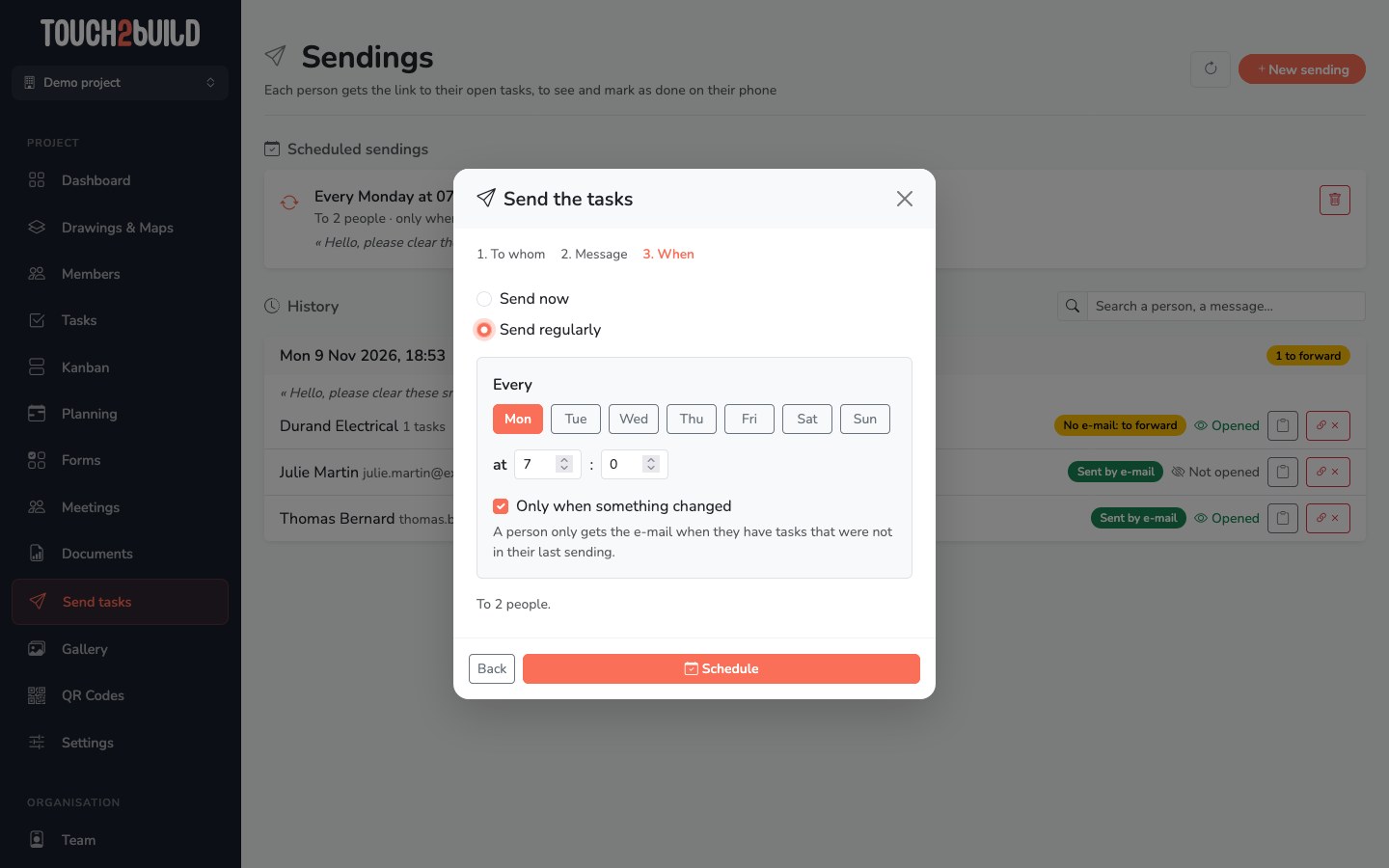
Click Schedule. The sending appears under Scheduled sendings, with its frequency, the recipients and the date of the next sending.
With Everyone with open tasks, the list is recalculated at each sending: a new subcontractor you assign tasks to is included automatically.
To stop a programmed sending, click the bin (Stop). The links already sent keep working.
Example: the Monday briefing
Program a sending every Monday at 7:00, to everyone with open tasks, with Only when something changed. Each company starts the week with its list, without receiving the same email twice.
On whose behalf?
A programmed sending goes out in the name of the person who created it, with their permissions. If they no longer have access to the project, or if they signed out of Touch2build on all their devices, the sending stops: program it again.