Tasks
A task is anything that needs handling on the construction site: a snag, a defect, a point to check, a question. It is the central item in Touch2build: in the field, most of the work consists of recording, handling and checking tasks.
Each task has a status:
| Status | Meaning |
|---|---|
| Open | To be handled. |
| Resolved | The assignee says it is done. The task waits for a check. |
| Closed | Checked and closed. |
This three-step cycle makes sure that work is only closed after it has been checked: the assignee resolves, the person in charge checks and closes.
Create a task
Record the task on the spot, when you see the problem. This avoids omissions and re-entering data in the office: photo, location and description go together.
A task can be placed on a drawing, on a map, or be attached to neither.
The video shows a task being created on a drawing, with the annotated snapshot of the drawing and a photo.
On a drawing
This is the most common case on a building site.
- In the Drawings tab, open the drawing of the level concerned.
- Zoom in on the area of the problem.
- Long press at the exact spot: keep your finger down for half a second without moving.
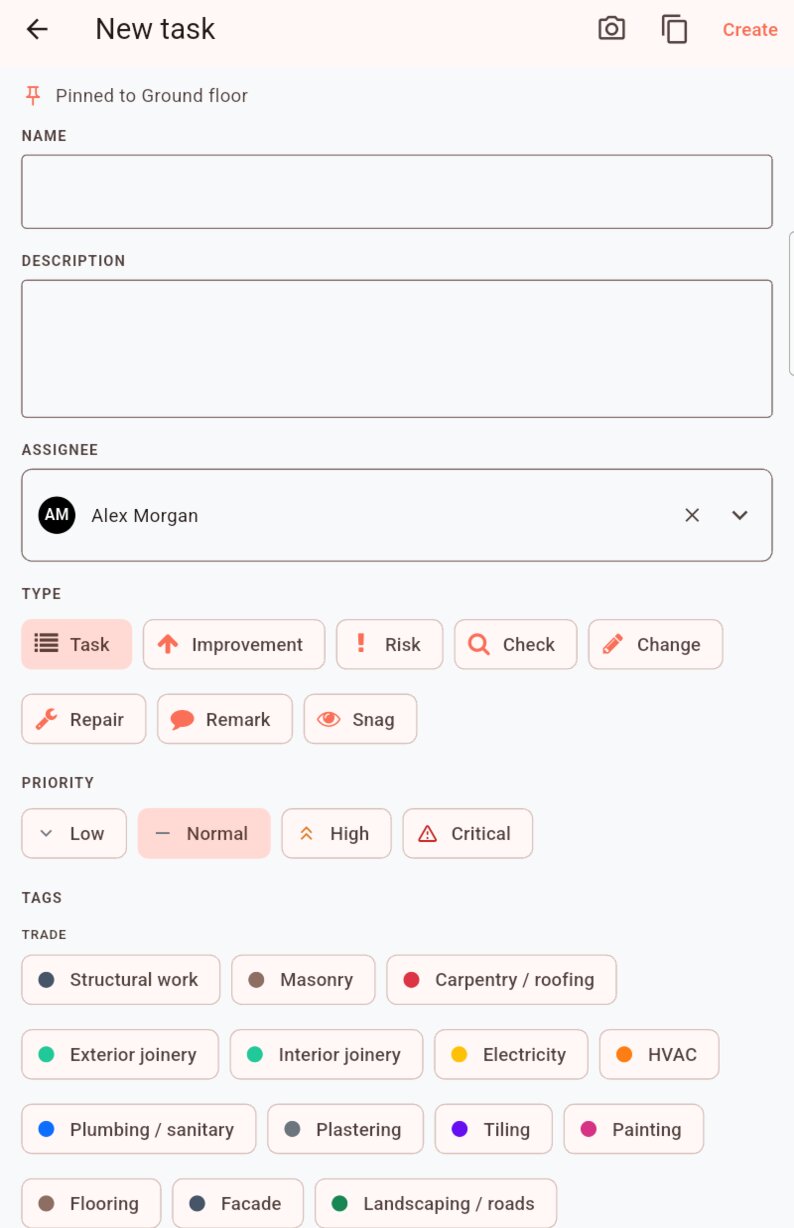
- The New task screen opens. Fill in the fields. Remember to capture and annotate the drawing: the excerpt appears in reports.
- Tap Create.
At the top of the screen, Pinned to reminds you of the chosen drawing. The pin appears on the drawing, at the chosen spot.
On a map
For large sites (roads, utilities, landscaping), the task is placed on a geographic map, in the same way:
- In the Drawings tab, open the map.
- Long press at the spot of the problem.
- Fill in the fields, then tap Create.
The task is then located by its GPS coordinates.
Without a drawing or map: the generic task
Some tasks are not attached to a precise place: Provide the joinery data sheets, General site clean-up, Update the PPSPS (the site health and safety plan required in France)... This is a generic task, common to the whole project.
- In the Tasks tab, tap the + button at the bottom right.
- Fill in the fields, then tap Create.
The task appears in the task list, but on no drawing.
Can't see the + button?
Creating generic tasks needs a specific right. Without it, tasks can only be created on a drawing or a map. See Set rights.
Task fields
- Name
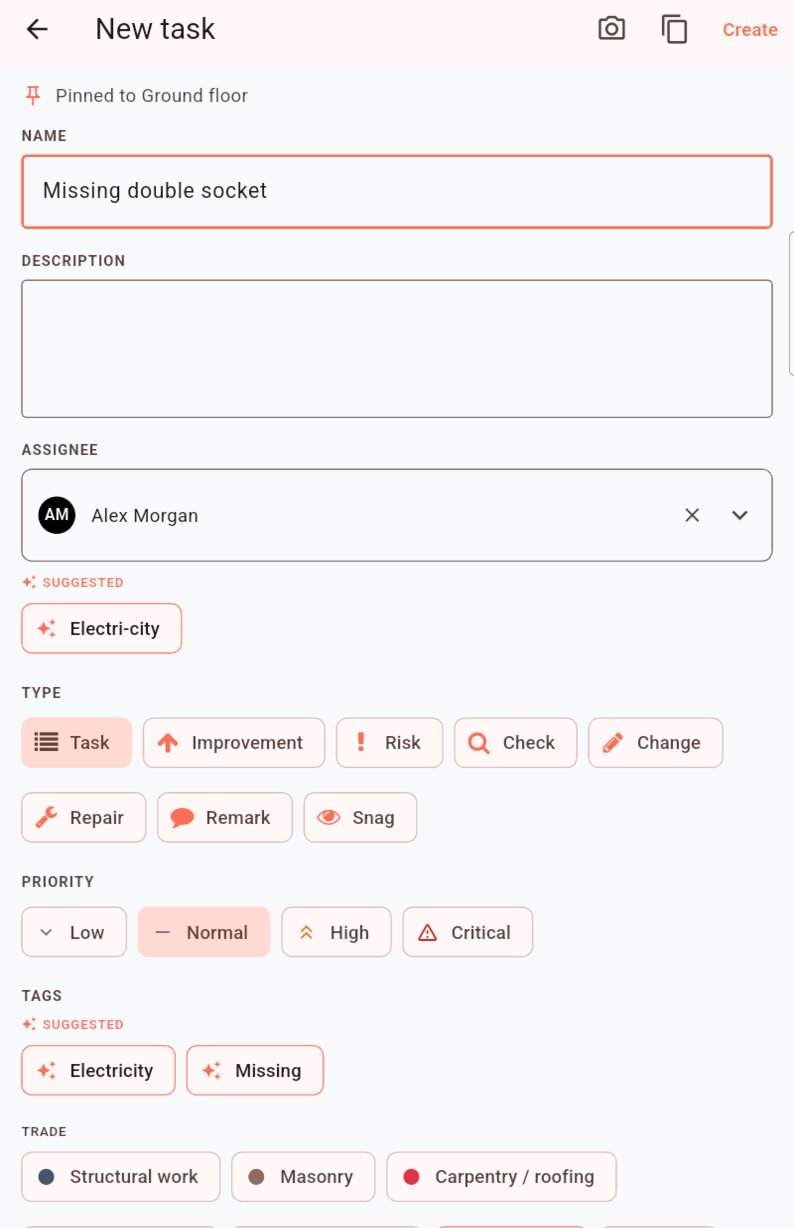
- A short, clear title, for example Missing socket. As you type, the app suggests names already used in the project: tap a suggestion to reuse it. If you leave the name empty, the task takes the name of its type followed by a number, for example Snag 12.
- Description
- The details the assignee needs.
- Assignee
- The member or company that must handle the task. The field is pre-filled with the project's default assignee, if there is one.
- Type
- The nature of the task: Task, Snag, Check, Remark... The project's default type is preselected.
- Priority
- Low, Normal, High or Critical. Normal by default.
- Tags
- The trade and the nature of the problem, for example Electrical and Missing. Up to 10 tags per task.
- Location
- A detail about the place: flat, room, utility room...
- Deadline
- The date by which the task must be handled.
- Progress
- Turn on Track progress to give a percentage of completion.
- Pictures
- See Photos and annotations.
Automatic suggestions
As soon as you have entered the name, Touch2build suggests the most likely assignee and tags, based on the tasks already created in the project. They appear under Suggested: tap a suggestion to apply it. Suggestions appear when the project has at least five assigned or tagged tasks.
Copy a task: favourites and recent
On a site, the same defects come back from one flat to the next: the same missing socket, the same leaking trap, the same paint touch-up. Rather than entering everything again, start from an existing task with the Copy from… button, at the top of the New task screen.
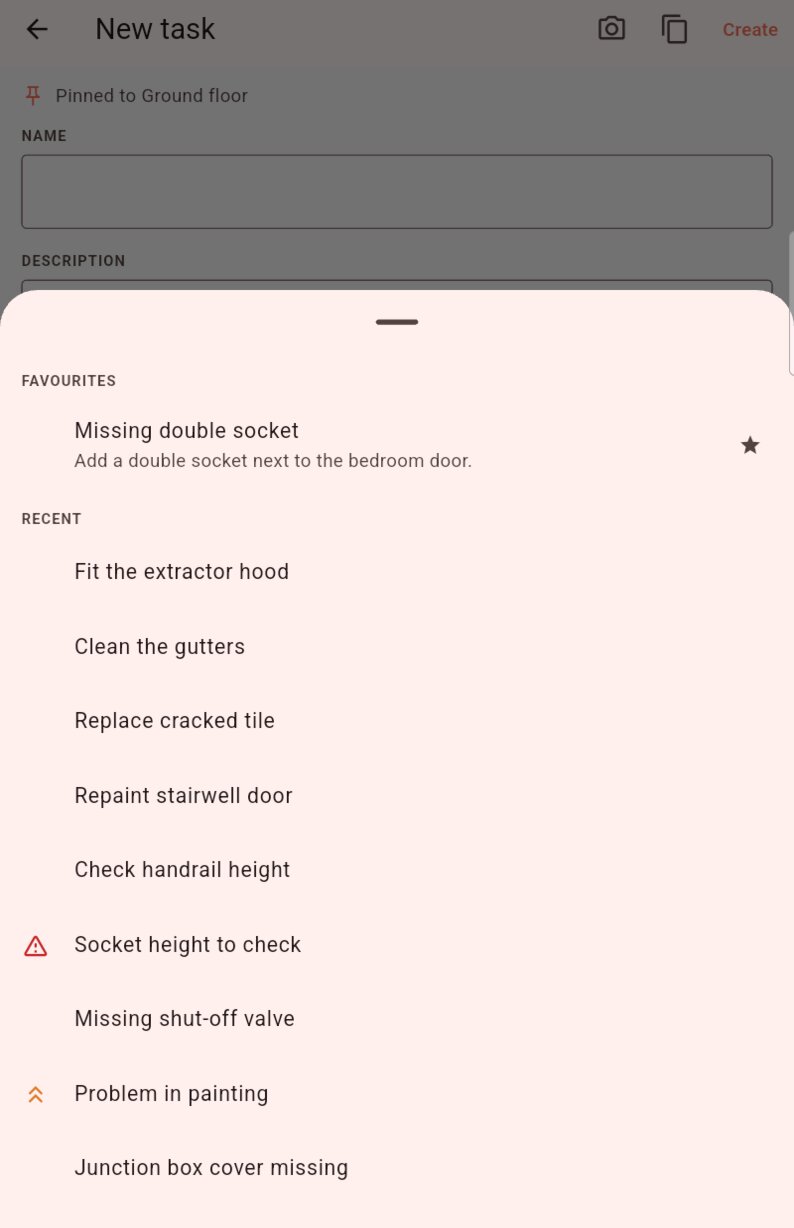
The list has two parts:
- Favourites
- The project's favourite tasks, most recent first. They are shared: a task marked as a favourite by one member is offered to the whole team.
- Recent
- Your last 15 tasks, without duplicate names.
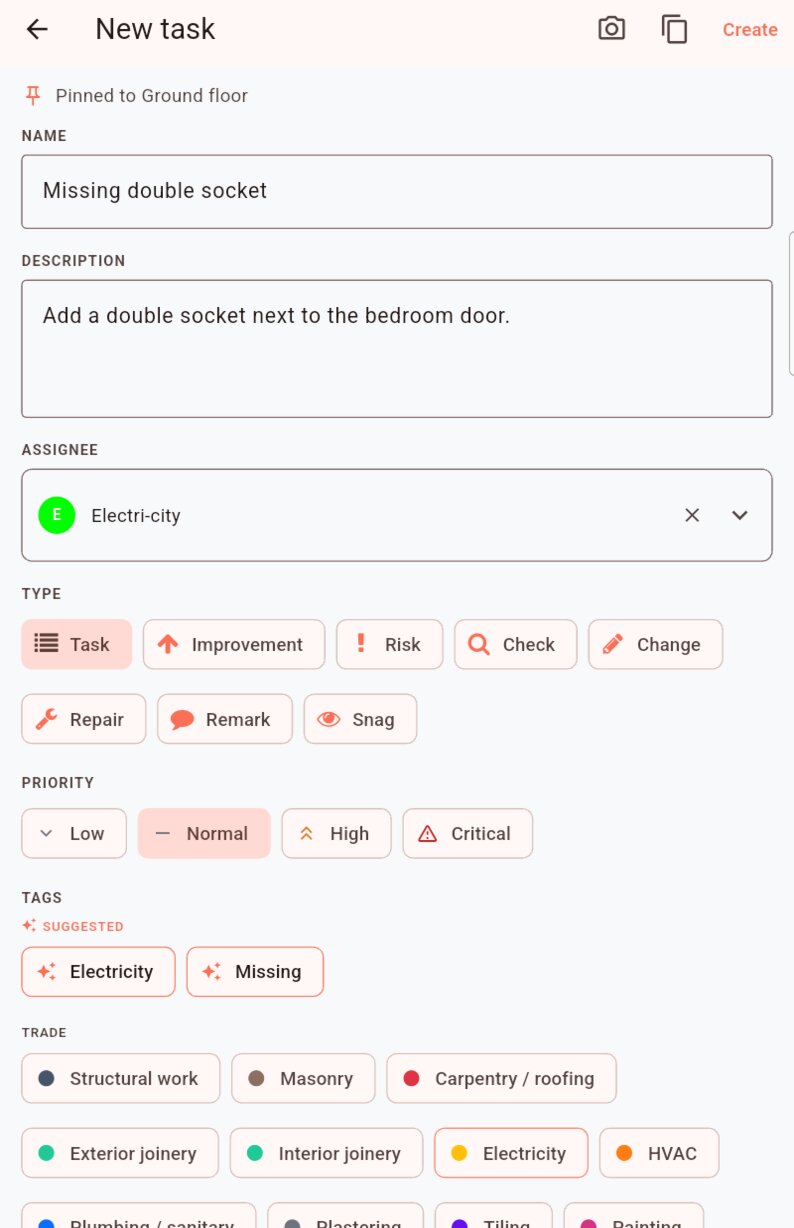
Tap a task: the form is pre-filled with its name, description, location, type, assignee, priority and pictures. Complete or correct it, then tap Create. The new task is placed where you made the long press.
Check the copied photos
The photos of the original task are copied, including any drawing excerpt: it shows the old location. Remove it with and take a new Snapshot.
Tags, deadline and progress are not copied: choose them for the new task. The suggestions help you do that.
Mark a task as a favourite
Open the task details and tap the star (Add to favorites). The star turns yellow, and the task carries a star in the task list. Tap it again to remove it from the favourites.
Prepare your favourites
Before an acceptance visit, create a well-written task for each common defect, with its description, type, priority and the company concerned, then mark it as a favourite. On site, each new task takes two gestures: long press on the drawing, then choose from Favourites.
Only open tasks can be added to or removed from the favourites.
The task list
The Tasks tab lists the project's tasks. By default, only open tasks are shown, most recently modified first. This is where you find what is left to handle, for example before walking round the site.
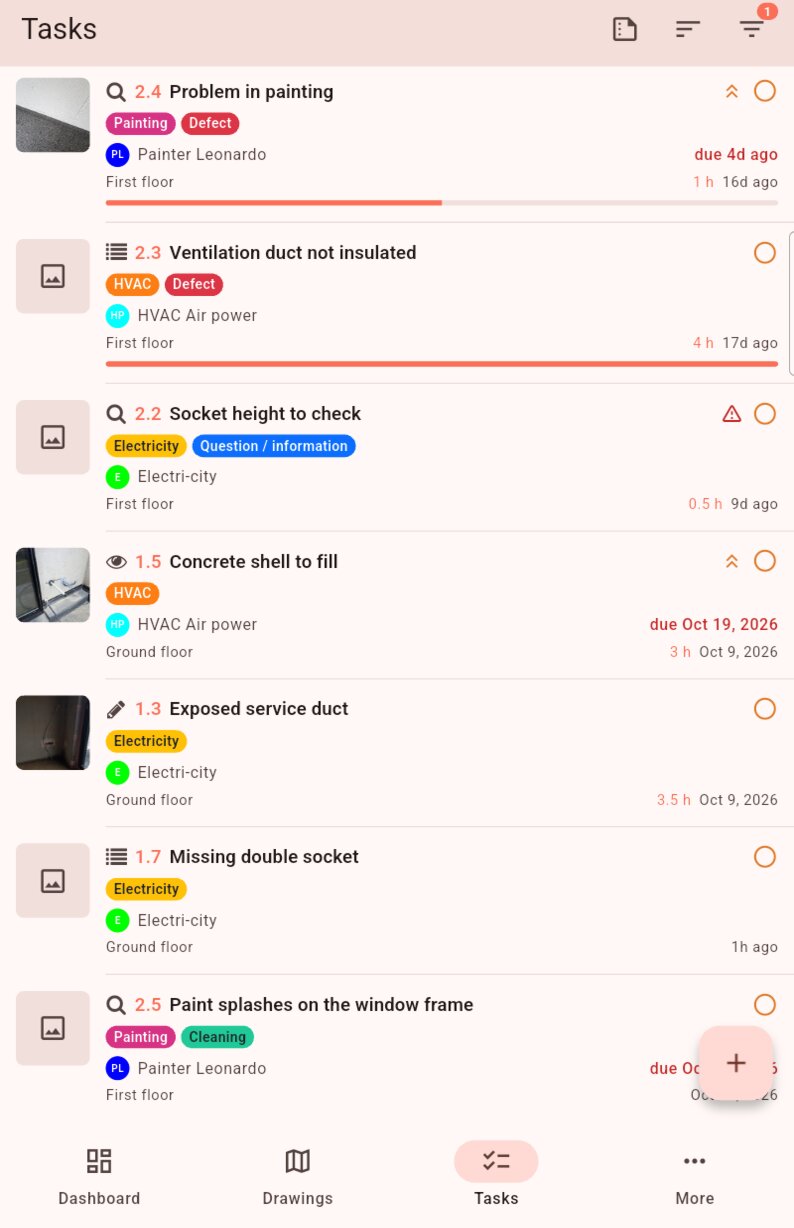
Each row shows:
- the task's first photo;
- the type icon, the number and the name. The number 1.5 means task 5 of drawing no. 1;
- a star if the task is a favourite;
- the priority: for High, for Critical;
- the status: empty orange circle for Open, green tick for Resolved, grey tick for Closed;
- the tags, the assignee and the deadline, in red if it has passed;
- the drawing or map, and the creation date;
- the progress bar, if progress is tracked.
Tap a task to open its details. Pull the list down to sync.
Filter
Tap at the top right. The badge shows the number of active filters: 1 by default, the filter on open tasks.
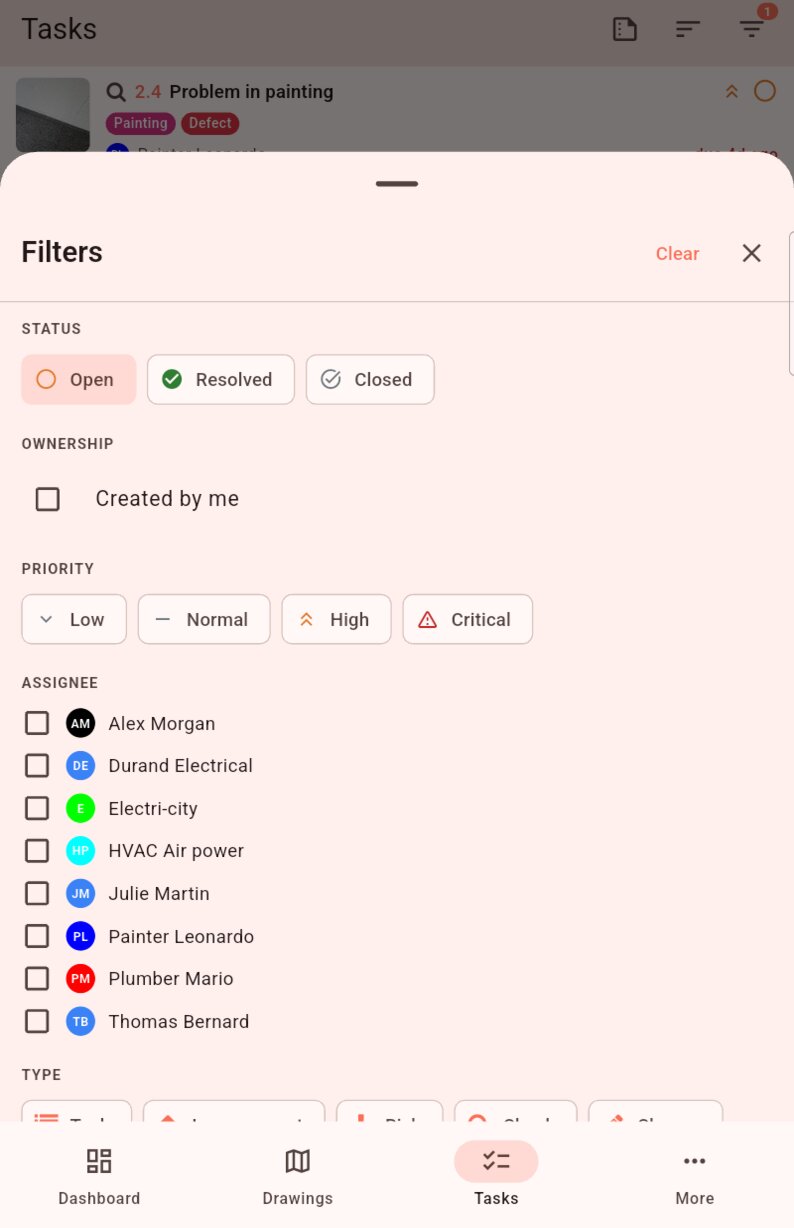
- Status, Priority, Type;
- Ownership: Created by me;
- Assignee: one or more assignees;
- Tags: Without tags, or one or more tags. With at least two tags, turn on Must have all selected tags to show only the tasks that have all of them;
- Search: name, description, task number or comment text.
Within one section, choices add up: Electrical or Plumbing. Sections combine with each other: High and assigned to Electri-city.
Clear filters removes all filters, including the one on open tasks: all tasks are then shown.
Note
The list's filters and those of each drawing are independent. They are kept as long as the app stays open.
Sort
Tap : Task number, Name, Deadline, Progress or Recently updated.
Receive a report
Tap at the top right, choose the Layout, By drawing / map or By assignee, then tap Send.
The report is sent to your email address. It contains the tasks in the list, with its filters and sort order. Tag filters are not taken into account. You need a connection.
For fuller reports, use the web app: see Reports and exports.
Task details
Tap a task in the list or a pin on a drawing: the details open at the bottom of the screen. Drag the handle to enlarge them.
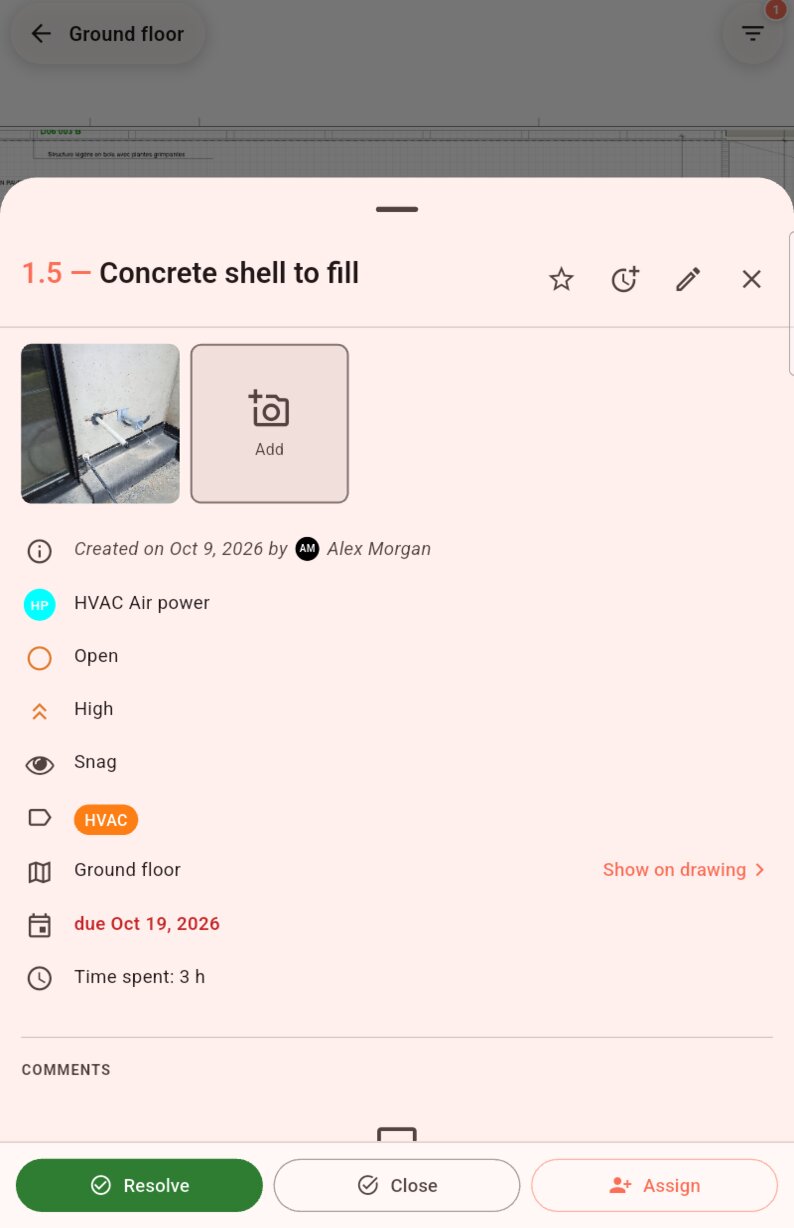
At the top, the task number and name, then:
- : mark the task as a favourite;
- : log hours, if the project allows it;
- : edit the task;
- : close the details.
Next come the photos, description, creator, assignee, status, priority, type, tags, drawing, location, deadline and progress, then the comments.
Tap Show on plan, next to the name of the drawing or map, to open it centred on the task: its pin flashes for a few moments.
Change the status
The buttons at the bottom of the details depend on the task's status and your rights:
| Button | Available when the task is… |
|---|---|
| Resolve | Open. |
| Close | Open or resolved. |
| Reopen | Resolved or closed. |
| Assign | Open. Choose the person from the list. |
Each action offers an optional comment, for example Socket fitted, to be checked.
Who can close a task?
The assignee can resolve the task but not close it: the person who checks, for example the lead designer, closes it. See Set rights.
Comments
Type in Write a comment… then tap the send arrow. Your comments appear on the right, in orange; those of other members on the left.
Long press a comment to Copy it. On your own comments, you can also Edit or Delete it.
Photos and annotations
In the details, tap Add to Take a photo or Pick from gallery. Tap a photo to show it full screen; swipe to move to the next one.
To annotate a photo, open the task with , then tap the photo:
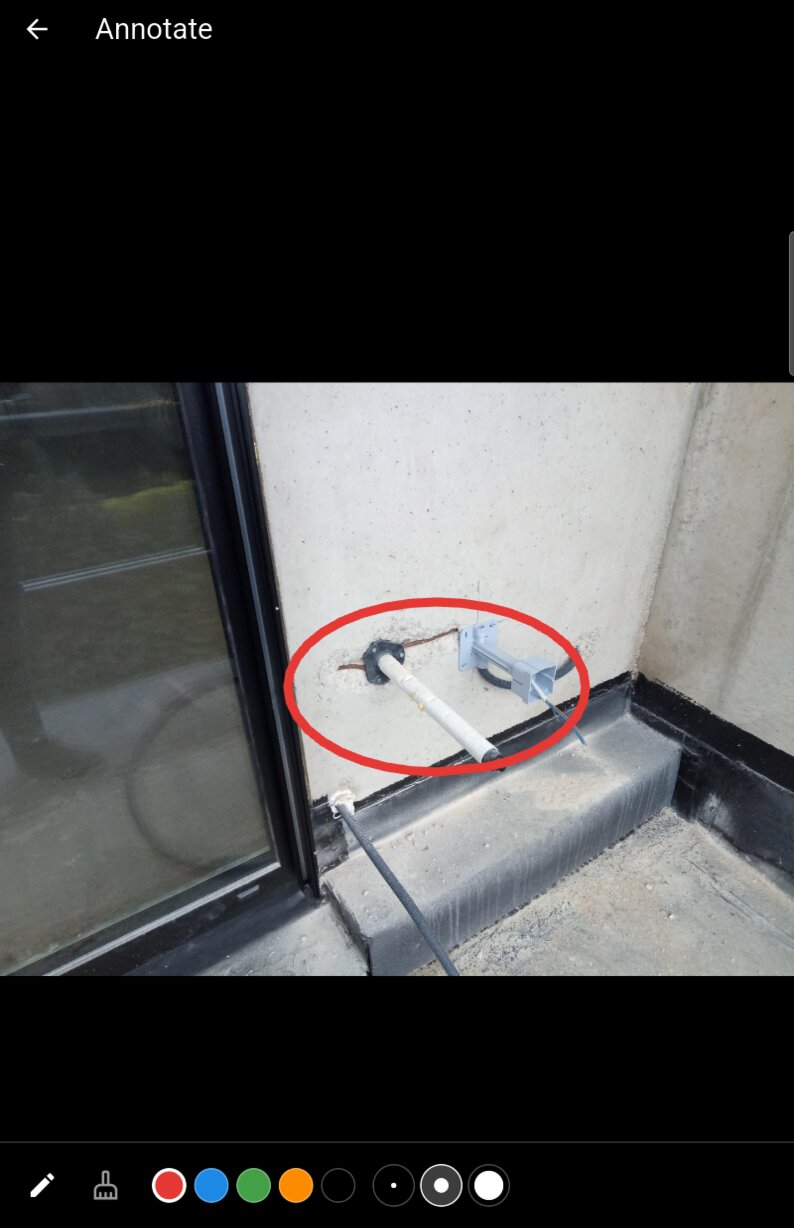
- the pen draws, in the colour and thickness you choose;
- the eraser deletes the stroke you touch.
Each stroke is saved as soon as you lift your finger. With shape recognition, a circle, rectangle, triangle or arrow drawn freehand becomes a clean shape. See Settings.
Capture and annotate the drawing
When you create a task on a drawing or a map, the Snapshot button, in the Pictures section, adds an excerpt of the drawing around the chosen spot, at the zoom level shown. An orange dot marks the task's location.
The aim is to annotate this excerpt:
- Tap the excerpt's thumbnail.
- Circle the area concerned, draw an arrow, cross out an element.
- Tap Save, then Create.
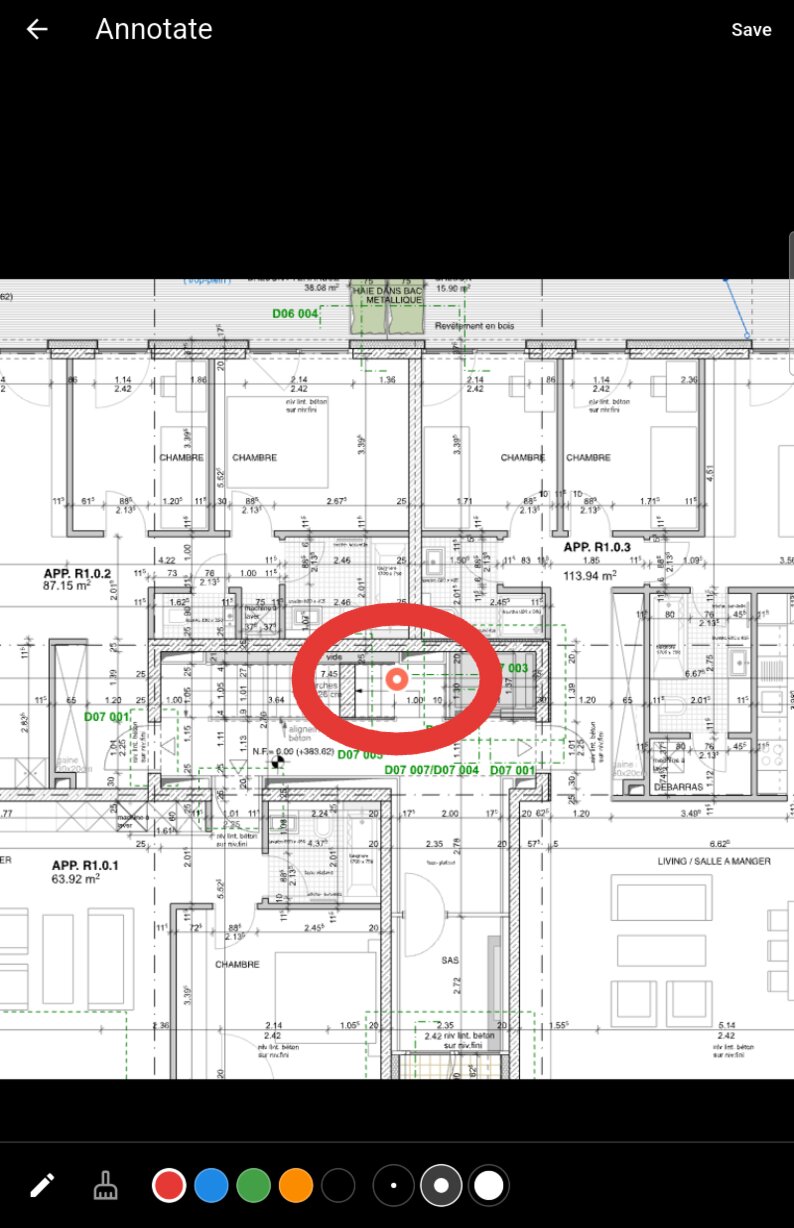
The annotated excerpt becomes a photo of the task like any other: it appears in the details, in the web app and in reports. The reader of a report sees exactly where the problem is and what needs doing, without opening the drawing.
Tip
Zoom in on the area before the long press: the excerpt uses the zoom level shown. The closer you are, the more legible the excerpt.
Edit a task
Tap in the details. The Edit task screen shows the same fields as when creating. Tap Save.
An assigned task can be reassigned to another person, but cannot go back to unassigned.
Editable tasks
Only open tasks can be edited. To correct a resolved or closed task, reopen it first.
Log hours
If time tracking is turned on in the project:
- In the details, tap .
- Enter the number of hours, for example 1.5 for an hour and a half, then confirm.
The entry is saved under your name and today's date. The Time spent line in the details and the list show the task's total. Like everything else, logging hours works offline.
Correct an entry
On mobile, you can add hours but not edit them. To correct or delete an entry, use the web app.
Move or duplicate a task
On the drawing or map, long press the pin, then choose:
- Move: long press at the new position;
- Duplicate: long press where the copy should go. This is handy when the same defect repeats in several flats.
An orange banner reminds you of the action in progress; Cancel stops it.
The copy keeps the name, description, type, priority, assignee, deadline, progress and tags. It restarts with the Open status, without photos or comments.