Forms
On the construction site, the mobile app is used to fill in and send the forms assigned to you, even without a network. Preparation (templates, creating forms, inspections, closing, reports) is done in the web app.
Find your forms
When forms are active on the project, the dashboard shows a forms to fill in card, with the number of late forms. Tap it to open the list:
- To fill in by you: your forms, nearest due date first;
- To fill in by others: those of other members, if you have the right to see them;
- Sent: the forms already sent, most recent first.
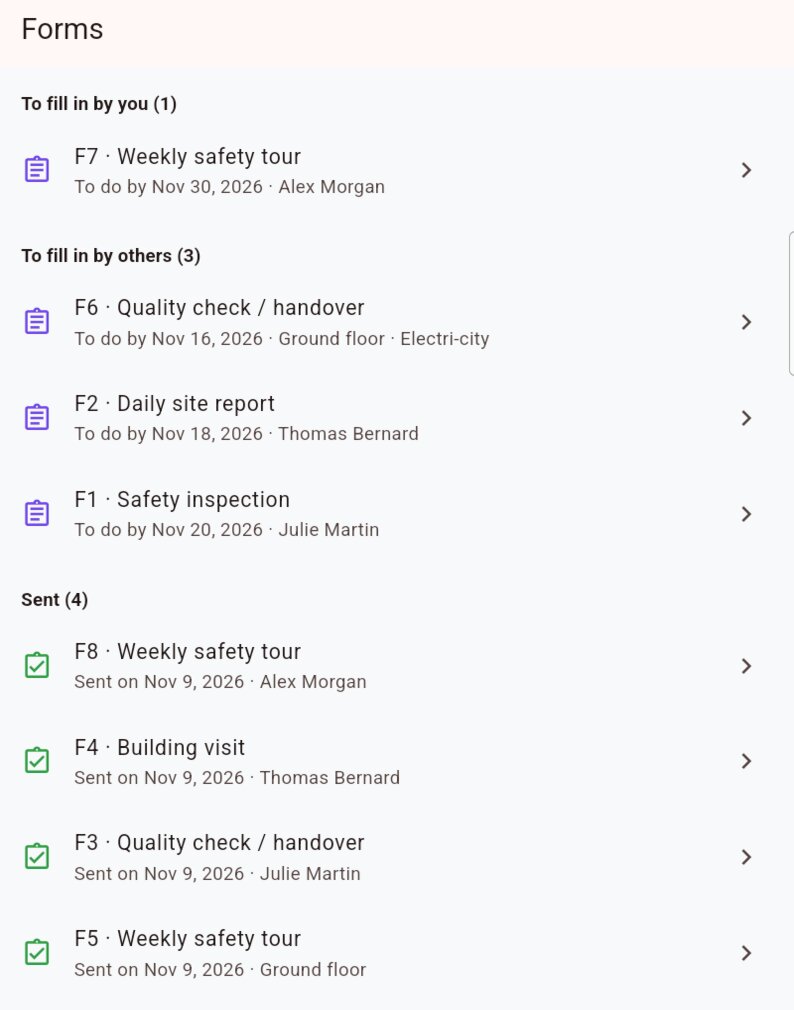
Each row shows the form's number and name, the due date, in red if it has passed, the drawing and the assignee.
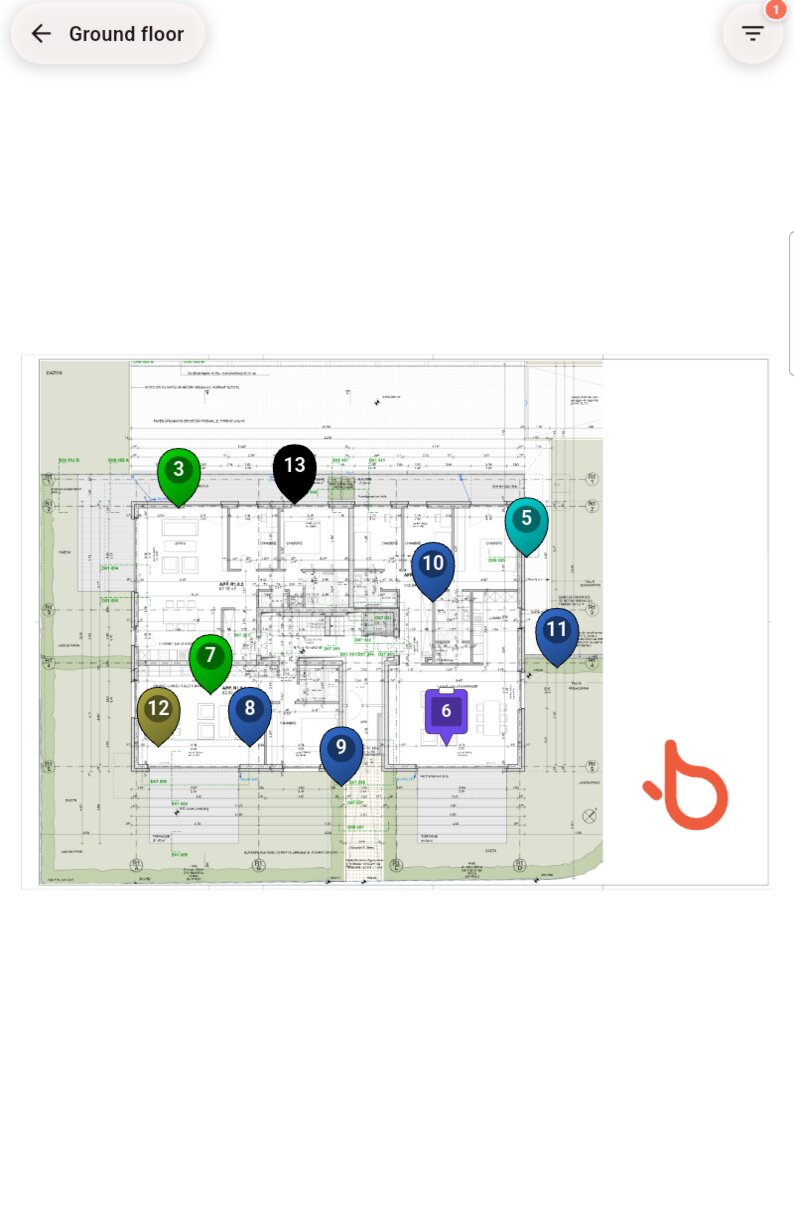
On drawings, forms to fill in appear with a violet clipboard-shaped marker. Tap it to open the form.
Fill in a form
At the top of the screen, a card shows the due date, the assignee, the drawing and progress: the number of questions answered out of the total. Part of an inspection marks a form that belongs to a round of forms.
Answer the questions in order. Mandatory questions carry a red asterisk.
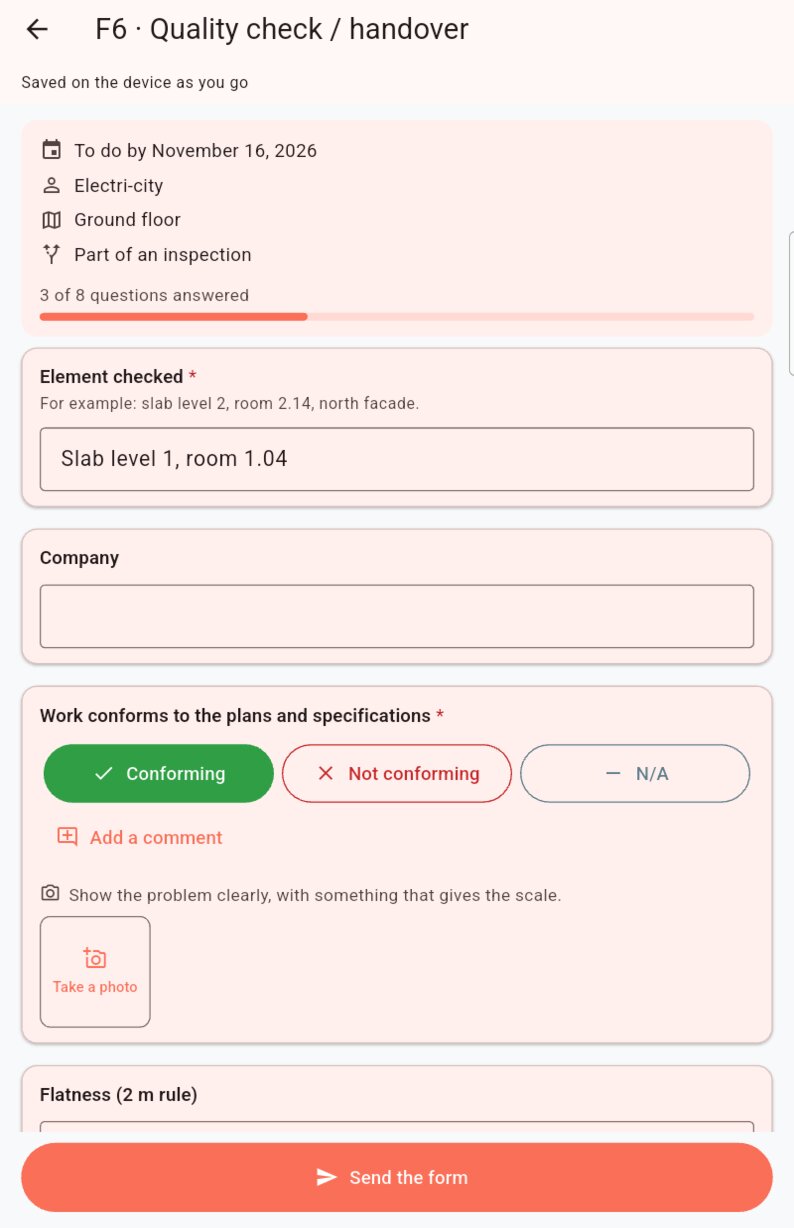
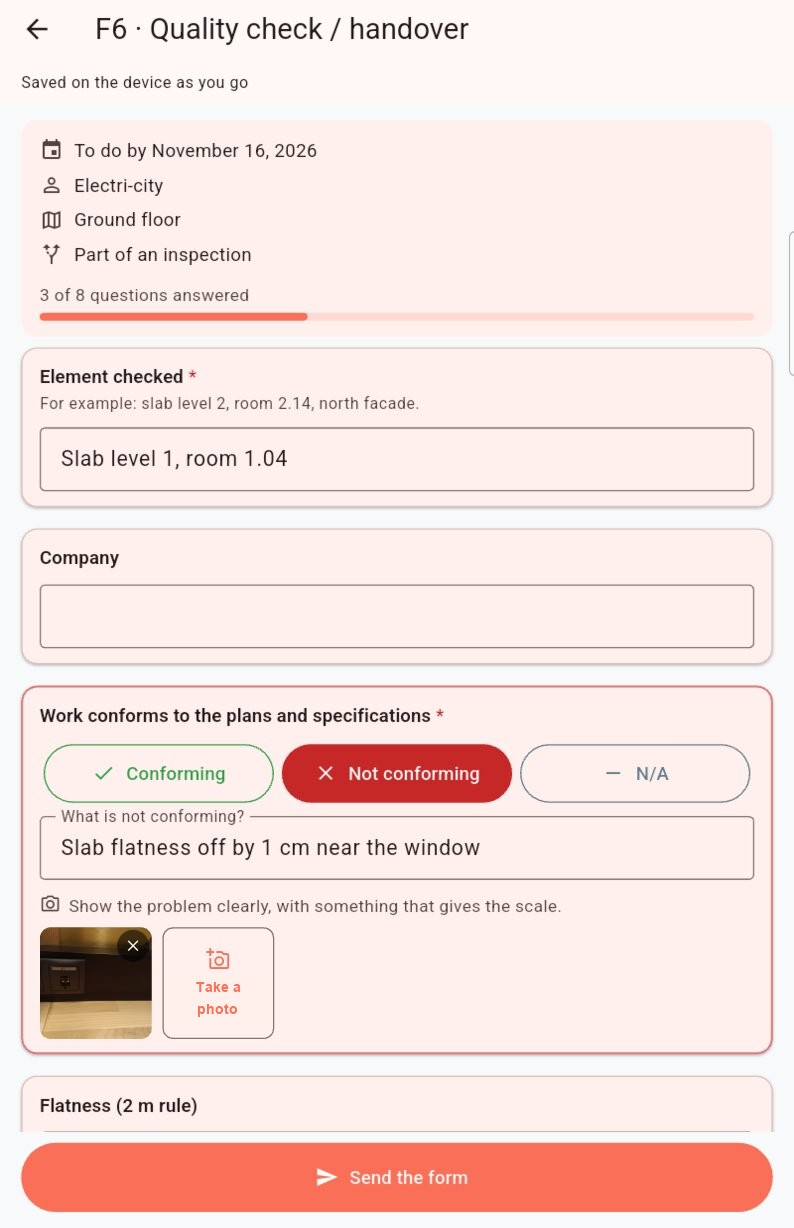
- Conforming / not conforming: tap Conforming, Not conforming or N/A. Tap again to cancel. If something is not conforming, describe the problem in What is not conforming?.
- Rating: tap a value. Below the template's threshold, it is shown in red.
- Measurement: enter the value. The target and tolerance are shown; outside the tolerance, Not conforming appears automatically.
- Photos: tap Take a photo. The photo guidance appears above. Photos are taken with the camera, not from the gallery. Photo required marks a missing mandatory photo.
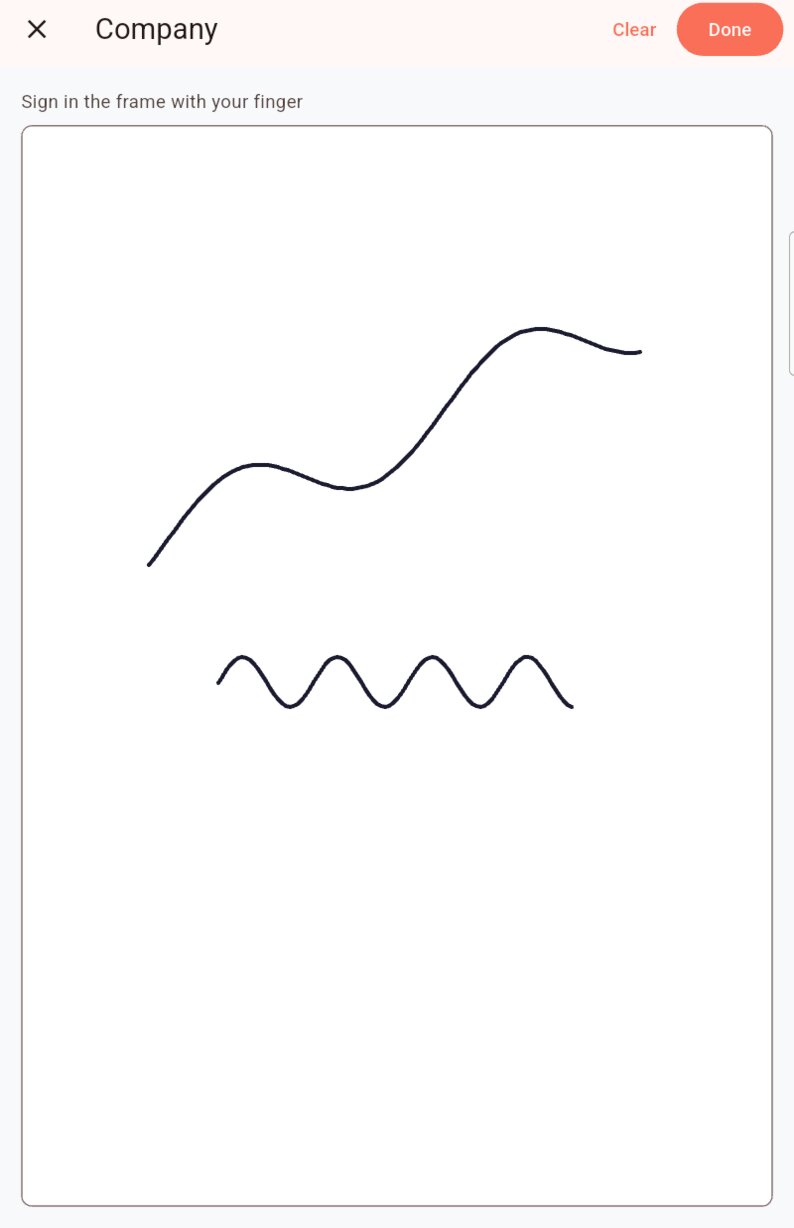
- Signature: tap Sign, sign in the frame with your finger, then Done. If the template asks for it, also enter the name of the signer.
- GPS position: tap Record my position. The phone asks for permission the first time.
- Table: Add a row for each row; the bin removes it.
- Count by item: the − and + buttons adjust each number; the total is shown below.
Some questions only appear depending on previous answers: this is normal, the template provides for it.
Answers are saved on the device as you go. You can leave the form and come back to it later.
Send
Tap Send the form, at the bottom of the screen.
-
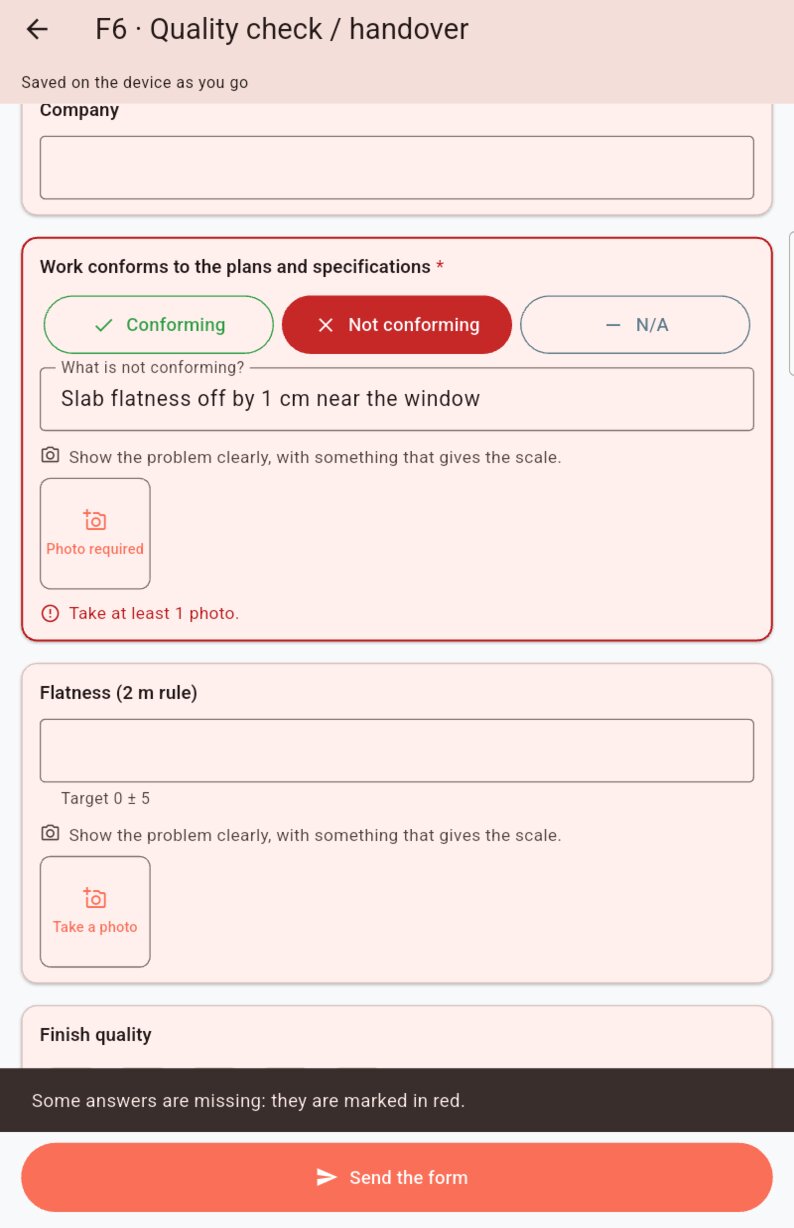
If answers are missing, Some answers are missing is shown and the screen scrolls up to the first question to complete, marked in red.
-
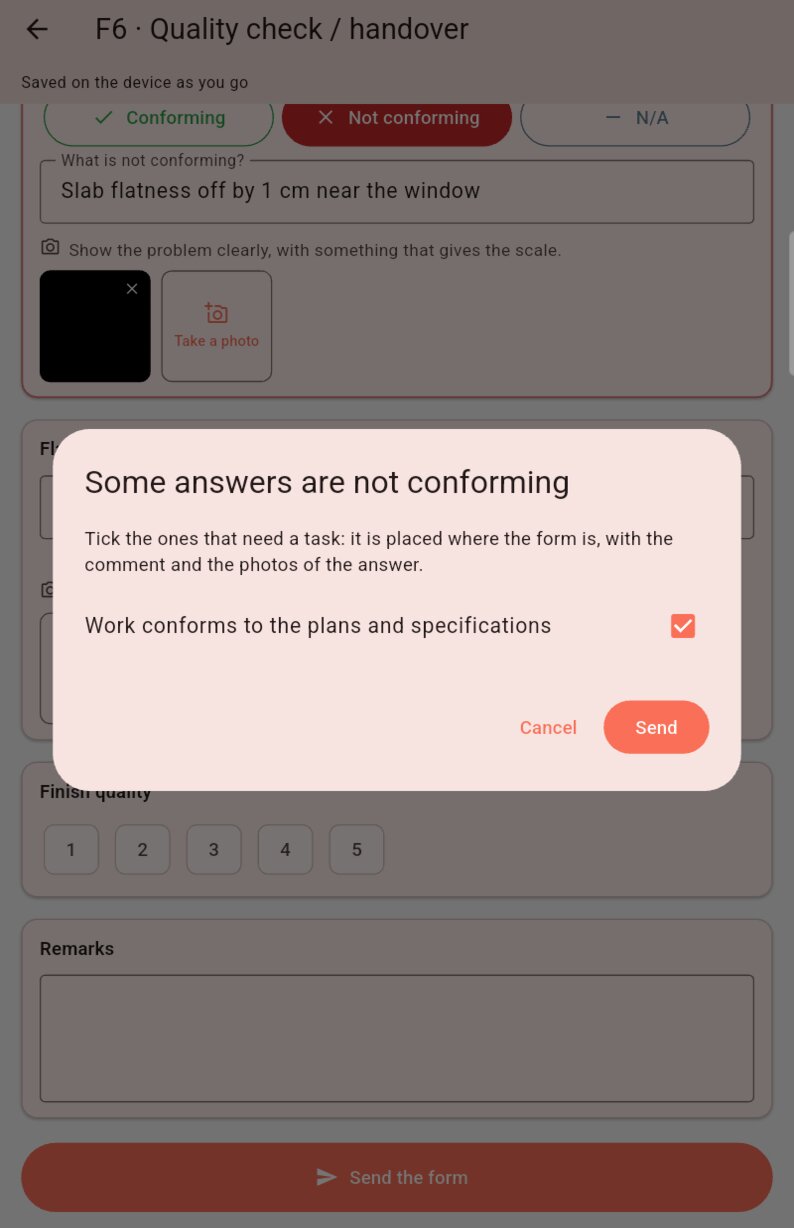
If some answers are not conforming, tick those that need a task: it is placed at the form's location, with the answer's comment and photos. The boxes suggested by the template are already ticked.
-
Confirm with Send.
Form sent is shown and you return to the previous screen. The non-conformity tasks appear in the Tasks tab, with the section and question name, the comment and the photo.
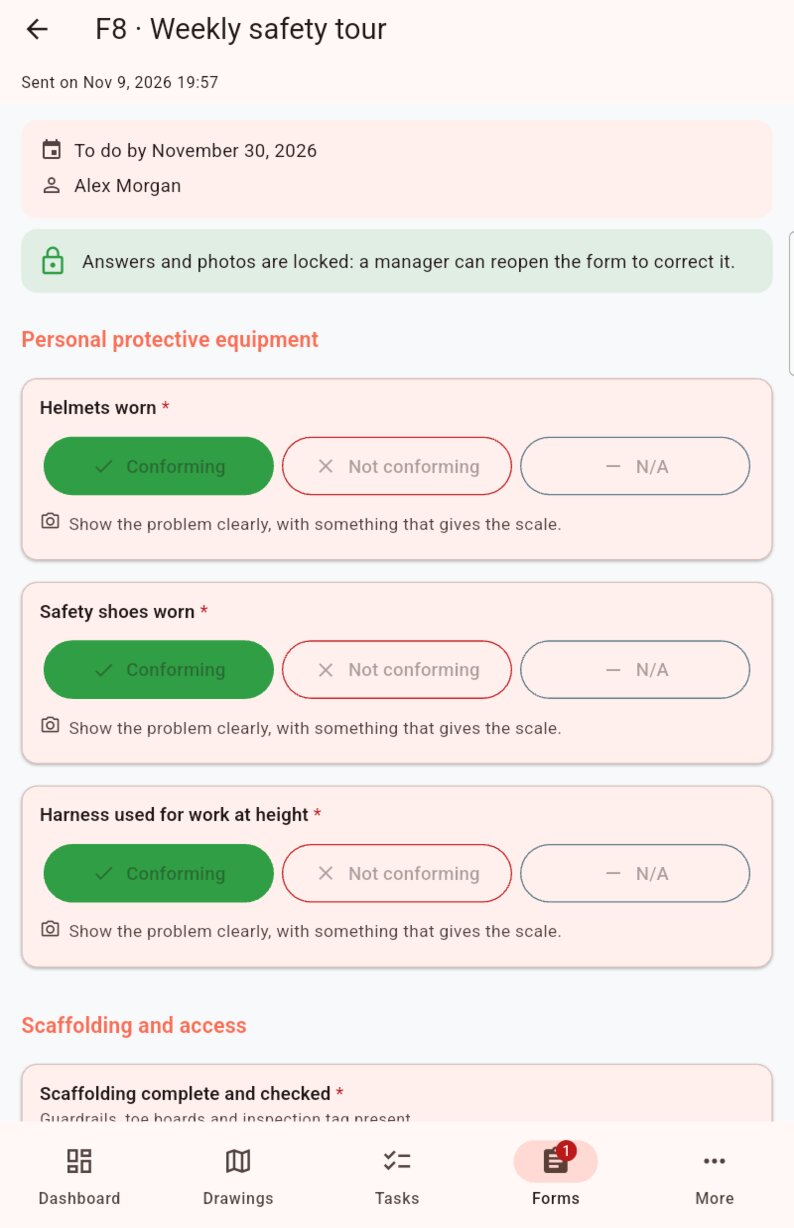
The form moves to Sent and is locked: its answers and photos can no longer be changed. To correct a mistake, ask a manager to reopen it from the web.
Without a network
Everything works offline: opening a form, answering, taking photos, signing, sending. Offline, sending shows Form saved: it will be sent as soon as the connection is back. The non-conformity tasks are created at that point.
Download the form once
A form received while the phone was offline shows This form is not on the device yet. Connect to the internet once: it is then downloaded and you can fill it in offline.
If the server refuses a sending, for example because a manager changed the form in the meantime, the change appears in Rejected changes: see Offline.
What is done on the web
On mobile, you cannot create a form, start or close an inspection, reopen a sent form, manage templates or download reports. These actions are done in the web app.