Getting started
The web app is the office tool of Touch2build. Use it on a computer, with a keyboard and mouse, to:
- prepare projects: creation, drawings, members and permissions;
- follow and sort the tasks reported from the construction site;
- plan the work of each trade and produce reports.
On site, the team uses the mobile app. It works offline and syncs automatically. What is done in the field appears in the web app as soon as it syncs, without reloading the page.
Sign in
Open the Touch2build application in your browser and sign in with your email address.
You were added to a project but you do not have an account yet?
Create your account with the same email address as the one used by the person who added you. The projects you are a member of appear automatically.
Recommended browser
Touch2build works in all recent browsers: Chrome, Edge, Firefox and Safari.
The first screen
The first time you sign in, Touch2build offers two options:
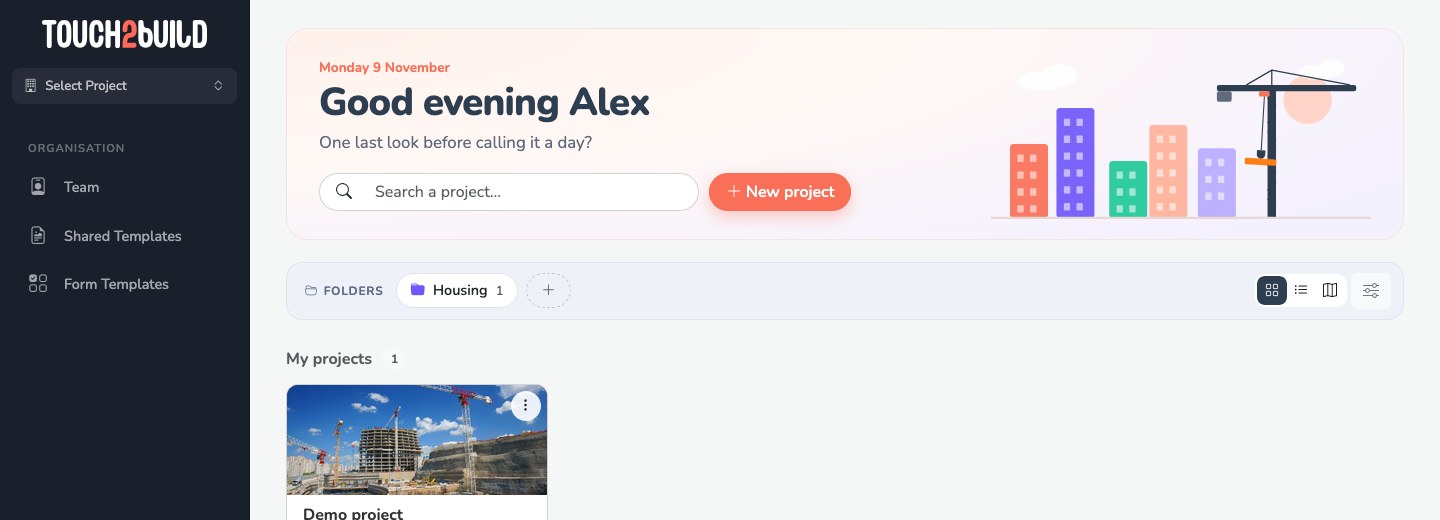
- Start from scratch
- Create a Project opens an empty project that you set up yourself. This is the usual choice to start a real site: see Create a project.
- Explore a demo
- Try the Demo creates a sample project already filled with drawings, tasks, photos and members. A good way to discover the application without preparing anything.
Were you invited to a project? It appears on this screen as soon as its owner has added you.
Once you have projects, the start screen lists them and lets you sort them: see Your projects.
The interface
Inside a project, the screen is split in two:
- on the left, the menu: the project selector at the top, then all the sections of the project;
- on the right, the content of the section you chose.
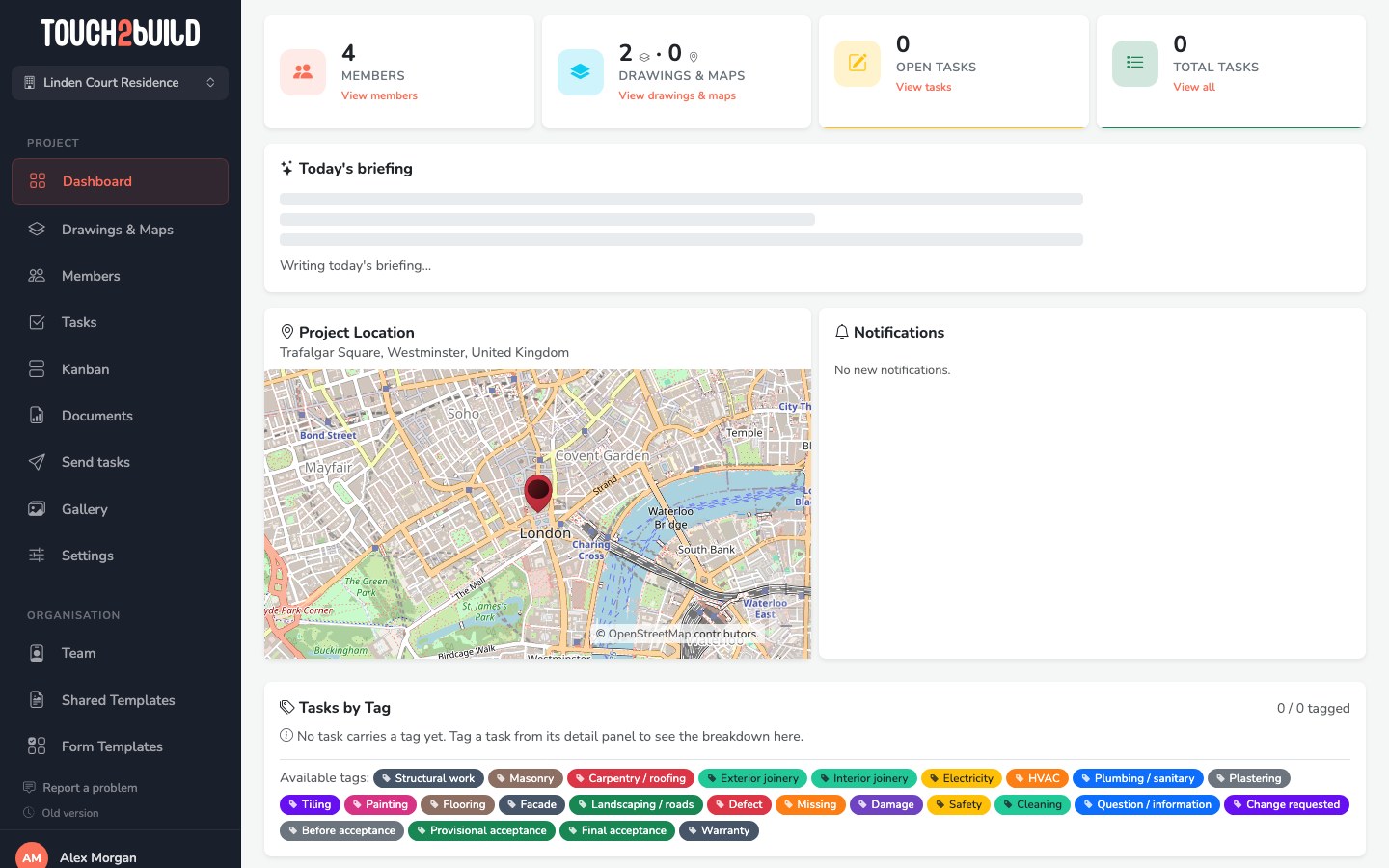
The Project menu
| Section | What it is for |
|---|---|
| Dashboard | Overview: key figures, today's briefing, notifications and charts. |
| Drawings & Maps | Your PDF drawings and geographic maps, organised in folders. |
| Members | The people and companies of the project, and their permissions. |
| Tasks | The list of all tasks, with filters and exports. |
| Kanban | Tasks in columns by status, to drag and drop. |
| Planning | The planning of the trades, by tag. |
| Forms | The checklists and inspections filled in on site. |
| Meetings | Site meetings: agenda, running the meeting, minutes sent out. |
| Send tasks | The link to their open tasks, sent to each person on the site, now or on a regular basis. |
| Documents | The reports and exports that were generated. |
| Gallery | All the photos of the tasks. |
| Settings | The configuration of the project: features, address, defaults. |
You do not see all the sections?
The menu only shows the sections you have access to. If a section is missing, ask the project administrator to change your permissions.
Switch project
Click the project name at the top of the menu. The Your Projects list opens. Choose another project, or click All projects to go back to the start screen.
Your account
Click your name at the bottom of the menu to open My Account: profile, language and theme, password, API keys, subscription and sign out.