Dashboard
The Dashboard is the first tab of a project. It summarises the state of the site and what has changed since your last visit.
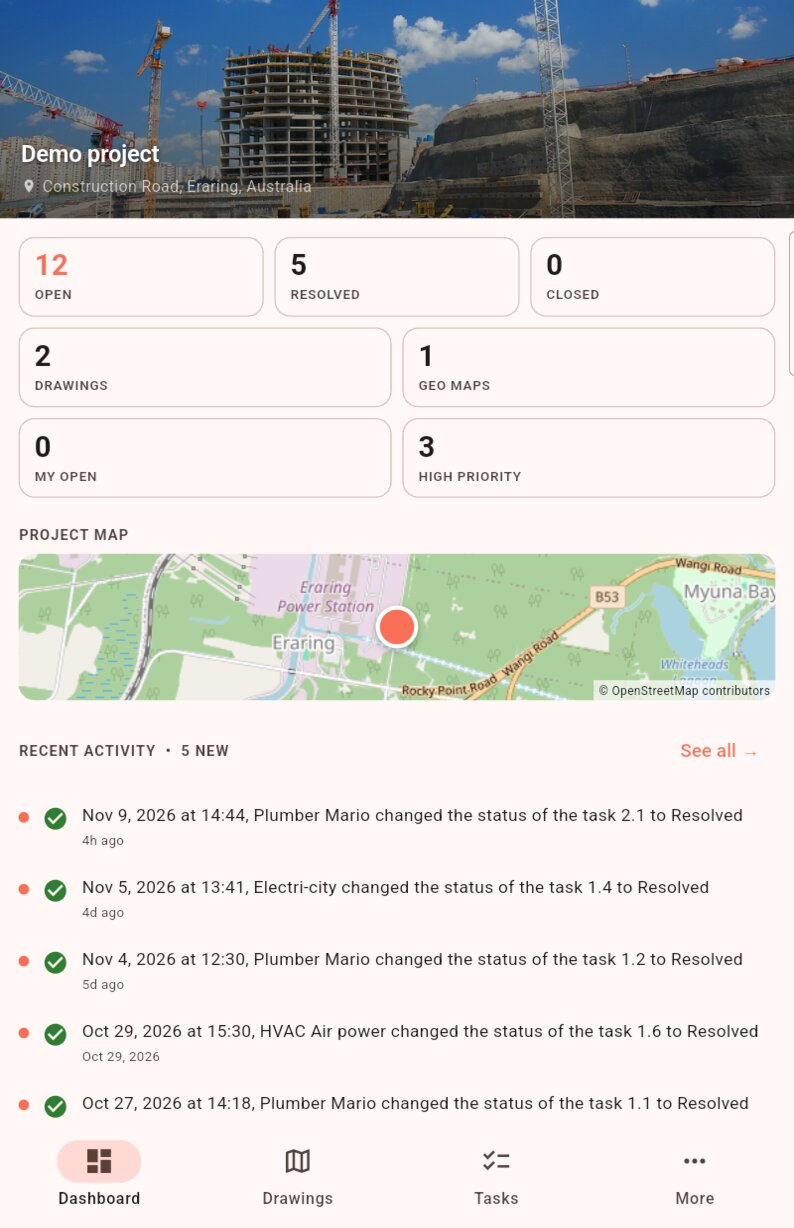
The banner
At the top, the project photo with its name and address. During a sync, a thin white progress bar runs along the bottom of the banner.
Pull the screen down to sync the project.
Key figures
| Card | What it counts |
|---|---|
| Open, Resolved, Closed | The project's tasks by status. |
| Plans, Geo maps | The number of drawings and maps. |
| My open | The open tasks assigned to you. |
| High priority | Open tasks with High or Critical priority. |
Tap a task card to open the Tasks tab with the matching filter: Resolved shows resolved tasks, My open your open tasks, and so on. Tap Plans or Geo maps to open the Drawings tab.
If forms are active on the project, a forms to fill in card leads to your forms: see Forms.
The project map
If the site address is filled in, a map preview shows its location. It needs a connection.
Recent activity
The last five events in the project: task assigned, comment, change of status or name.
- An orange dot on the left marks an unread event. The header gives their number, for example Recent activity • 3 new.
- Tap an event to open the task concerned. It becomes read, in the web app too.
- See all shows every event in the project. The Mark all as read button marks them all as read.
To be notified even when the app is closed, turn on notifications.