Follow your tasks by e-mail
Some people never open the application: subcontractors, workers, clients. They live in their mailbox. For them, Touch2build can send their tasks by e-mail, and they reply with no account and no password: simply by replying to the e-mail, or from a small web page opened by the View and reply button.
You follow their replies in the application, as if they came from the mobile app.
Turn on e-mails on a project
Two settings, both off by default:
- For the project, in Settings › Features, turn on Follow-up by e-mail.
- For each member, on the Members page, click the member's envelope to send them their tasks by e-mail.
The envelope shows where each member stands:
| Envelope | Meaning |
|---|---|
| Empty | The member does not receive their tasks by e-mail. Click to send them. |
| Full, ticked | The member follows their tasks by e-mail. Click to stop. |
| Crossed out | The member has unsubscribed. Only they can turn e-mails back on. |
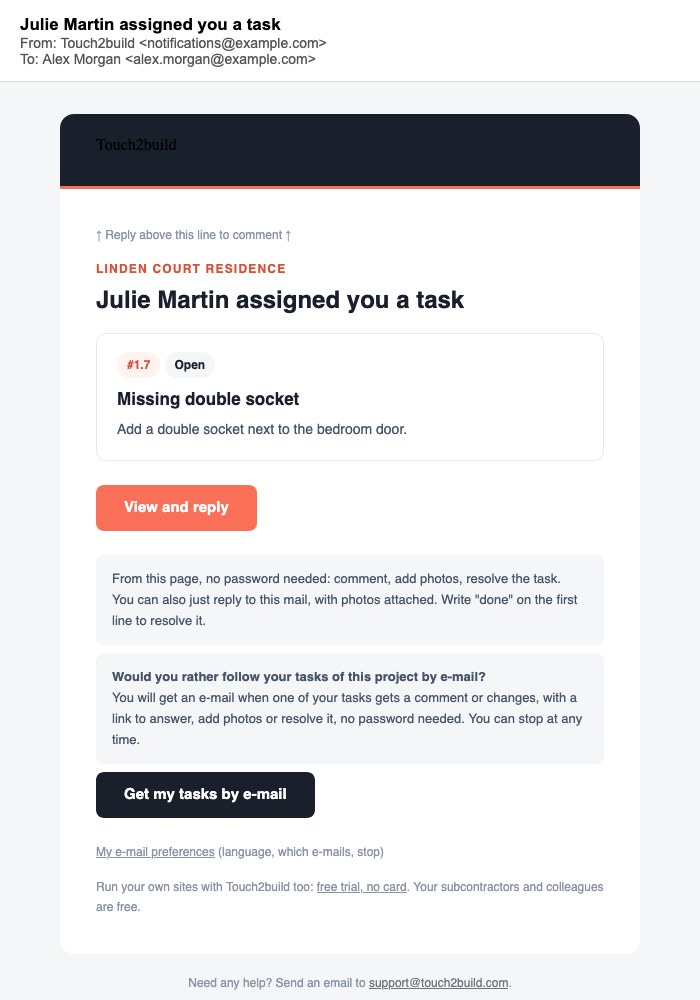
The member can also sign up themselves: when a task is assigned to them, the assignment e-mail offers Get my tasks by e-mail.
When a task is created, the e-mail is sent about thirty seconds later: the time for the mobile app to upload the photos, which then appear in the e-mail. A later assignment is sent straight away.
Consent
Each activation or deactivation is recorded: who, when, from where. A member who has unsubscribed cannot be signed up again by the project manager.
What the member receives
Once signed up, the member receives an e-mail when a task is assigned to them, and when one of their tasks receives a comment or changes state. They never receive an e-mail for their own actions.
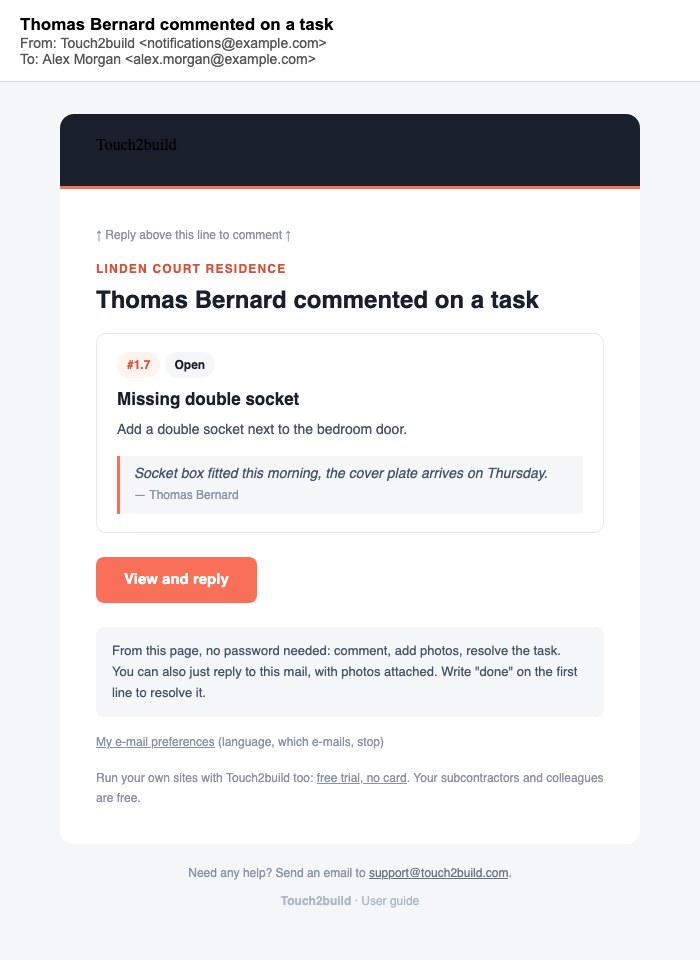
The e-mail shows the first photos of the task. E-mails about the same task are grouped into a single conversation in their mailbox.
E-mails are written in the member's language. A member who has never signed in gets the language of the person who added them to the project. They can change it in their e-mail preferences (see below).
Reply by e-mail
The member replies to the e-mail, like to any e-mail:
- The text of the reply becomes a comment on the task. The quoted part ("On … wrote:") and the signature are removed.
- Attached photos are added to the task. Small images, such as signature logos, are ignored.
- A word on the first line changes the state:
| First line | Effect |
|---|---|
| done, finished, resolved, or the French fait, c'est fait, terminé, fini, résolu | The task is resolved. The rest of the message becomes the comment. |
| reopen, or the French rouvrir, à refaire | The task is reopened. |
| stop, unsubscribe, or the French désabonner | The member no longer receives e-mails from this project. |
The word must be alone on the first line: "not done" resolves nothing.
A resolved or closed task is read-only
To comment on a resolved or closed task, you must first reopen it: write reopen on the first line, then the comment. Otherwise the reply is refused, and the sender's mail server sends them a message explaining why.
The "View and reply" page
The View and reply button opens a simple page, designed for the phone, with no password:
- the title, state and description of the task;
- the comments and photos;
- an area to comment and add photos, straight from the camera;
- the Resolve button, or Reopen if the task is already resolved.
The page is shown in the member's language. The link only gives access to this task, with the member's permissions on the project. It stops working if the member leaves the project.
Translate a task
Not everyone reads French. On the View and reply page, as on the page with their tasks, the Translate into English link under the title shows the task in the person's language: the title, the description and the comments.
- The language offered is the phone's. The selector next to the link offers others: French, Dutch, English, German, Portuguese, Polish, Romanian, Turkish, Italian and Spanish.
- The translation is made by a European AI (Mistral) and always flagged: "Automatic AI translation, for guidance only". See the original brings back the original text, which alone is authoritative.
- Always translate: on this phone, tasks already open translated, and so does the task list.
- Names of rooms and drawings, references ("ch. 2", "BT-14") and levels ("R+1") stay as they are. Site abbreviations (bathroom, HVAC, client…) are translated in full.
Nothing is translated unless the person asks, and the task is not modified: in Touch2build, you always see the original text.
Security
- Only the address that received the e-mail can reply to it. A reply sent from another address is refused, even if it comes from a colleague the e-mail was forwarded to.
- If the member has several addresses (an alias, for example), they must reply from the one on their Touch2build account.
- Automatic replies ("out of office") are ignored.
The member's e-mail preferences
The My e-mail preferences link, at the bottom of every e-mail, opens a page with no password where the member chooses:
- the language of the e-mails: Français or English;
- whether they follow their tasks of this project by e-mail;
- what they receive, for all their projects: a task is assigned to them, a comment on one of their tasks, one of their tasks changes status;
- whether they want to be told when they are added to a project.
The Stop every task e-mail button stops everything, on all projects.
The member can also stop:
- with the Unsubscribe button that Gmail or Outlook show at the top of the e-mail: this project only;
- by replying stop: this project only;
- in My Account › Preferences, if they use the application: Follow my tasks by e-mail set to Never.
The "you have been added to a project" e-mail has its own link to stop receiving these invitations.
Account e-mails (password, security) are never affected.