Prepare a meeting
Preparing a meeting takes a few minutes: Touch2build takes over the date, the participants and the open items of the previous meeting, then proposes the agenda from the site data. You read it through, complete it and send the convocation.
Create the meeting
Open Meetings in the project menu, then click New meeting.
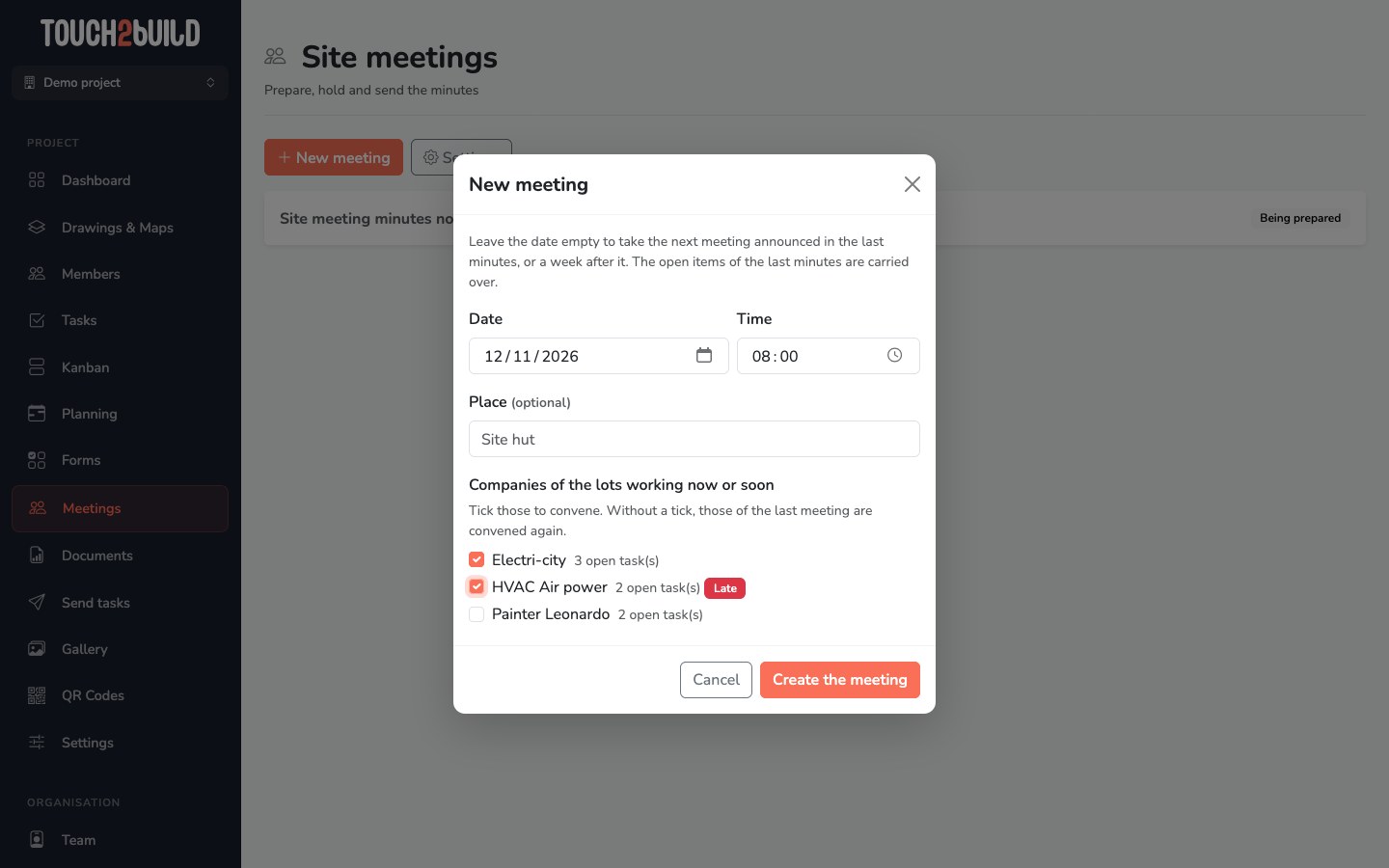
- Date and Time
- Leave the date empty to take the next meeting announced in the last minutes, or one week after the last meeting.
- Place
- Optional. It is taken from the previous meeting: "Site hut", "Client's meeting room" and so on.
- Companies of the lots working now or soon
- Touch2build proposes the companies whose lot is under way or starts soon according to the planning, with their number of open tasks and a Late badge if their lot has gone past its period. Tick those to convene. If none is ticked, the participants of the last meeting are convened again.
Click Create the meeting. It gets the next number (no. 1, no. 2 and so on) and opens being prepared.
Open items are carried over
From the second meeting, the items of the last minutes that are not done are carried over automatically, with the same number. See The next meeting.
When and where
At the top of the meeting, the When and where box shows the date, the time, the duration in minutes and the place.
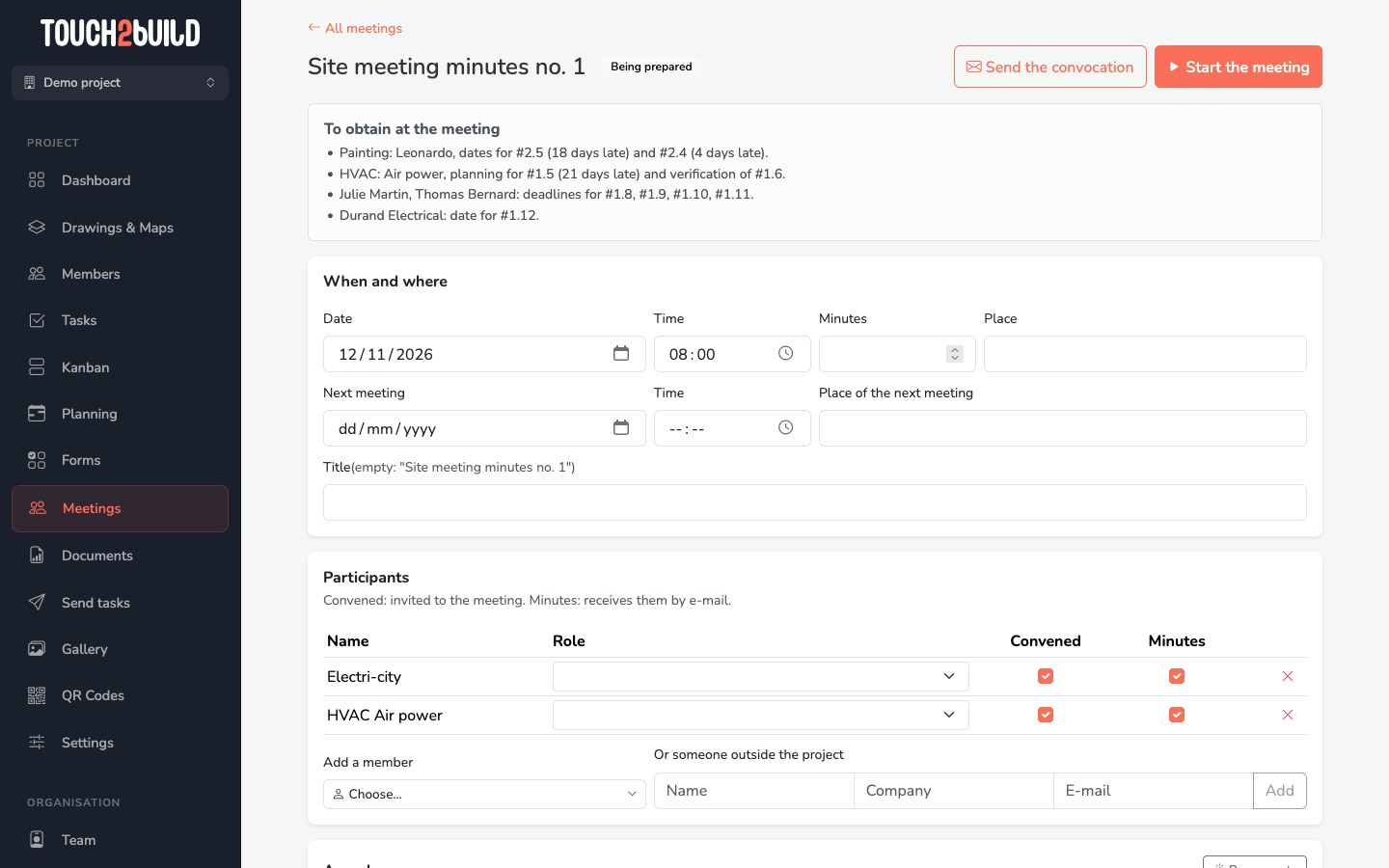
Also fill in the Next meeting (date, time and place) if you already know it: it is printed on the minutes, which then serve as the convocation. You can still change it when you close the meeting.
The Title is optional. When empty, the meeting is called "Site meeting minutes no. 1" (or the local name of the document, depending on the settings).
The weather
When the 7-day weather forecast option is ticked in the settings, a banner at the top of the meeting gives the forecast for the 7 days from the day of the meeting, for the place of the project. For each day:
- the weather (sunny, overcast, rain, thunderstorm, snow and so on);
- the minimum and maximum temperatures;
- the rain of the day, in millimetres;
- the strongest wind, in km/h.
A day with 5 mm of rain or more, or wind of 50 km/h or more, is highlighted: handy to decide at the meeting to move a concrete pour, a roofing job or a delivery.
Forecasts go out to about ten days. For a meeting further away, the banner says from which day the weather will be available.
The weather relies on the coordinates of the project. If it has none, the banner asks you to complete the project address in its settings.
Where do the forecasts come from?
From the Norwegian meteorological institute (MET Norway), which covers the whole of Europe. Its data is open (CC BY 4.0 licence): the source is recalled under the banner and in the minutes.
The participants
The Participants table lists the people of the meeting. For each one:
- Role
- Client, Project supervisor, Contractor, Health and safety coordinator or Inspection body. The role is printed in the attendance table.
- Convened
- The person is invited to the meeting: they receive the convocation and appear in the attendance.
- Minutes
- The person receives the minutes by e-mail. Leave the box ticked for someone who is absent: they must receive the minutes too.
To add someone:
- Add a member: choose a person or a company that is a member of the project.
- Or someone outside the project: type their name, company and e-mail, then Add. This is typically the case for the client or the inspection body, who have no Touch2build account. They receive the convocation and the minutes by e-mail.
The red cross removes a person from the meeting.
The agenda
Have it proposed
Click Prepare the agenda. Touch2build reads the site data and proposes items, arranged by section:
| Section | What is proposed in it |
|---|---|
| Previous minutes | The approval of the previous minutes and the remarks received. |
| Planning | The lots that are behind their period, those that finish with tasks left, those that are starting. |
| Follow-up of the actions | The actions decided at the previous meeting. |
| Health and safety coordinator (CSPS in France) | The safety section, depending on the country. |
| Lots | For each lot: late tasks, new tasks, resolved tasks to check. |
| Administration | The items you add: variation orders, penalties, documents to supply and so on. |
| Other business | The rest. |
Titles are first written from the figures ("Electrics: 2 tasks left, due 06/11/2026"), then reworded as a clear sentence a few seconds later: the Rewording in progress… message shows meanwhile.
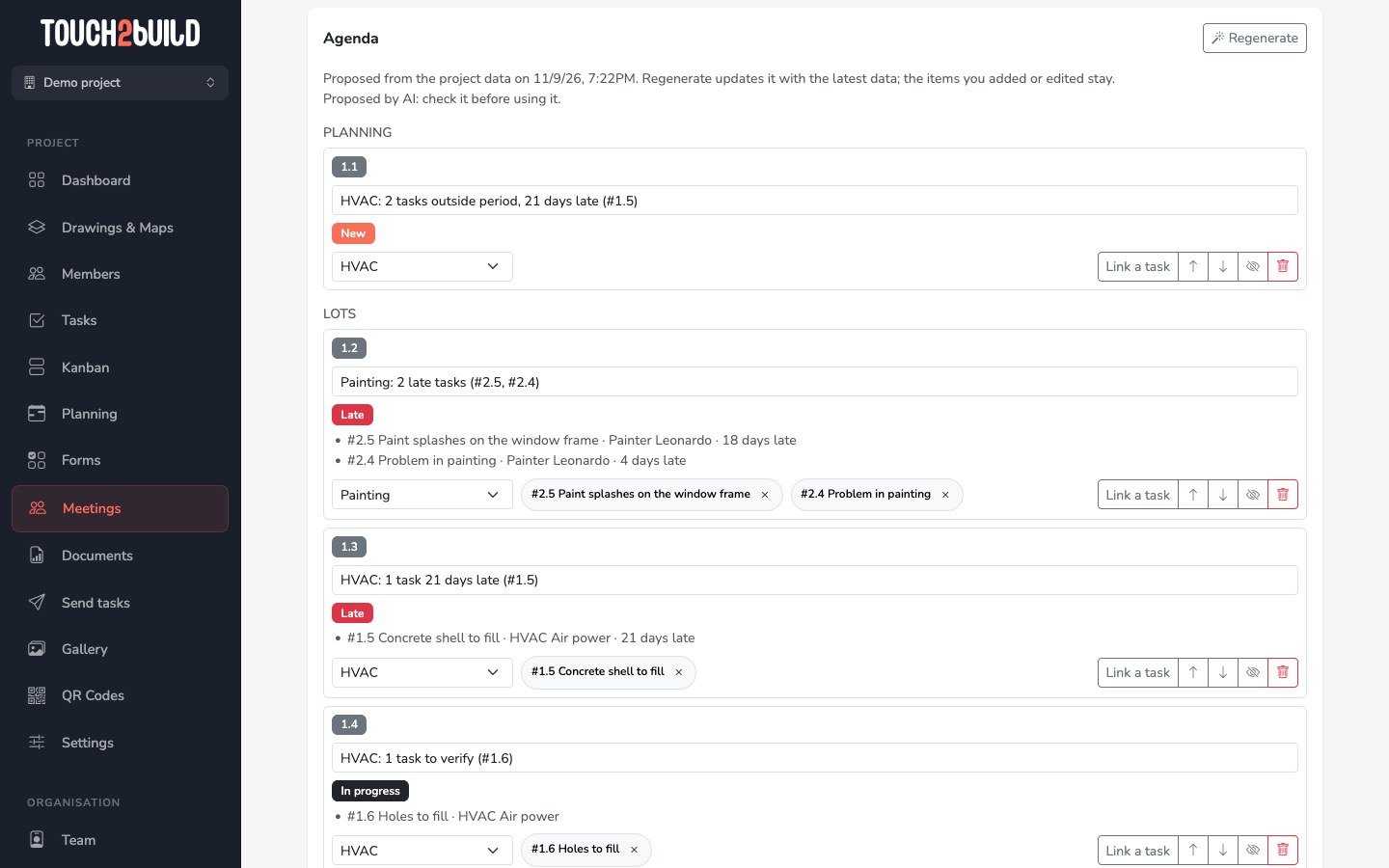
Each item shows:
- its number (1.1, 1.2 and so on) and its title, which you can rewrite;
- its state: New, In progress, Late or Done;
- the facts that explain it, for example "#2.2 Check the height of the sockets · Electri-city · 15 days late";
- its lot, to choose from the list of tags of the project, or No lot;
- the linked tasks, as chips. The cross on a chip unlinks the task.
Above the list, the To obtain at the meeting box sums up, company by company, what has to be obtained during the meeting. Read it before you go to the site hut.

Regenerate without losing anything
The site data changes until the meeting. Regenerate updates the proposal with the latest data. The items you added or edited stay as they are.
Edit the items
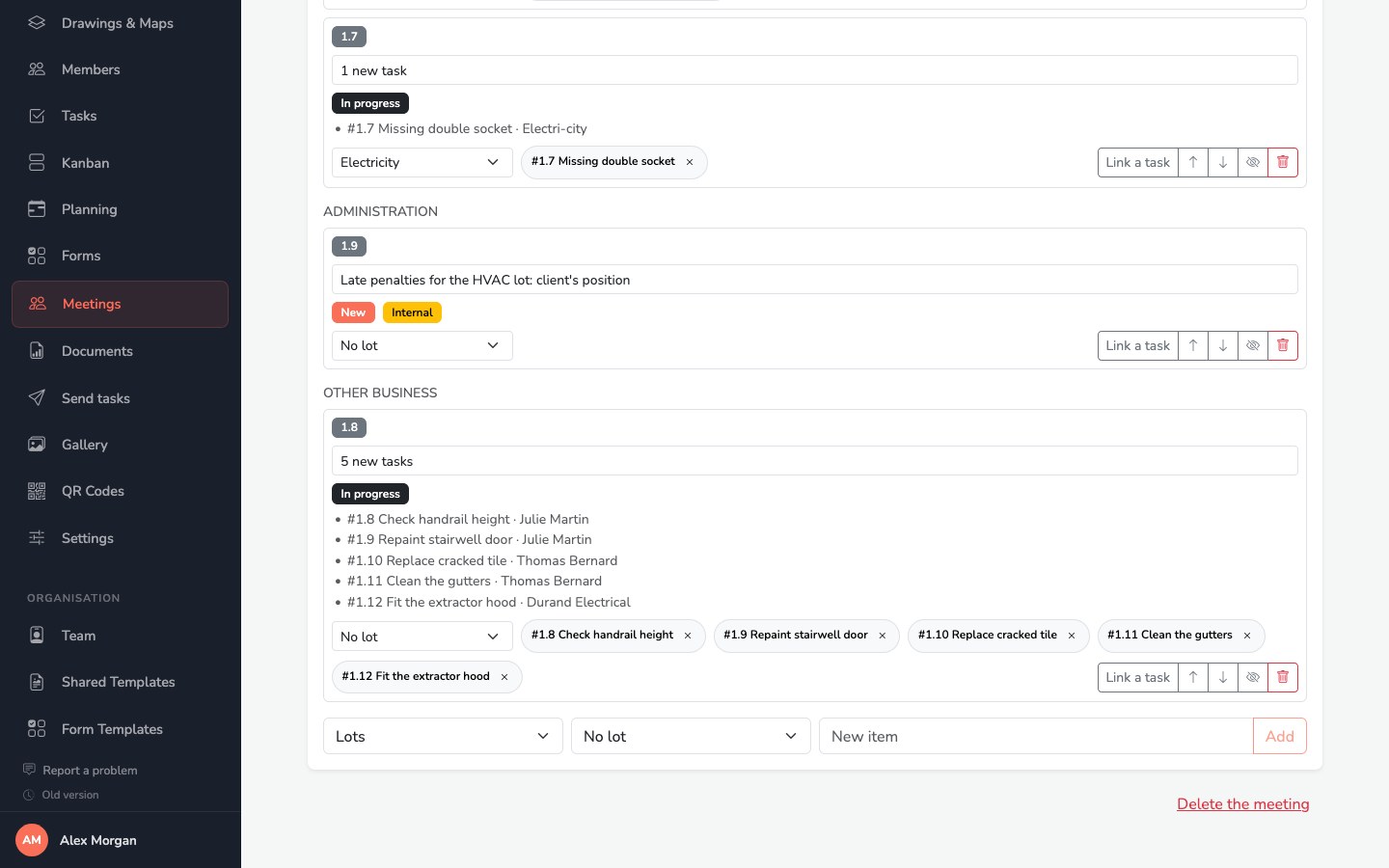
The buttons on the right of each item:
| Button | Effect |
|---|---|
| Link a task | Attaches a task of the project to the item. See below. |
| ↑ and ↓ | Move the item within its section. |
| Crossed-out eye | Makes the item internal: it stays in the meeting but is not sent to the companies. An Internal badge shows. |
| Bin | Deletes the item. |
| Postpone | For an item carried over from a previous meeting, which cannot be deleted: it will not be dealt with this time. |
To add an item, use the bottom line: choose the section and the lot, type the title in New item, then click Add.
Link tasks to an item
Linking the tasks being discussed is what makes the module useful: their state shows in the item during the meeting, is calculated in the minutes and comes back at the next meeting.
Click Link a task. A search opens under the item: type a few letters of the name or the number of the task, then click the task you want.
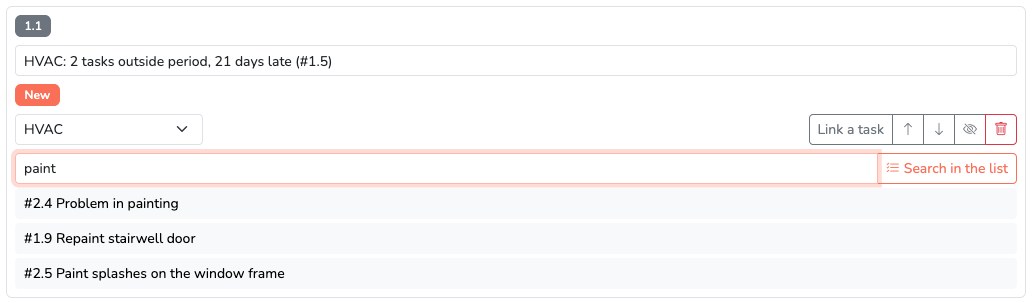
You know neither the exact name nor the number? Click Search in the list. The Link tasks to item window shows the tasks of the project with the same filters as the task list. It opens already filtered on the open and resolved tasks of the lot of the item. Change the filters if needed.
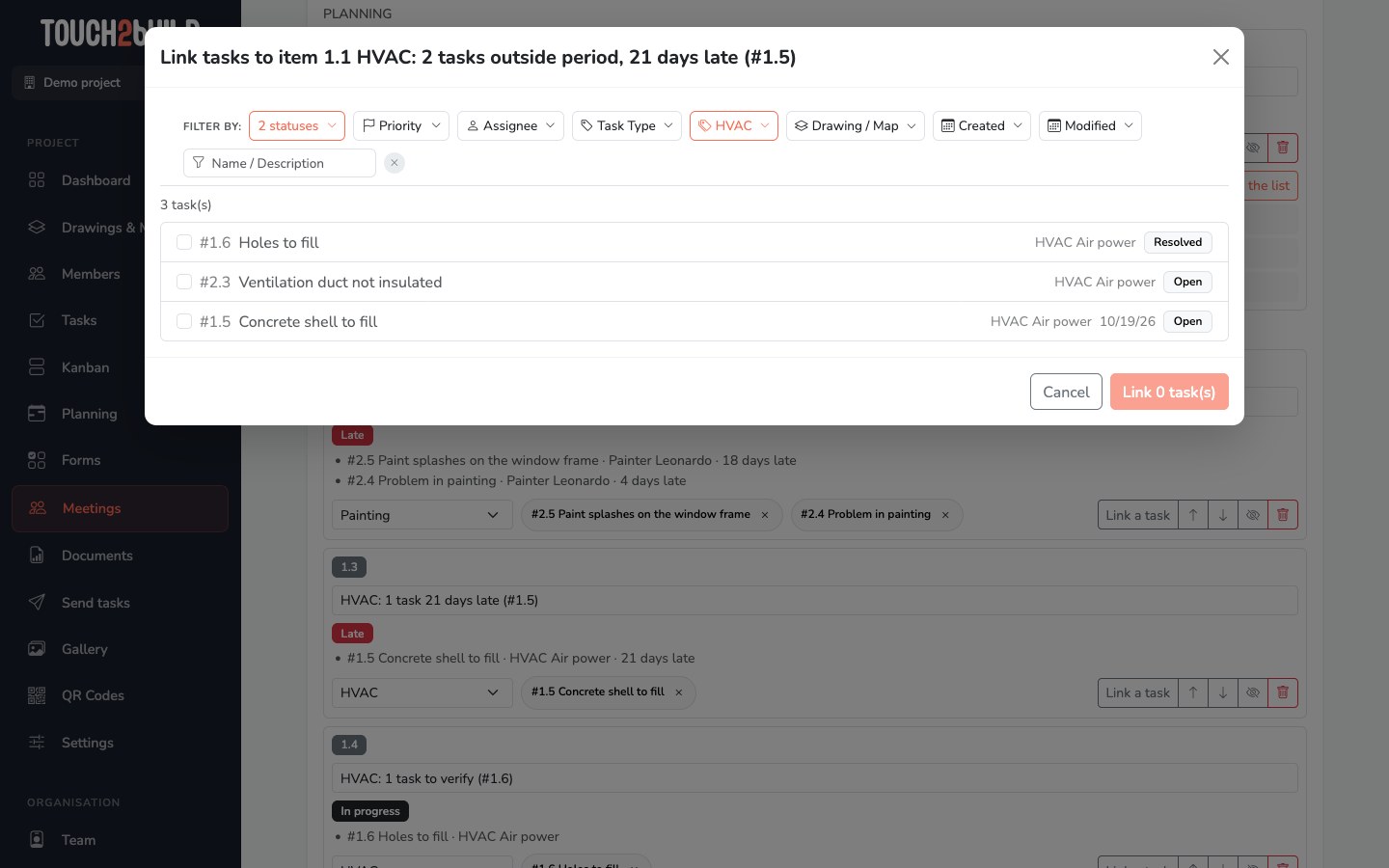
- Tick the tasks to link, then click Link N task(s).
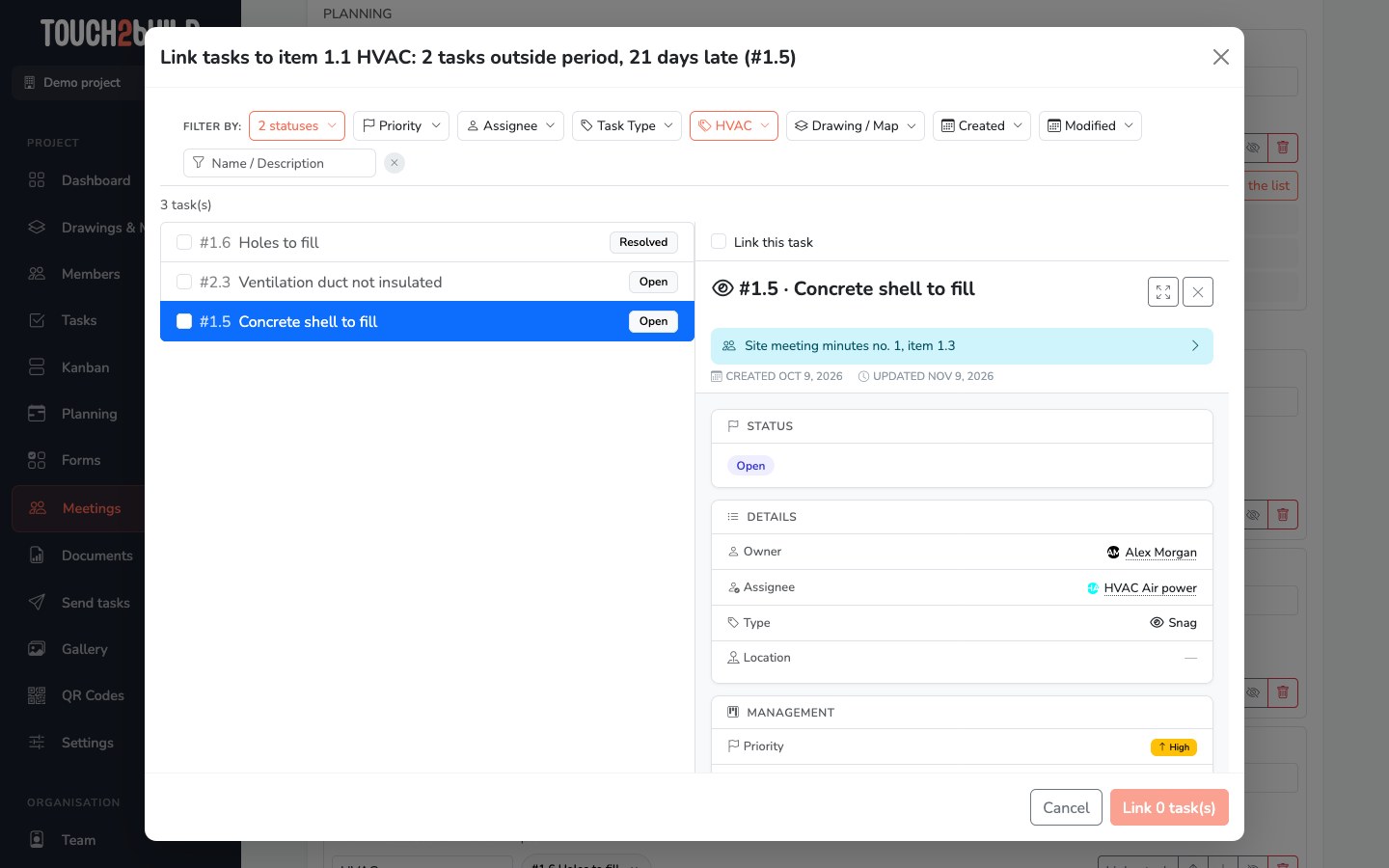
- Click a line to see the task detail next to the list: description, photos, comments, history. The detail is read-only: nothing can be changed by mistake from this window. The Link this task box at the top of the detail ticks or unticks it.
Send the convocation
When the agenda is ready, click Send the convocation, at the top right. Each convened participant who has an e-mail address receives:
- the date, time, place and agenda, without the internal items;
- a calendar invitation (.ics file), which they accept in one click in Outlook, Gmail or their phone;
- if the settings say so, the notice that the meeting is recorded.
Touch2build shows the result: "Convocation sent to 4 person(s)", with the number of people without an e-mail address and the sendings that failed. The meeting moves to the Convened stage.
Did the date, place or agenda change after sending? Send the convocation again: the invitation already accepted is updated in the participants' calendars.
The convocation is not compulsory: you can start a meeting without having sent it, for example when the date was set long ago.
The agenda ready the day before
When the date of the next meeting is entered while closing a meeting, Touch2build creates the following meeting and prepares its agenda the day before. You receive an e-mail: all that is left is to read it through and convene.
Delete a meeting
At the bottom of a meeting being prepared, Delete the meeting erases it. If the convocation had gone out, the participants receive a cancellation for their calendar.