Offline and sync
On a construction site, the network is often missing: basement, stairwell, dead zone. The mobile app is designed for this. The aim: you never wait for the network to work, and no recorded task is lost for lack of a connection.
Work without a network
Everything works offline: creating, editing, resolving or closing a task, commenting, taking photos, annotating, logging hours, adding a member.
Each change is saved immediately on the device, then queued. It is sent to the server as soon as the connection returns, without any action from you.
So that you can work offline, the app keeps on the device, for each active project:
- all the tasks;
- the drawings;
- the task photos.
Maps are the exception: their base map needs the network. Offline, only the areas already displayed stay visible.
Before going down to the basement
Open the app for a few moments with a network: it then fetches the team's latest changes.
When the app syncs
The app syncs by itself:
- when you open a project and when you return to the app;
- every 5 minutes while it is open;
- in real time when a colleague changes the project;
- in the background, with the app closed.
You can also pull down the dashboard or the task list to start a sync.
A task created offline gets a temporary number. The server assigns the final number at sync: it may be different. On the drawing, its number stays grey until it has been sent.
Wi-Fi only
By default, the app syncs on every network, Wi-Fi and mobile (4G, 5G).
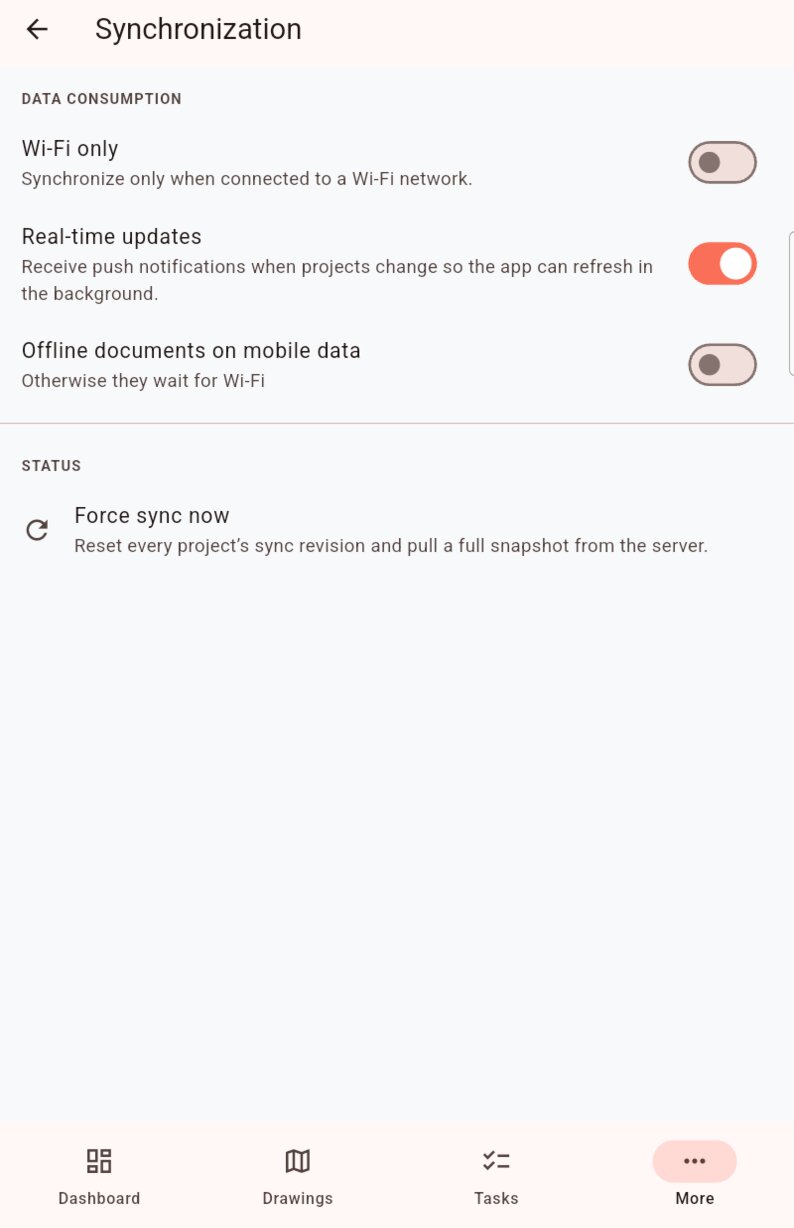
To save your data allowance, turn on Wi-Fi only in More › Settings › Synchronization. On the mobile network, nothing is then sent or received: your changes wait on the device.
Warning
With Wi-Fi only, your colleagues only see your tasks once you are back on Wi-Fi.
Rejected changes
Sometimes the server refuses a change: your rights have changed in the meantime, the task was deleted in the office... A change rejected by the server banner (for example 1 change rejected by the server) then appears at the top of the screen.
Tap Review to open the Rejected changes list. For each one:
- Retry: sends the change again, for example once your rights are restored;
- Discard: removes the change from the device. The server's version is shown again.
Warning
Discarding the creation of a task removes it from the device, with its comments, hours and photos.
Session expired
If your session has expired, a red Session expired banner appears. Your changes stay saved on the device. Tap Sign in: the sync resumes.