Points of interest and QR codes
A point of interest (POI) is a piece of information placed on a drawing or a map: a technical room, an access point, a contact, a safety instruction… Unlike a task, a POI has no assignee and no state. It is there to inform.
Combined with a QR code displayed on site, a POI can be read by anyone, from their phone, without a Touch2build account: an arriving subcontractor, the caretaker, a delivery driver…
Turn on POIs
POIs are turned on project by project, in Settings › Features, with the Points of interest switch. See Project settings.
Create a POI on a drawing
- Open the drawing or map in Drawings & Maps.
- At the bottom left, in Creation mode, choose POI.
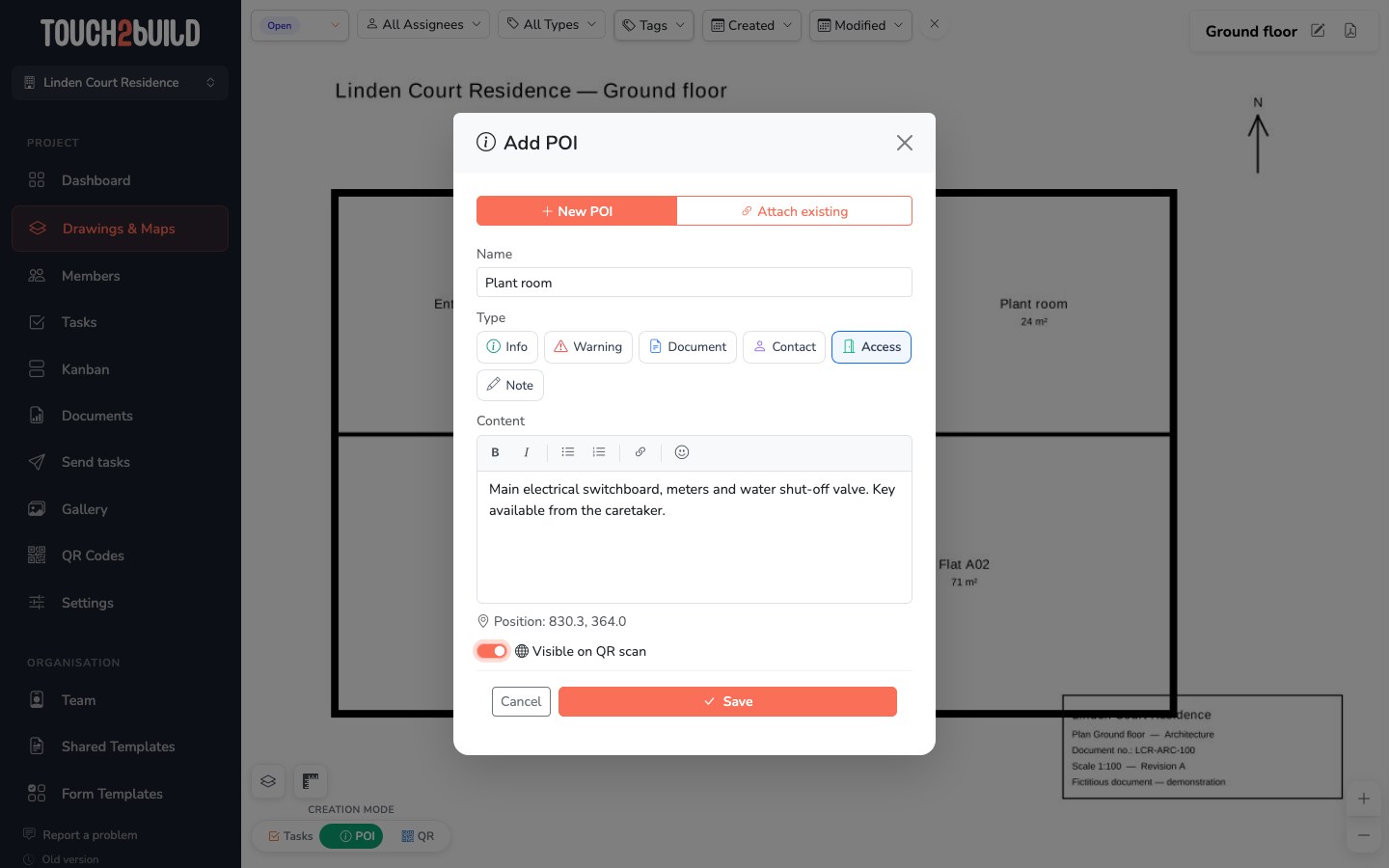
- Long-press (about half a second) at the spot. The Add POI window opens.
- Fill in:
- the Name, for example Technical room;
- the Type: Info, Warning, Document, Contact, Access or Note. It sets the icon of the POI on the drawing;
- the Content: the text displayed, with bold, italics, lists and links.
- Turn on Visible on QR scan if the POI should be readable by QR code.
- Click Save.
The same POI on several drawings
The Attach existing tab places on this drawing a POI already created elsewhere, for example the same contact on every level. Editing the POI then applies everywhere.
Complete a POI
Click the POI to open its panel. Everything can be edited directly: click the name, the type or the content to change them.
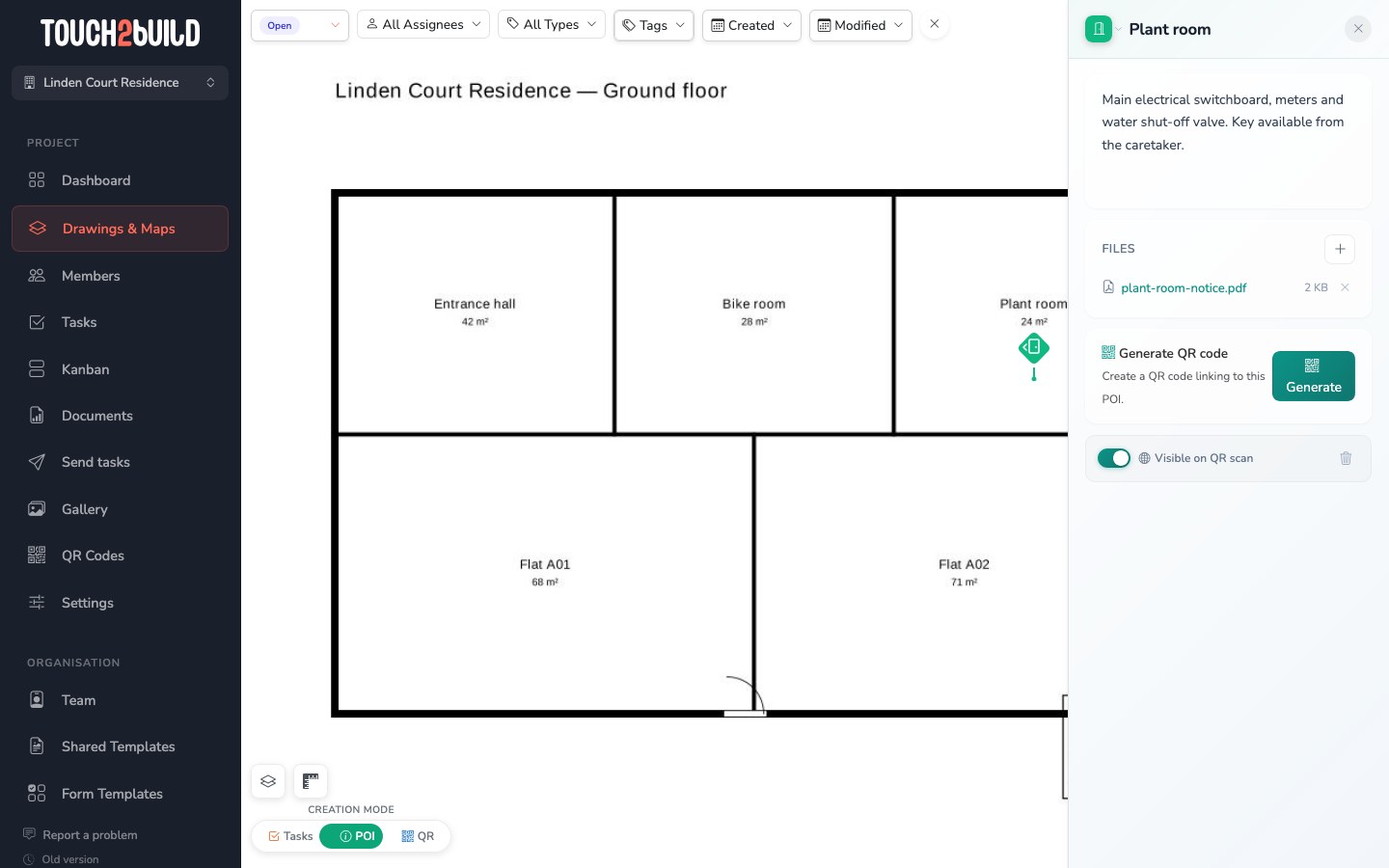
- Files
- The + button attaches a document to the POI: instructions, data sheet, evacuation plan… Files can be downloaded by people who scan the QR code.
- Generate QR code
- Creates the QR code of this POI. This section only appears if Visible on QR scan is on.
- Visible on QR scan
- Makes the POI public or reserves it for project members.
The icon deletes the POI. If it is placed on several drawings, you choose to Remove from this view or Delete everywhere.
The QR Codes page
The QR Codes section lists all the project's QR codes, with their target and the number of scans.
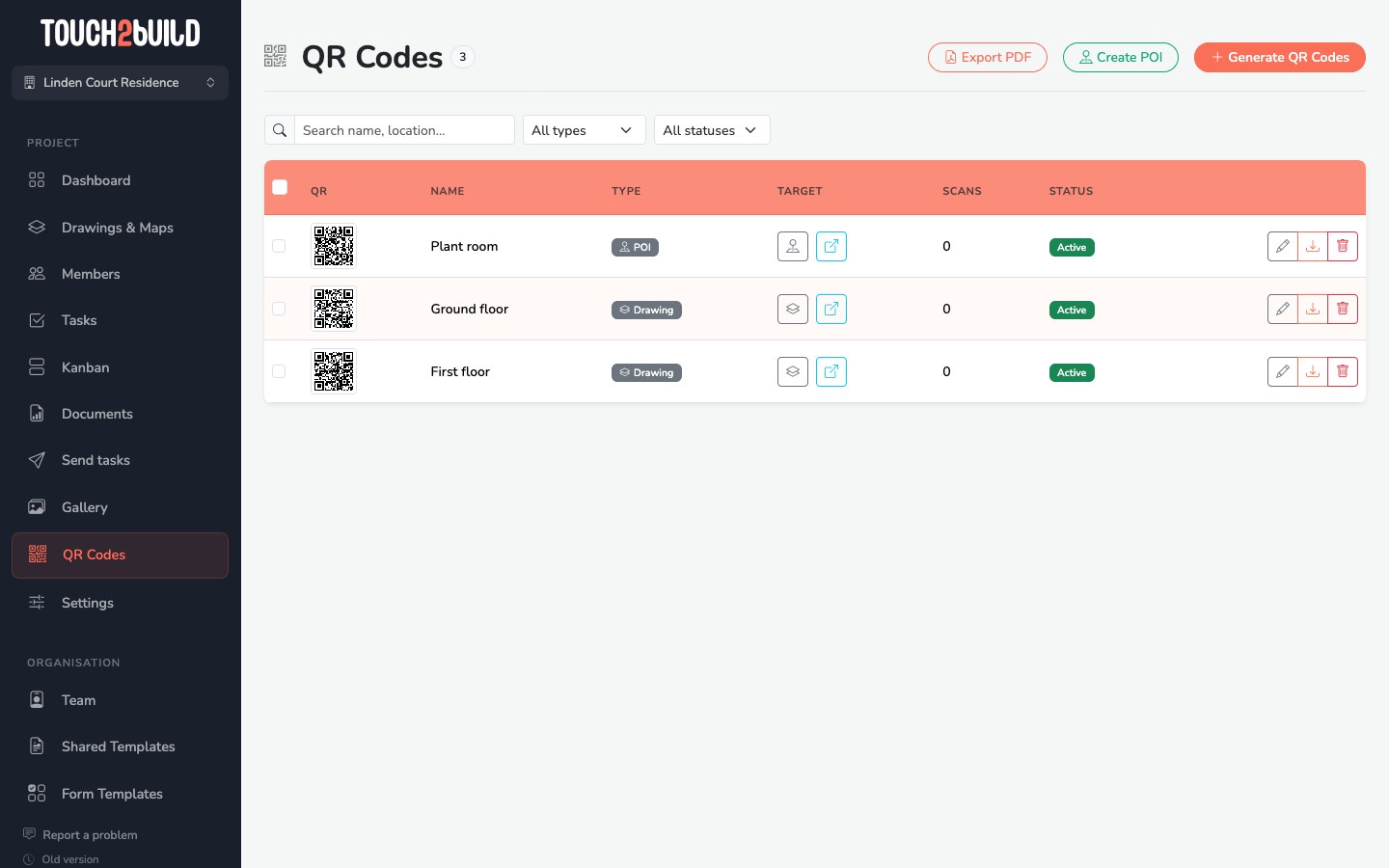
QR codes can point to:
- a POI: the person sees the drawing centred on the POI, with its content and files;
- a drawing or a map: the person sees the drawing with all its public POIs.
Generate QR codes in bulk
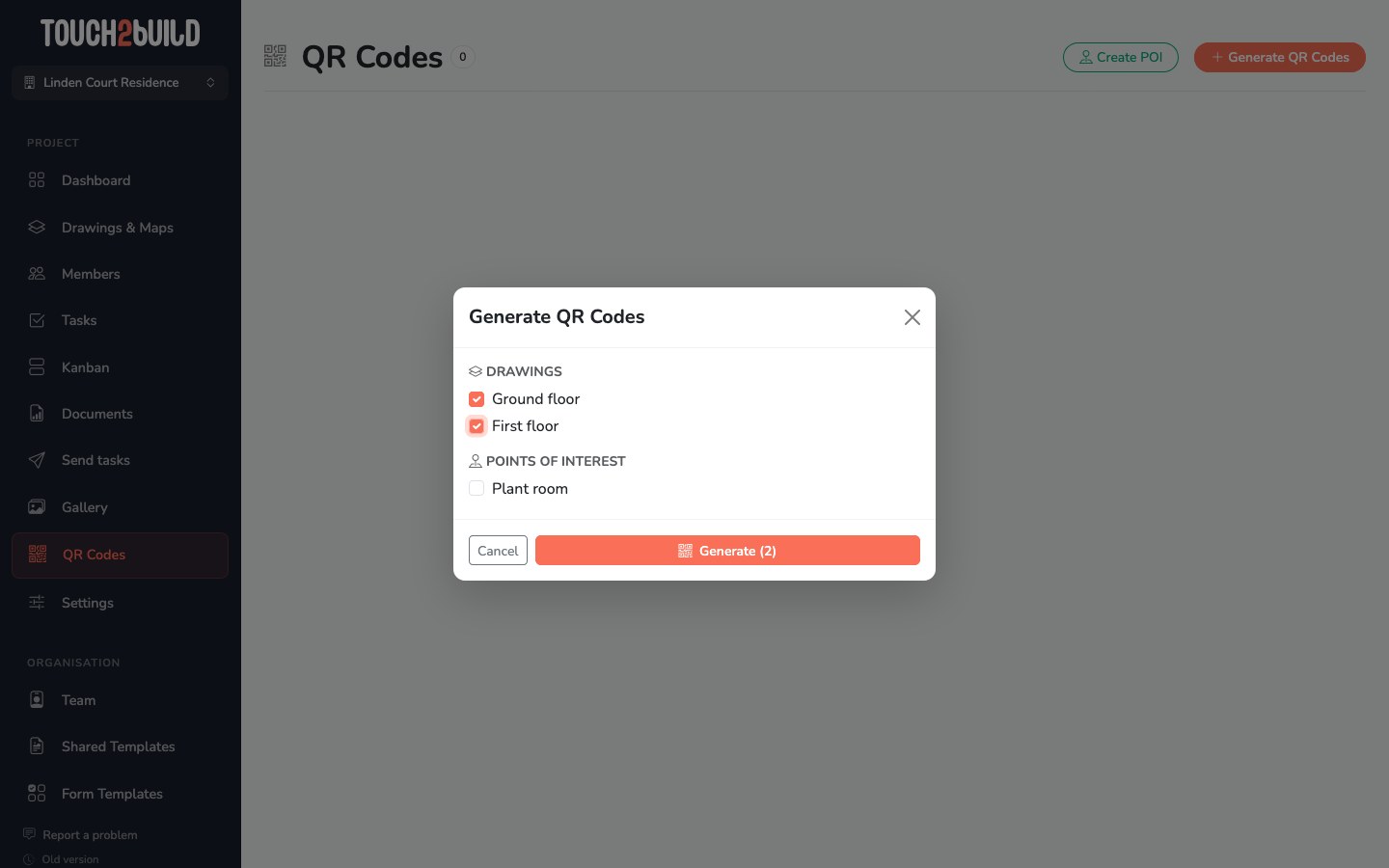
- Click Generate QR Codes.
- Tick the drawings, maps and public POIs you want.
- Confirm: a QR code is created for each ticked item.
The Create POI button on this page creates a public POI with its QR code directly, without placing it on a drawing. It is handy for general information, such as the site contacts.
Actions on a QR code
In the Target column:
- or opens the POI or the drawing in Touch2build;
- Test QR link opens the page the person who scans will see.
At the right of each row:
- edits the name and description, or deactivates the QR code (state Archived);
- downloads the QR code image, to use in your own documents;
- deletes the QR code.
Print the QR codes
- Tick the QR codes to print. With no selection, all are exported.
- Click Export PDF.
- Choose the Template, then click Export PDF.
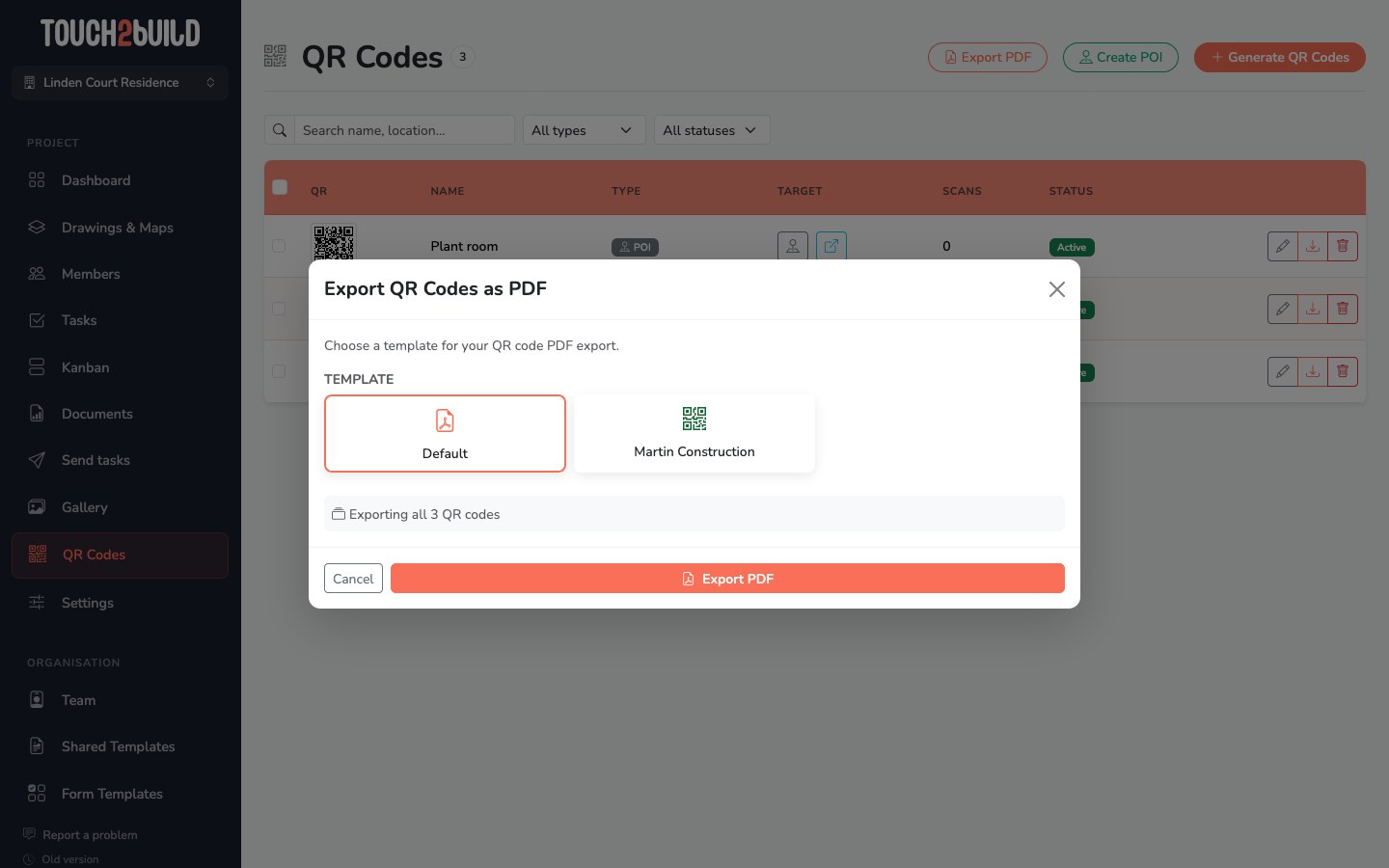
The PDF is prepared in the background and appears on the Documents page. It contains one page per QR code, with the name and the preview of the drawing or the POI icon:
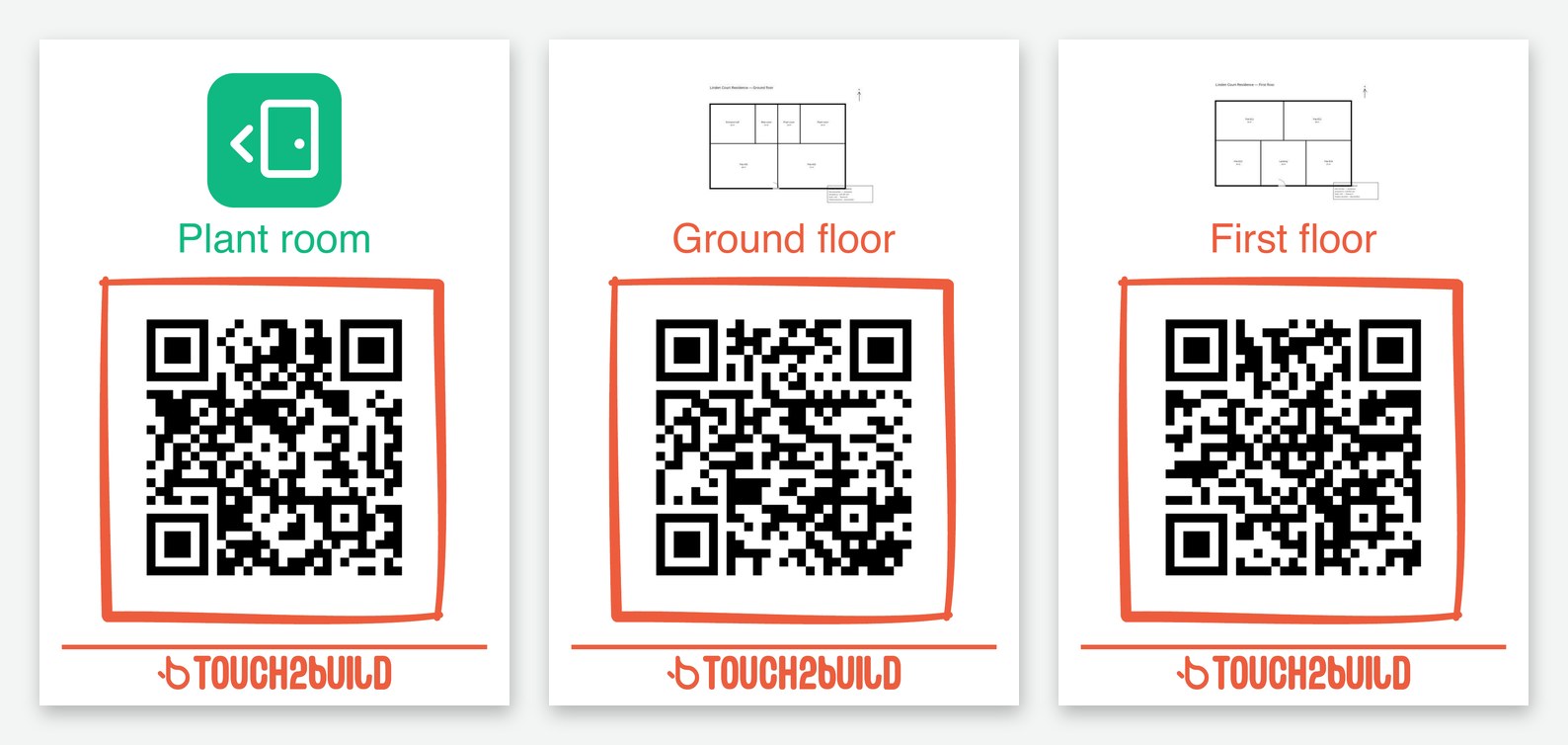
Print it and display each QR code where it applies: technical room door, site entrance, landing…
QR codes in your colours
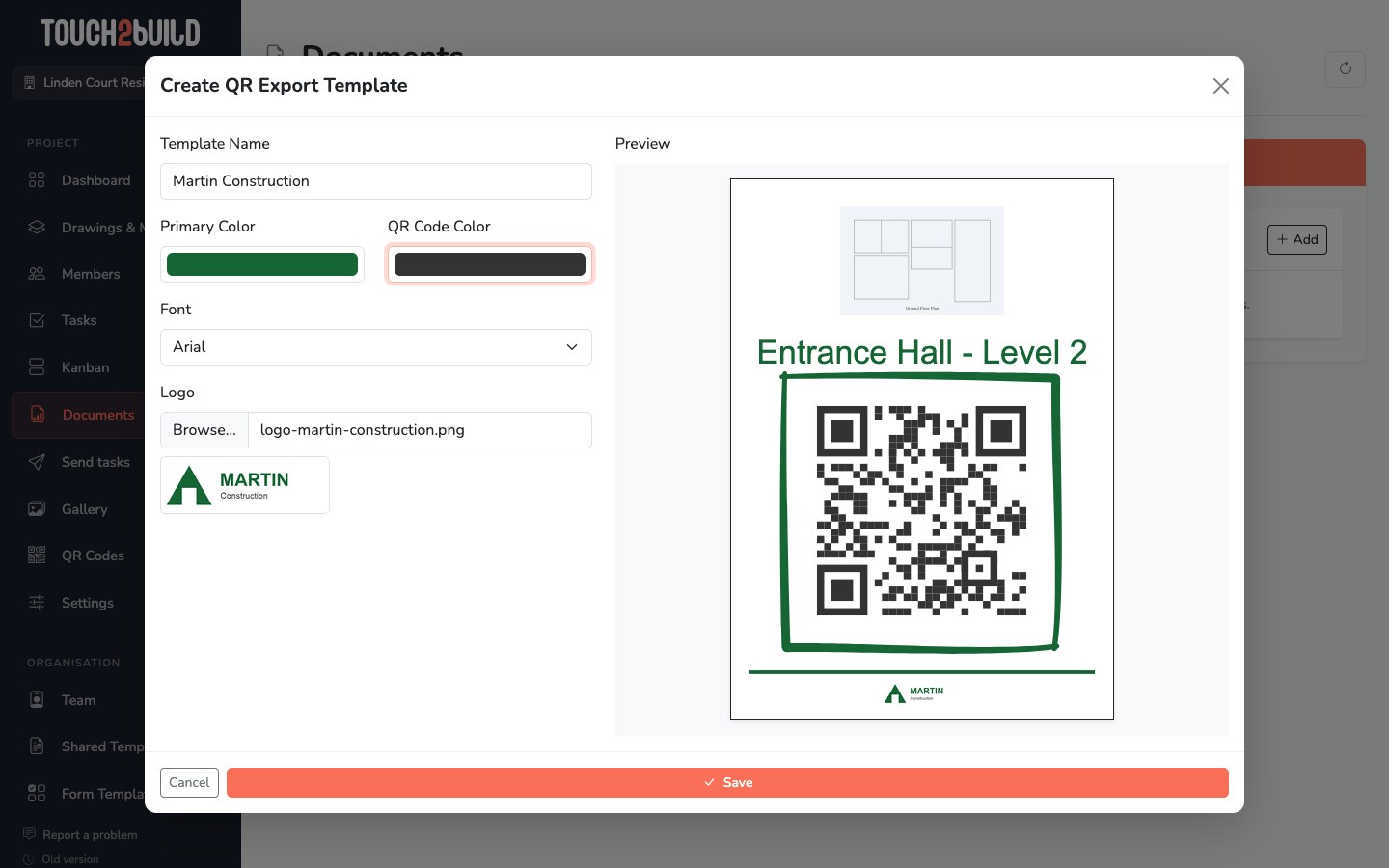
In Documents › Templates, the QR Export card lets you create a print template:
- Click Add.
- Enter the Template Name.
- Choose the Primary Color, for the title and the frame, and the QR Code Color.
- Choose the Font and upload your Logo. The Preview updates as you go.
- Click Save.
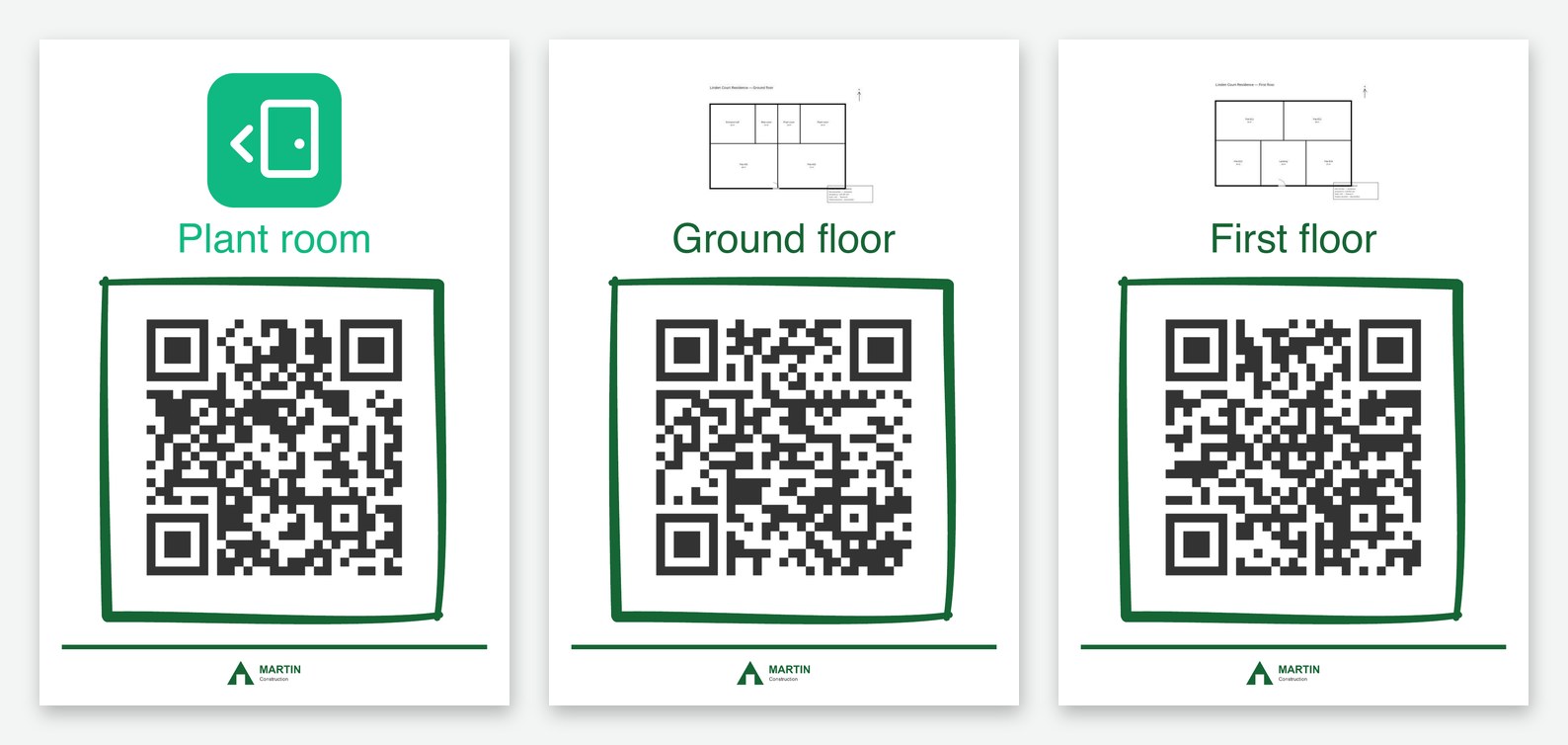
The template is then offered in the Export QR Codes as PDF window:
What the person who scans sees
The person scans the QR code with their phone's camera. A page opens in the browser, with no app and no account:
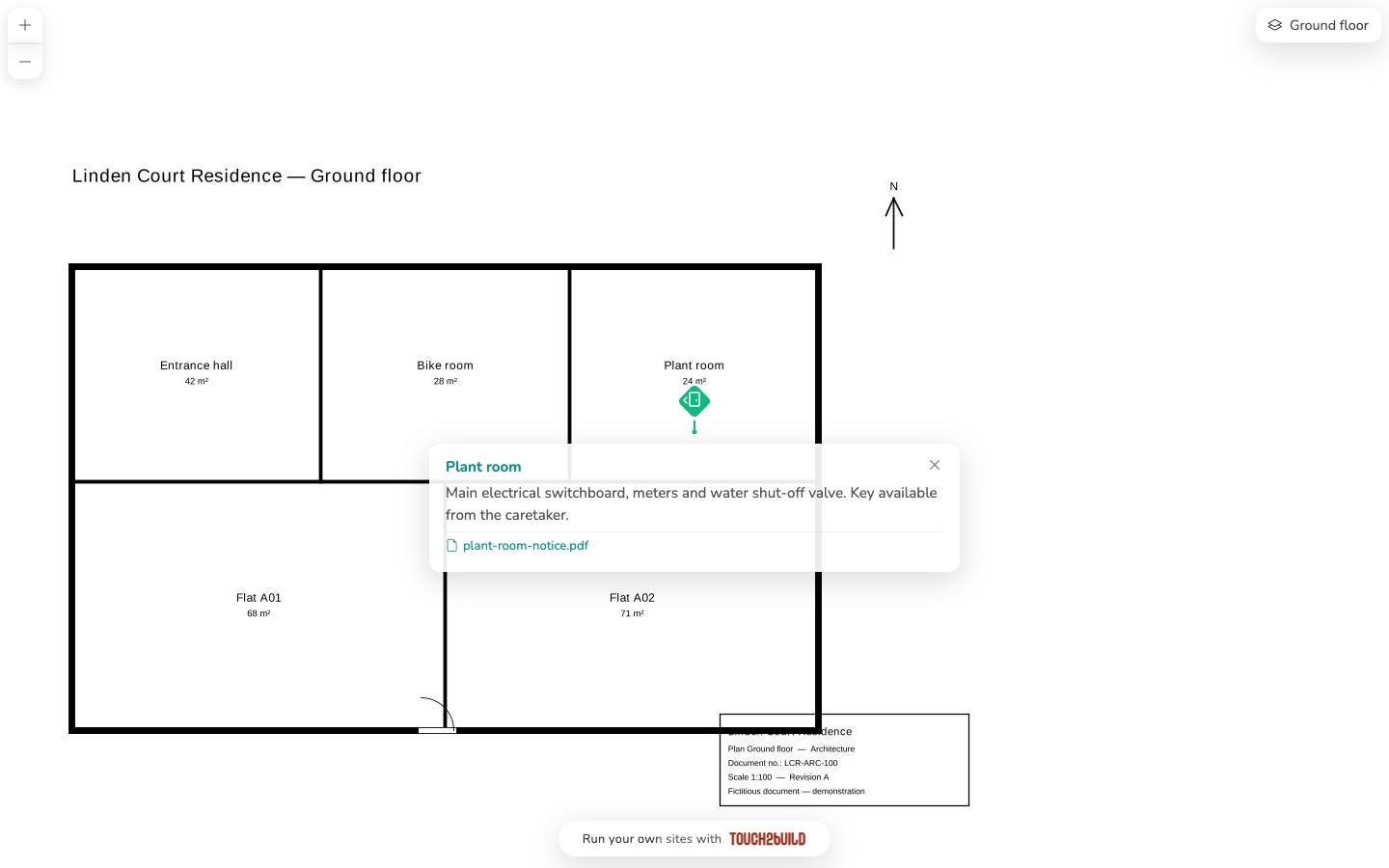
- on the left, the QR code of a drawing: the drawing is shown with its public POIs;
- on the right, the QR code of a POI: its content opens directly, with the attached files.
The person can zoom and tap the other POIs. Tasks and non-public POIs never appear.
Permissions required
| Permission | Allows |
|---|---|
| Edit POIs | Create, place, edit and delete POIs. |
| Manage QR Codes | View, create, edit and export QR codes. |
See Set permissions.