Project settings
The Settings section gathers the configuration of the project: its name, the site address, the task defaults, the features turned on, the tags and the cover photo.
Who sees Settings?
The section only appears for members who have Full Control of the project, including the owner. See Set permissions.
Each tab has its own Save Changes button: remember to click it before you change tab. The Features tab is the exception: each change is saved at once.
General Info
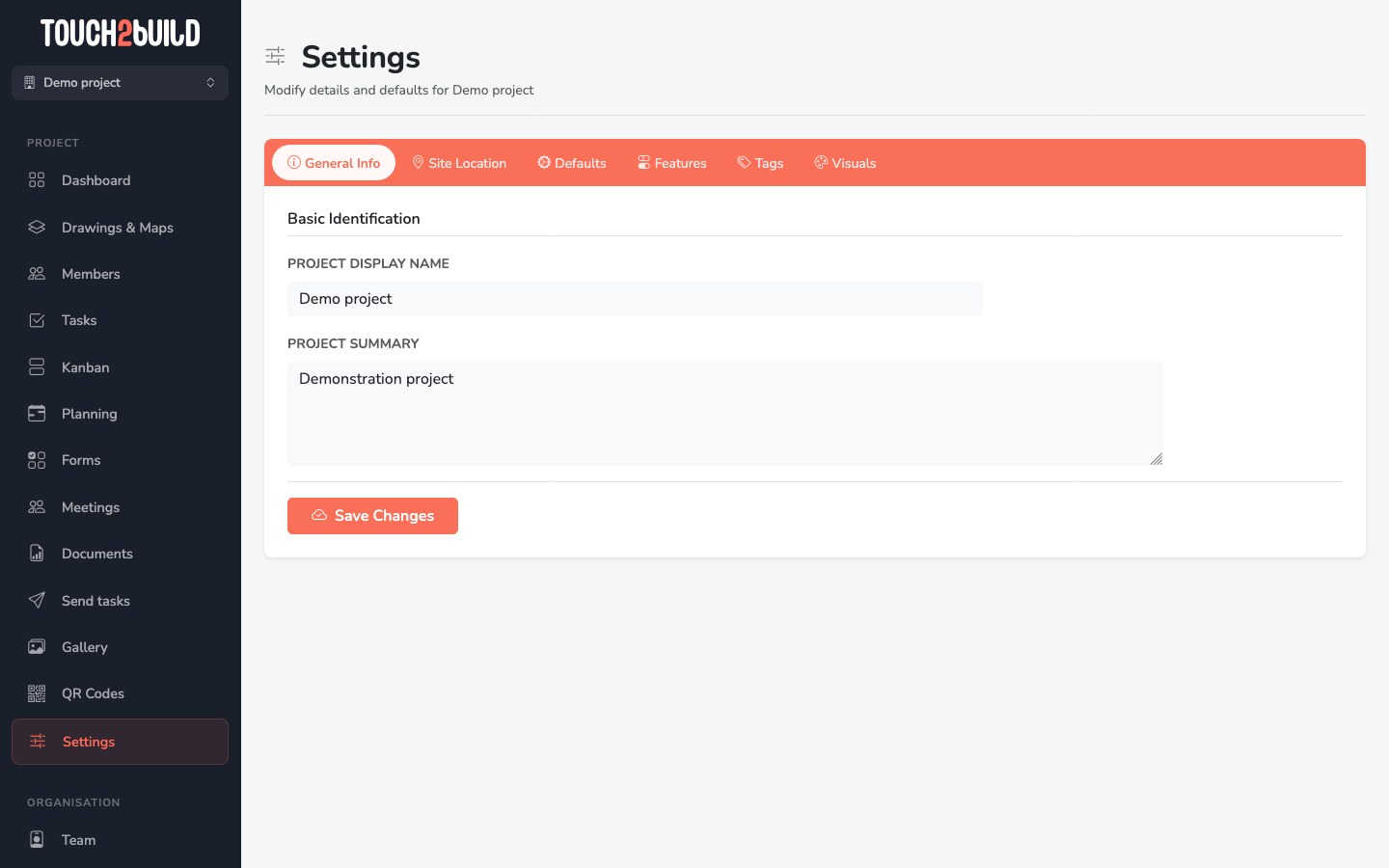
- Project Display Name: the name shown in the project list, the reports and the mobile app.
- Project Summary: a short description, for example the type of work and the phase.
Site Location
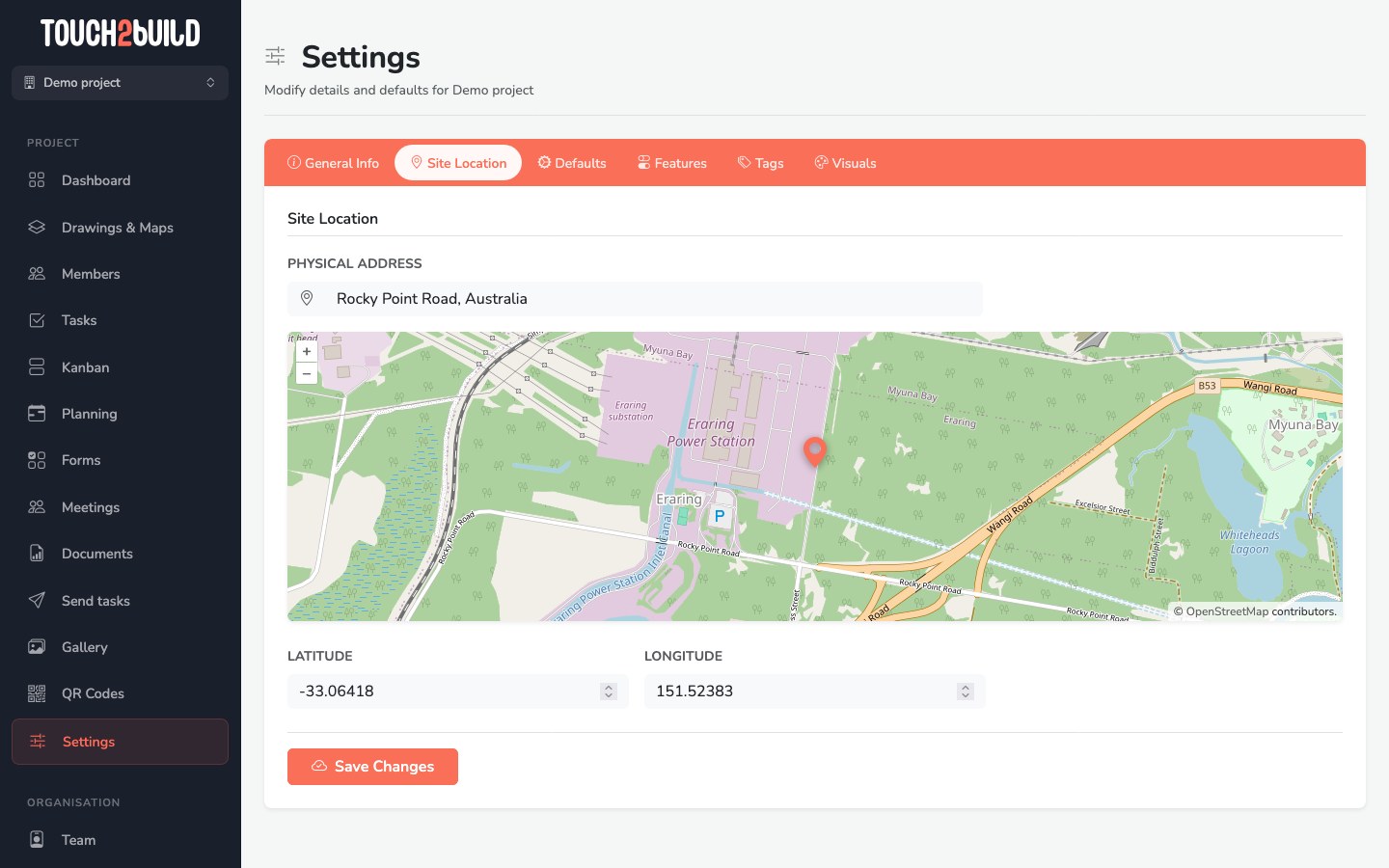
Type the address and choose it in the list: the map centres on it. You can also move the map to adjust the position, or enter the latitude and longitude directly.
The location is used to centre the project maps and to suggest a cover photo.
Defaults
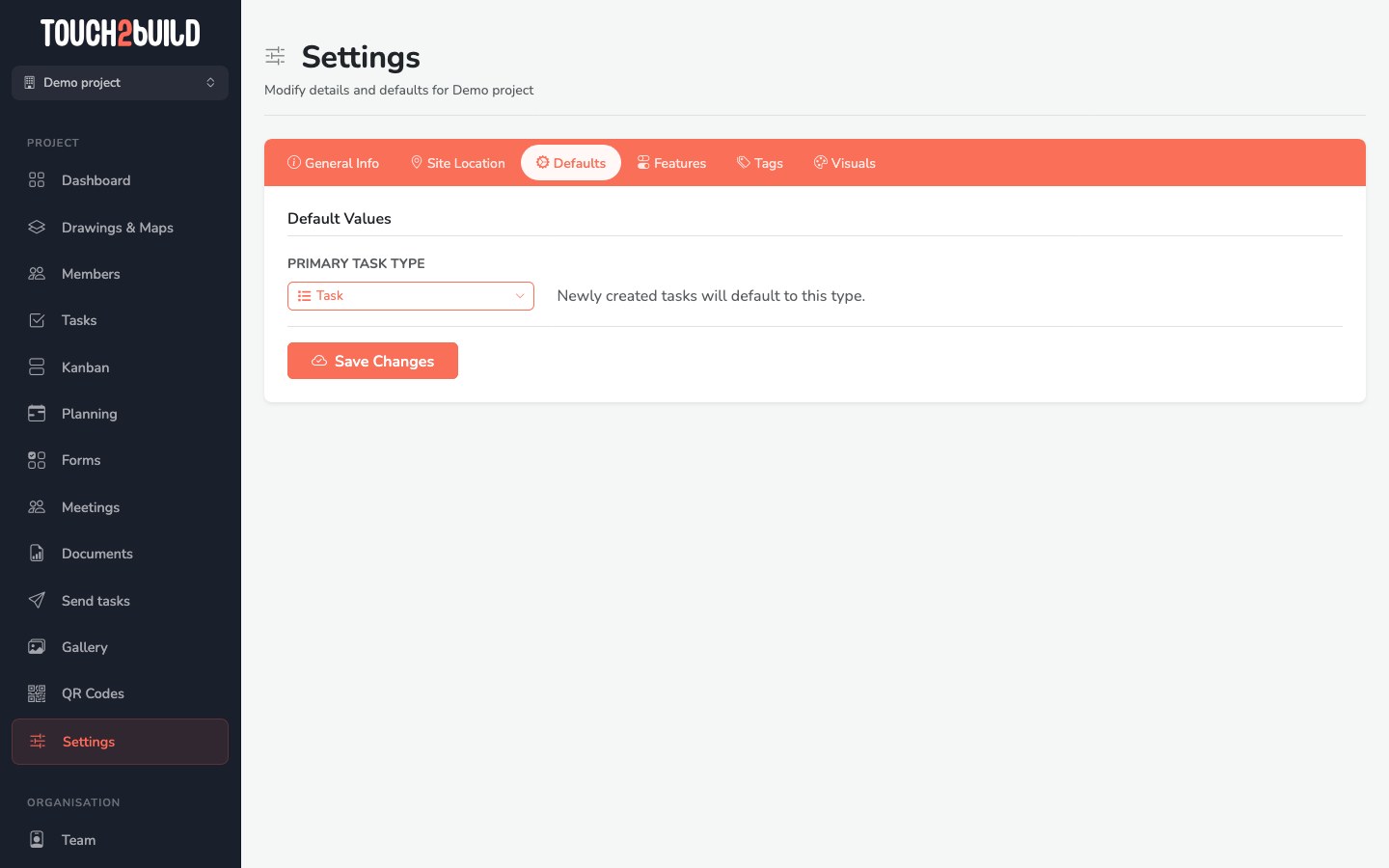
The Primary Task Type is the type given to new tasks: Improvement, Change, Remark, Repair, Snag, Risk, Task or Check. On a site in the acceptance phase, choose for example Reservation.
Features
This tab turns features on or off for this project only. You only show what the site needs: a simple project stays simple, and the team is not cluttered with options it does not use.
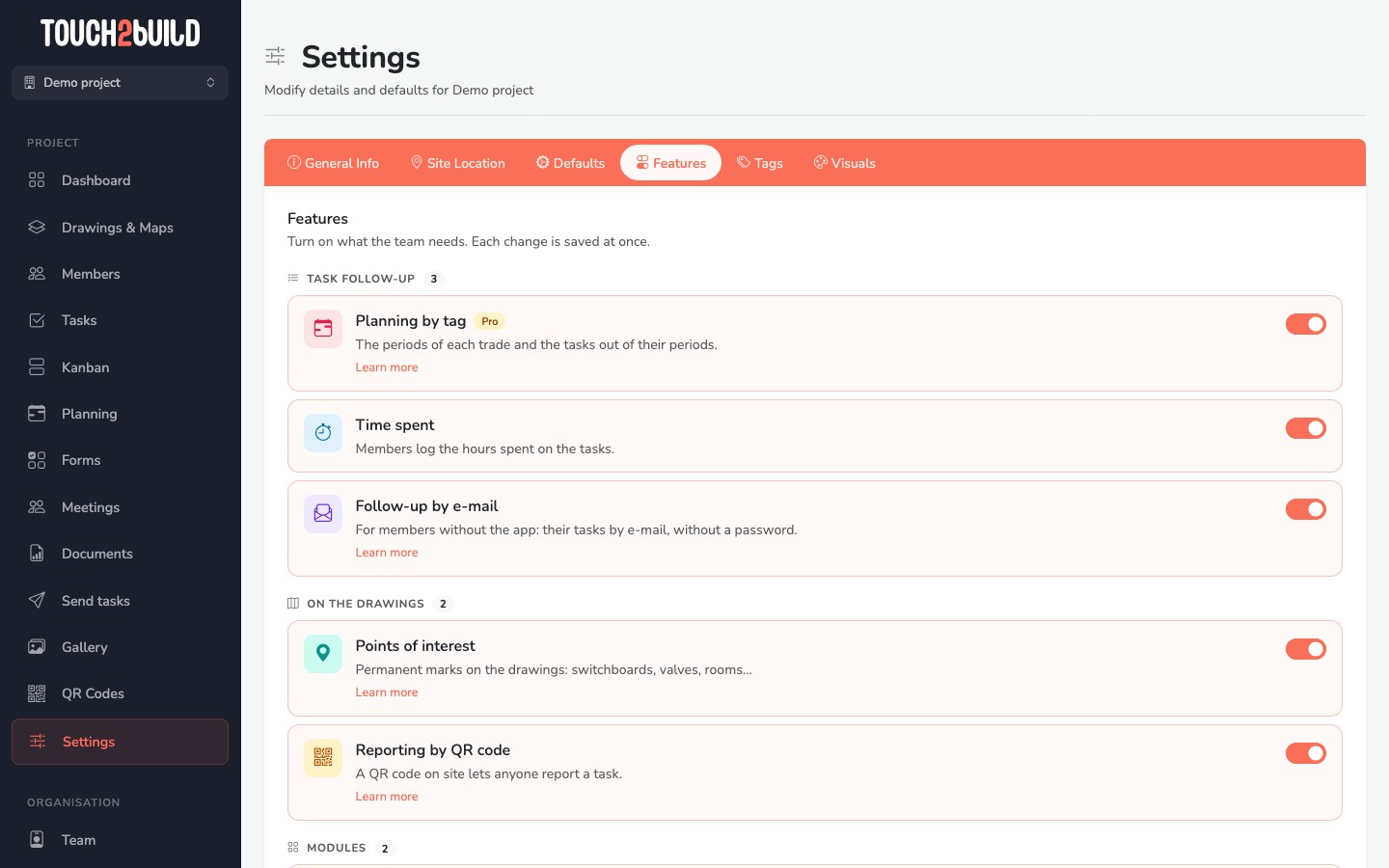
The features are cards with a switch, grouped under Task follow-up, On the drawings and Modules. Use the switch to turn a feature on or off; Learn more opens the matching page of this guide.
- Planning by tag
- Shows the Planning section: the periods of work of each trade and the remaining tasks out of period. See Tags and planning.
- Points of interest
- Shows POIs on drawings and maps, and lets members place them. See POIs and QR codes.
- Reporting by QR code
- Lets you place QR codes that allow anyone who scans them to report a task, without a Touch2build account. If you turn the option off, the QR codes already printed no longer accept reports.
- Time spent
- Lets members log the time spent on each task. See Log time spent.
- Follow-up by e-mail
- For members who do not use the application: they receive an email when one of their tasks gets a comment or changes, and reply by email or from a link, without a password. It must also be turned on for each member in the Members page. See Follow your tasks by email.
- Forms and inspections
- Adds the Forms section: checklists and reports filled in on site, and inspections. See Forms and inspections.
- Site meetings
- Adds the Meetings section: prepare the agenda, run the meeting on a tablet, send the minutes. See Site meetings.
These features are off in a new project. Members also need the matching permissions, for example View Planning.
Tags
The catalogue of the project's tags: see Tags.
Visuals
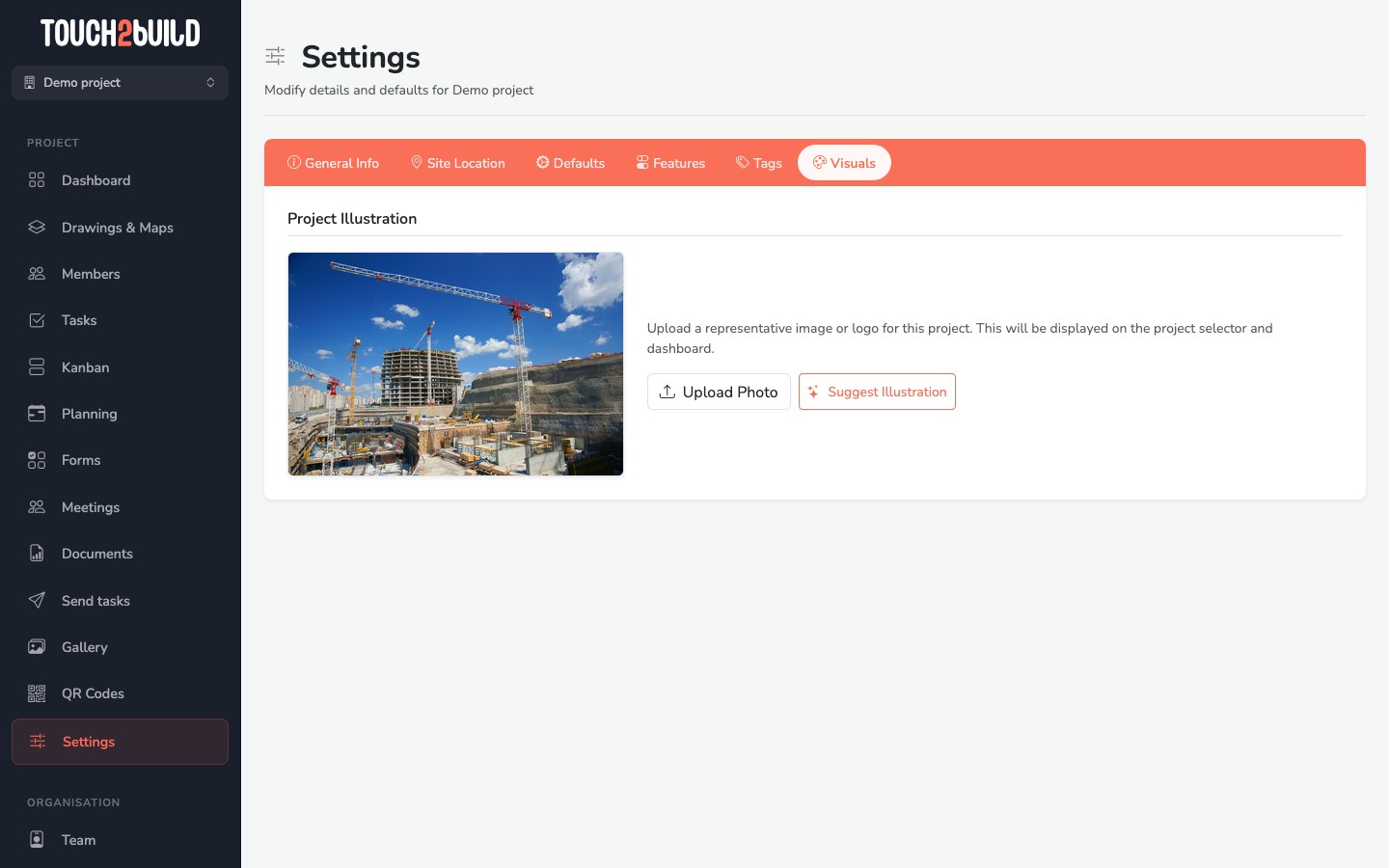
The project illustration is shown in the project list and on the dashboard.
- Upload Photo: choose an image or the project logo on your computer.
- Suggest Illustration: Touch2build suggests a street photo taken near the site address.