Tags and planning
Tags and the planning organise the follow-up by trade. Tags sort the tasks. The planning adds the calendar of interventions, so you can spot in time the companies you will need to call back.
The video shows the tags, then how to read the planning and its bubbles.
Tags
Tags sort tasks along several axes: trade (Electrical, Plumbing, Painting…), type of problem (Defective work, Missing, Cleaning…) or phase. They are used to filter tasks and reports, and to build the planning.
The catalogue is managed in Settings, Tags tab.
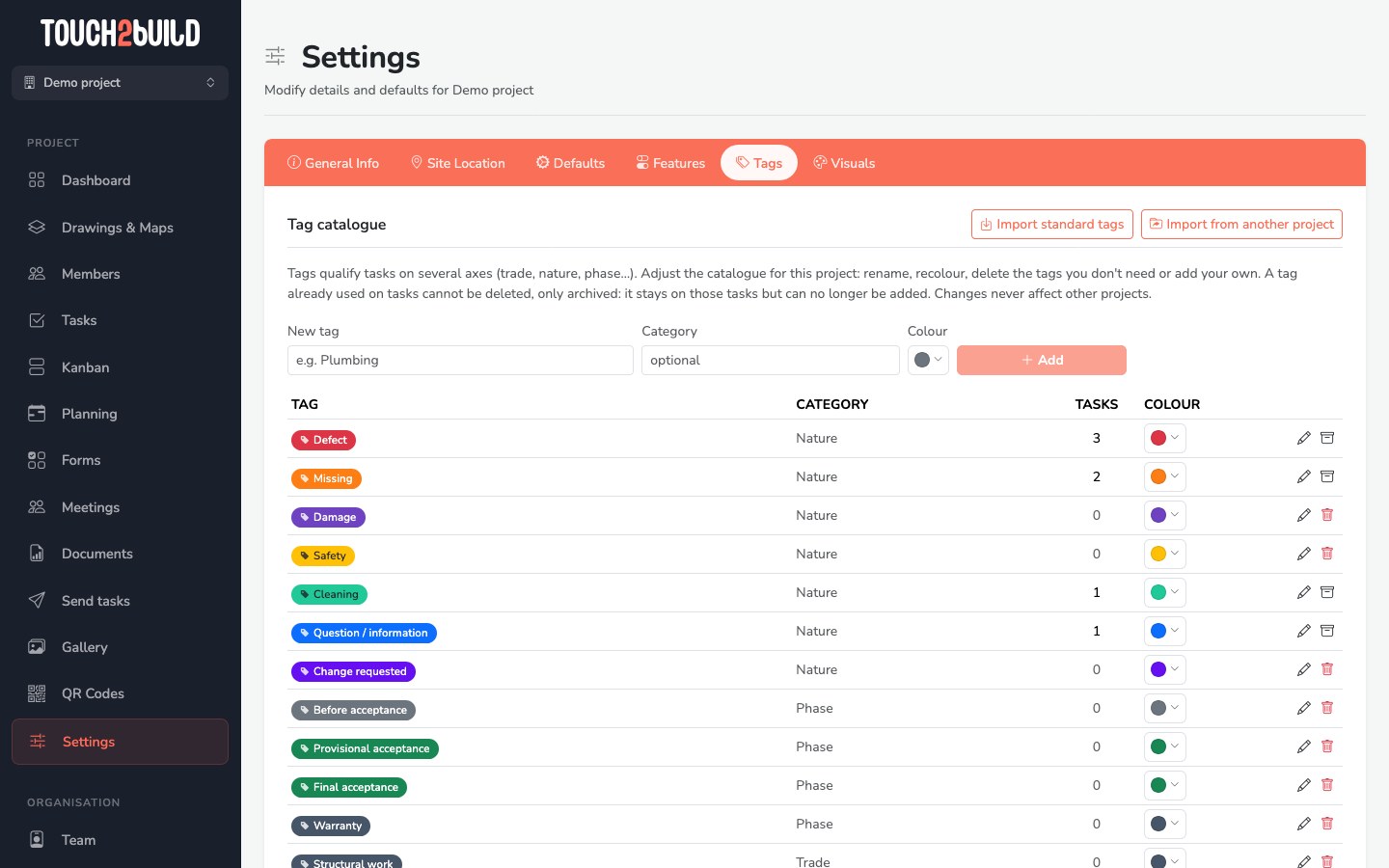
Get started quickly
- Import standard tags: adds a common set of building tags.
- Import from another project: copies the catalogue of an existing project.
Tags that are already present are neither duplicated nor changed.
Add a tag
- Enter the name in New tag, for example Plumbing.
- Choose a Category if you wish, for example Trade.
- Choose a Colour.
- Click Add.
Edit, archive, delete
- The pencil renames the tag. The colour dot recolours it.
- The bin deletes a tag that no task uses.
- A tag that is already in use cannot be deleted, only archived: it stays on existing tasks but can no longer be added. Restore makes it available again.
Changes only affect the current project, never other projects.
Planning by tag
The Planning shows, for each trade, its intervention period on the site. It sets this against the tasks that remain open for that trade.
The aim: to know what is left to handle with a company before it leaves the site, and to spot those that left with tasks still open.
Pro plan
The planning is included in the Pro plan and during the trial. It is open to all members of a project whose owner has one of these plans. Without them, the owner sees the Planning menu marked Pro. See Compare the plans.
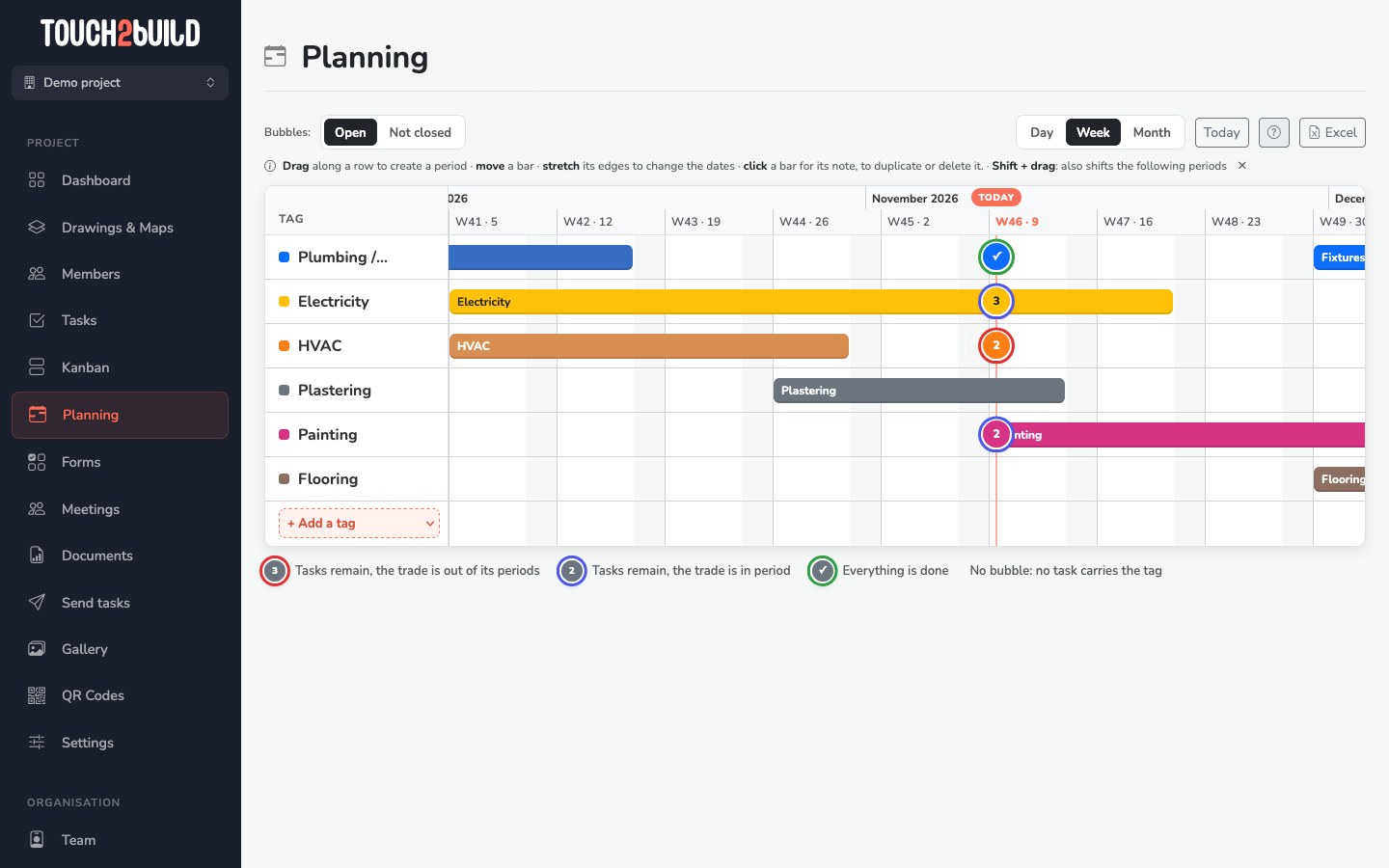
Turn on the planning
The planning is turned on in Settings › Features, with the Planning by tag switch. To see it, a member also needs the Planning: View or Manage permission.
Read the planning
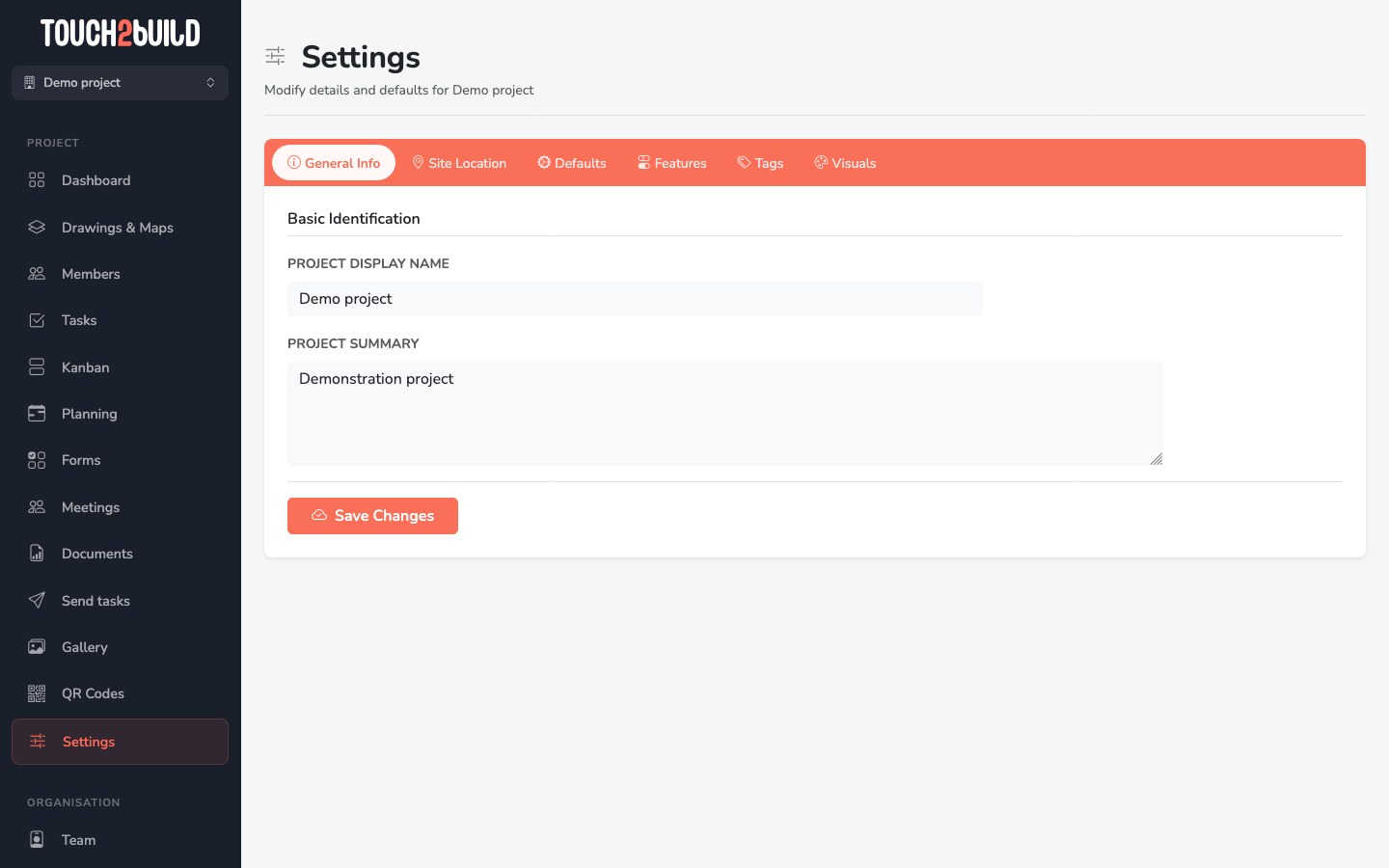
Each row corresponds to a tag. The bars show its intervention periods. The vertical red line marks today.
The bubbles show the state of the tasks of each tag:
| Bubble | Meaning |
|---|---|
| Number, red circle | Tasks remain open while the trade is no longer in its period: you need to call it back. |
| Number, blue circle | Tasks remain open and the trade is in its period: this is normal. |
| green circle | Everything is done. |
| No bubble | No task carries this tag. |
Click a bubble to see the tasks concerned.
In the task list, these same tasks carry a calendar badge on the tag concerned: see Tags outside the planning.
At the top of the page:
- Bubbles: count only Open tasks, or all Not closed tasks, that is open and resolved ones;
- Day, Week, Month: change the scale;
- Today: go back to today's date;
- Excel: export the planning, ready to print. The file is available in Documents.
Edit the planning
With the Planning: Manage permission:
- + Add a tag adds a row;
- drag along a row to create a period;
- move a bar to change its dates, or stretch its edges;
- Shift + drag also shifts all the following periods;
- click a bar to set its dates, add a note (company, pass…), duplicate it or delete it.
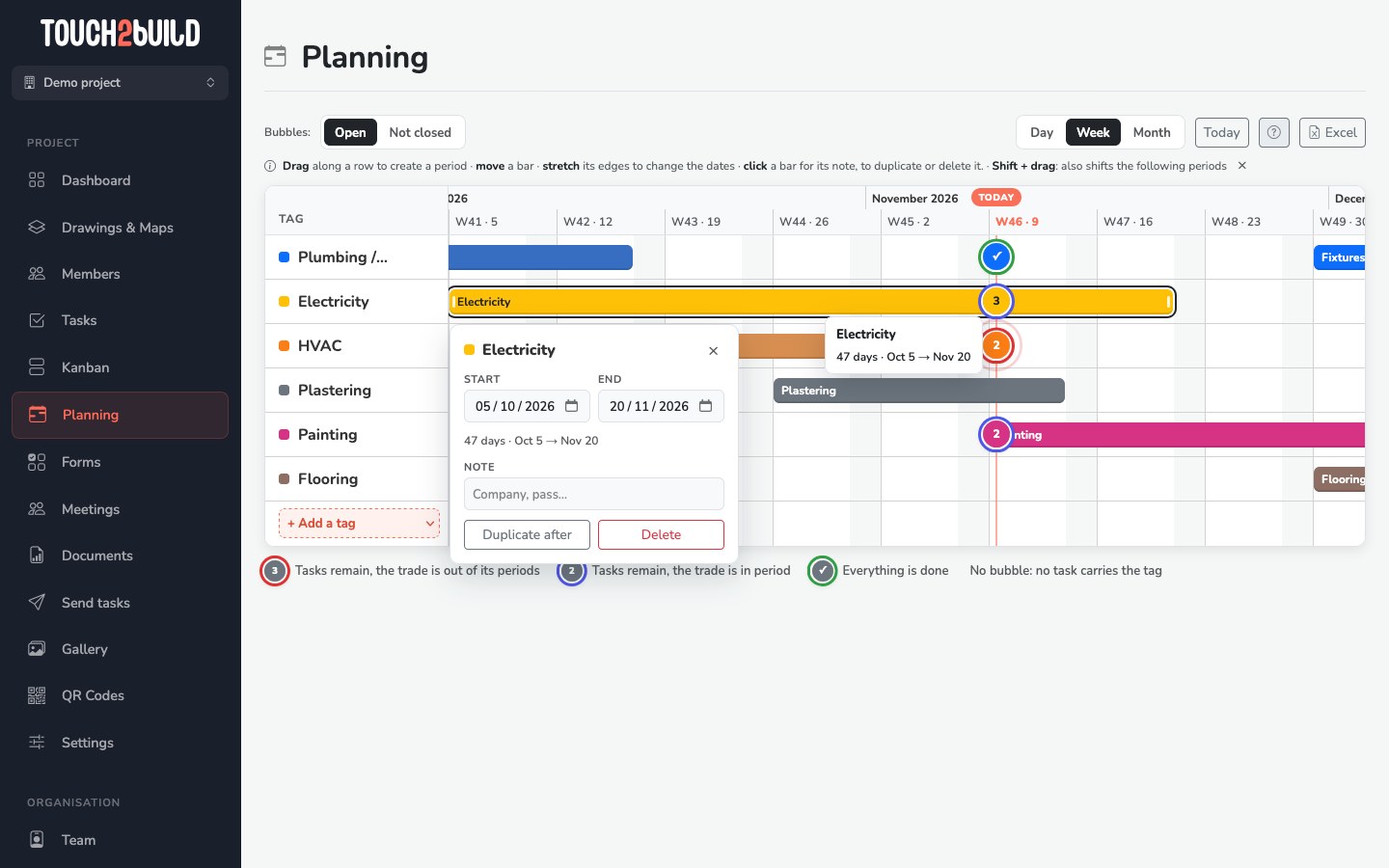
Changes are saved automatically.