Site meetings
The Meetings module prepares, runs and shares the weekly site meeting, from the first agenda item to the minutes sent by e-mail.
- Before: Touch2build proposes the agenda from the tasks, the planning and the previous minutes. You read it through and send the convocation.
- During: on a computer or a tablet, you record attendance, take notes, record decisions and create the actions, item by item.
- After: when you close the meeting, the minutes are ready in Word and PDF. They go out by e-mail to all the recipients, with proof of sending. Each company also receives the extract that concerns it.
What changes compared with minutes typed in Word: the item and the task are one. An action decided at the meeting becomes a task of the project, assigned to the company. Its state comes back on its own at the next meeting: you never retype "done", "in progress" or "late".
The meetings guide has four pages:
| Page | What it explains |
|---|---|
| Overview (this page) | The terms, getting started, permissions, settings, differences between countries. |
| Prepare a meeting | Create the meeting, choose the participants, prepare the agenda, send the convocation. |
| Run the meeting | Attendance, previous minutes, notes, decisions, actions, dictation, closing. |
| Share and follow up | The documents, sending, remarks, corrections, the site hut QR code and the next meeting. |
The terms to know
- Meeting
- A numbered session: Site meeting minutes no. 14. It goes through four stages, shown next to its title: Being prepared, Convened (the convocation has gone out), In progress and Closed.
- Item
- A line of the agenda, with a stable number: 14.3 is the 3rd item of meeting 14. Each item belongs to a section (Planning, Lots, Administration and so on) and, often, to a lot (a tag of the project: Electrics, HVAC and so on). An item that is not done is carried over to the next meeting with the same number: you see at a glance an item that has been dragging on for several meetings.
- State of an item
- New, In progress, Late or Done. It is calculated from the tasks linked to the item: a late task makes the item late, and all tasks closed make it done. You can always choose it by hand.
- Linked task
- A task of the project attached to an item: the snag, the defect or the question being discussed. Its status, assignee and due date show in the item and in the minutes.
- Action
- Something to do, decided at the meeting: what, who and by when. Each action is a task of the project, assigned to the company. It is then followed like any task, in the list, the Kanban or the planning, and comes back at the next meeting with its state.
- Minutes
- The document of the meeting, in Word and PDF: attendance, items, decisions, actions, date of the next meeting and the time allowed for objections. It exists in a full version and as an extract per company.
- Remark
- A comment received on minutes that have been sent, for example "On item 14.3, the date is 4 November, not 2". It arrives as a reply to the minutes e-mail, or you note it by hand. It is reviewed when the next meeting opens.
- Internal item
- An item reserved for the writer and the client (penalties, budget, dispute and so on). It appears neither in the minutes sent to the companies nor on the QR code page.
A typical week
- On Monday, the day before the meeting, Touch2build prepares the agenda and sends you an e-mail. You read it through in five minutes and send the convocation. See Prepare a meeting.
- On Tuesday morning, in the site hut, you open the meeting on a tablet or a laptop. For each item, you note what is said and the decision, and you create the actions. See Run the meeting.
- At the end of the meeting, you click Finish: the minutes go out before you leave the site. See Share and follow up.
- During the week, the companies deal with their actions like all their tasks. Their remarks on the minutes arrive in the meeting.
- The following week, the items that are not done are carried over automatically, with the real state of their tasks.
Get the module going
1. Turn on meetings in the project
Open Settings in the project menu, then the Features tab, and switch on Site meetings. The choice is saved at once and the Meetings section appears in the menu.

2. Give members access
In Members, open a member's permissions: the Site meetings section offers three levels.
| Level | What the member can do |
|---|---|
| None | They receive the minutes by e-mail and see their actions as tasks. This is the normal level for a subcontractor. |
| View | They see the meetings and download the minutes. |
| Manage | They prepare, run, close and send the meetings. |
The Manage level also needs the Create tasks permission, because actions are tasks, and the project owner to be on the Pro plan or the free trial (compare the offers). Without Create tasks, the member can only view the meetings. The project administrator always has the Manage level.
Subcontractors need no access
An invited company receives the minutes by e-mail, sees its actions in its tasks, and can reply to the minutes e-mail. It does not need the module, or a licence.
3. Set up the module
Open Meetings, then Settings. These settings apply to all the meetings of the project.
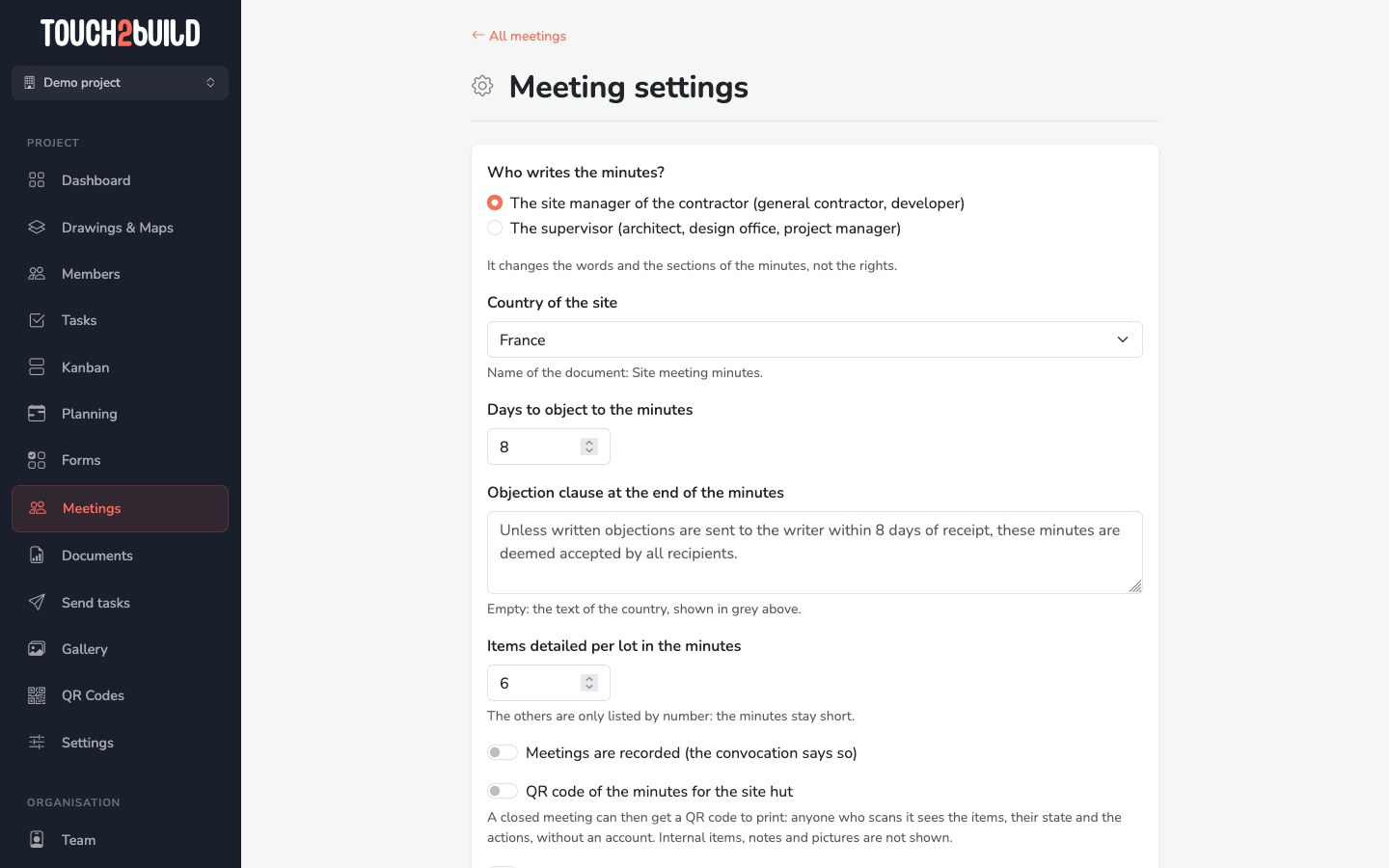
- Who writes the minutes?
- The site manager of the contractor (general contractor, developer) or The supervisor (architect, design office, project manager). This choice changes the words and sections of the minutes, not the permissions.
- Country of the site
- It sets the name of the document, the safety section and the default time allowed for objections. See By country.
- Days to object to the minutes
- The number of days the recipients have to object to the minutes. It is recalled in the footer of the document. A remark received after this time is marked After the deadline.
- Objection clause at the end of the minutes
- The text printed at the end of the minutes. Leave the field empty to keep the text of the country, shown in grey.
- Items detailed per lot in the minutes
- Beyond this number (6 by default), the items of a lot are only listed by number: the minutes stay short and can be read in two minutes.
- Meetings are recorded (the convocation says so)
- Tick this box if you record the meetings. The convocation then tells the participants in advance.
- QR code of the minutes for the site hut
- Lets you create, for each closed meeting, a QR code to display in the site hut. See The site hut QR code.
- 7-day weather forecast
- Shows the forecast for the next 7 days at the top of each meeting and on the first page of the minutes. Unticked by default. See The weather.
Where to find the meetings
The Meetings section lists the meetings of the project, the most recent first, with their date, place, stage and number of people present.
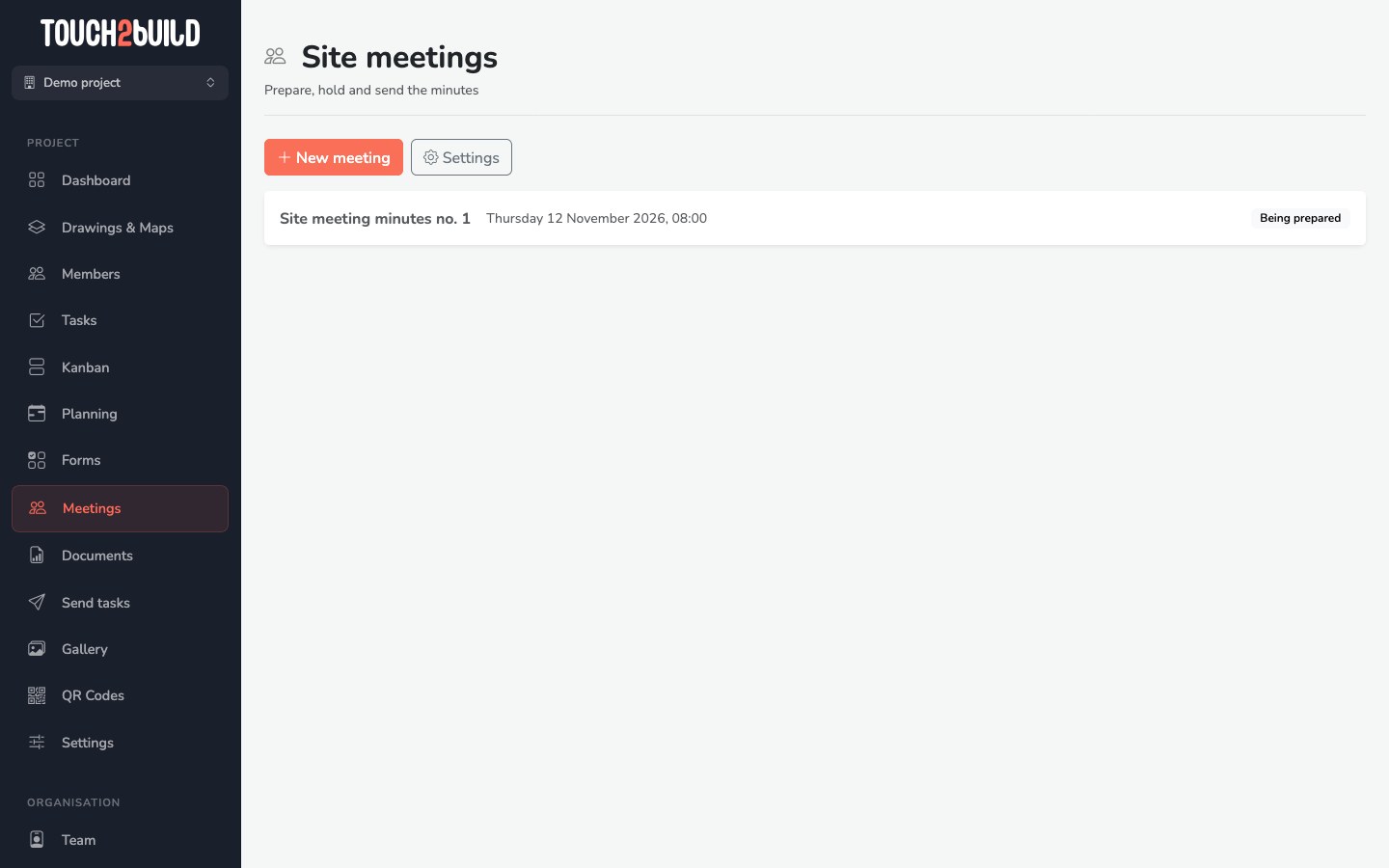
The project dashboard also shows two cards: the next meeting, with the number of items on its agenda, and the last minutes, with their sending status. One click opens the meeting.

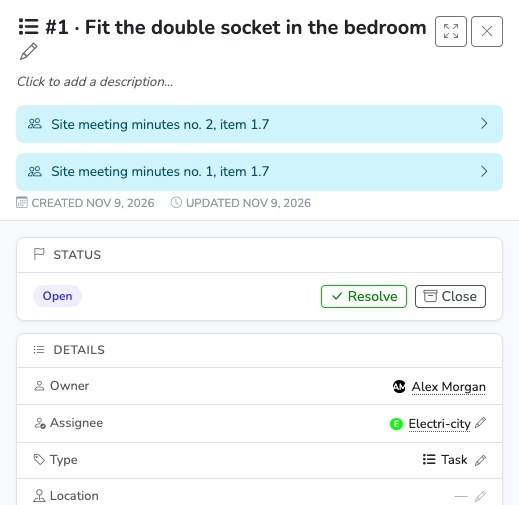
Finally, the detail of a task shows the meetings where it was discussed, with the item number. One click opens the meeting.
By country
The country of the site sets the words and the time limits. France is the base case. The names below are those of the French-language documents.
| France | Belgium | Switzerland | Luxembourg | |
|---|---|---|---|---|
| Document | Compte rendu de chantier | PV de chantier | PV de séance de chantier | Rapport de chantier |
| Default time for objections | 8 days | 15 days | 10 days | 7 days |
| Safety section | CSPS (health and safety coordinator) | Health and safety coordinator | Health and safety, always present | Health and safety coordinator |
In English, the document is called Site meeting minutes whatever the country.
In Luxembourg, Touch2build warns you when no participant has the role of safety coordinator. The time and the objection clause can be changed in the settings.