Your projects
After you sign in, Touch2build opens the start screen. It gathers all your construction sites: those you created and those you were invited to. You can sort them in your own folders, see them on a map and hide the ones that no longer concern you.
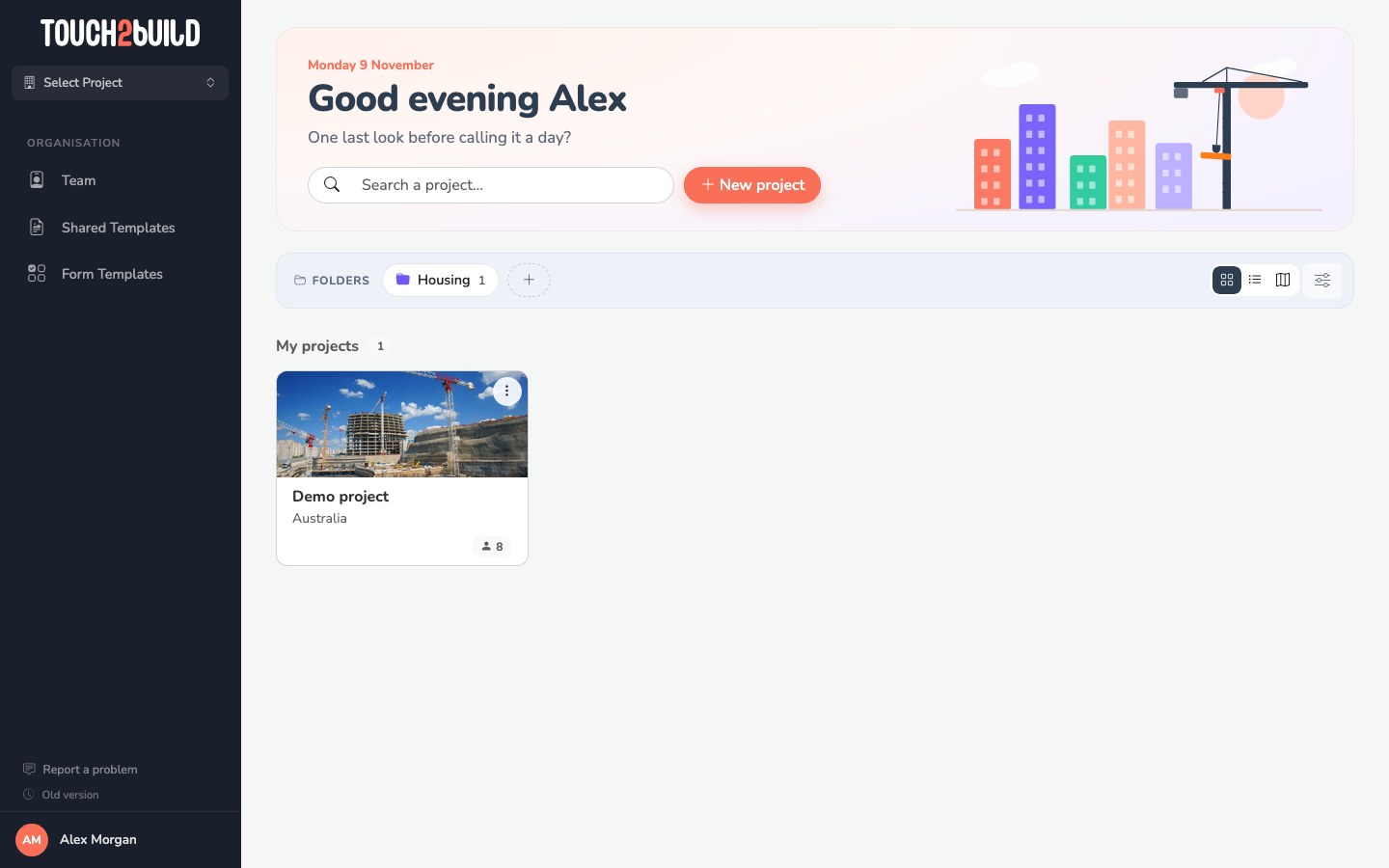
At the top, the welcome banner shows the date and two actions:
- Search a project…: type a few letters of the name, the town or the client. The search covers all your projects, whatever their folder.
- New project: choose Blank project to start a real site (see Create a project), or Demo project for a sample that is already filled in.
Click a project to open its dashboard.
My projects and Shared with me
Projects are shown in two groups:
- My projects
- The projects you own, usually the ones you created.
- Shared with me
- The projects where someone added you as a member. You see and do what your permissions allow.
Each card shows the project illustration, its name and its country or town. On shared projects, it also shows the company that invited you. The badge gives the number of members.
Grid, list or map
The three buttons on the right of the Folders banner change the display:
- Grid: the cards with their illustration;
- List: one line per project, more compact when you have many;
- Map: the projects placed at their address. Green dots are your projects; purple ones are shared with you. Click a dot to open the project.
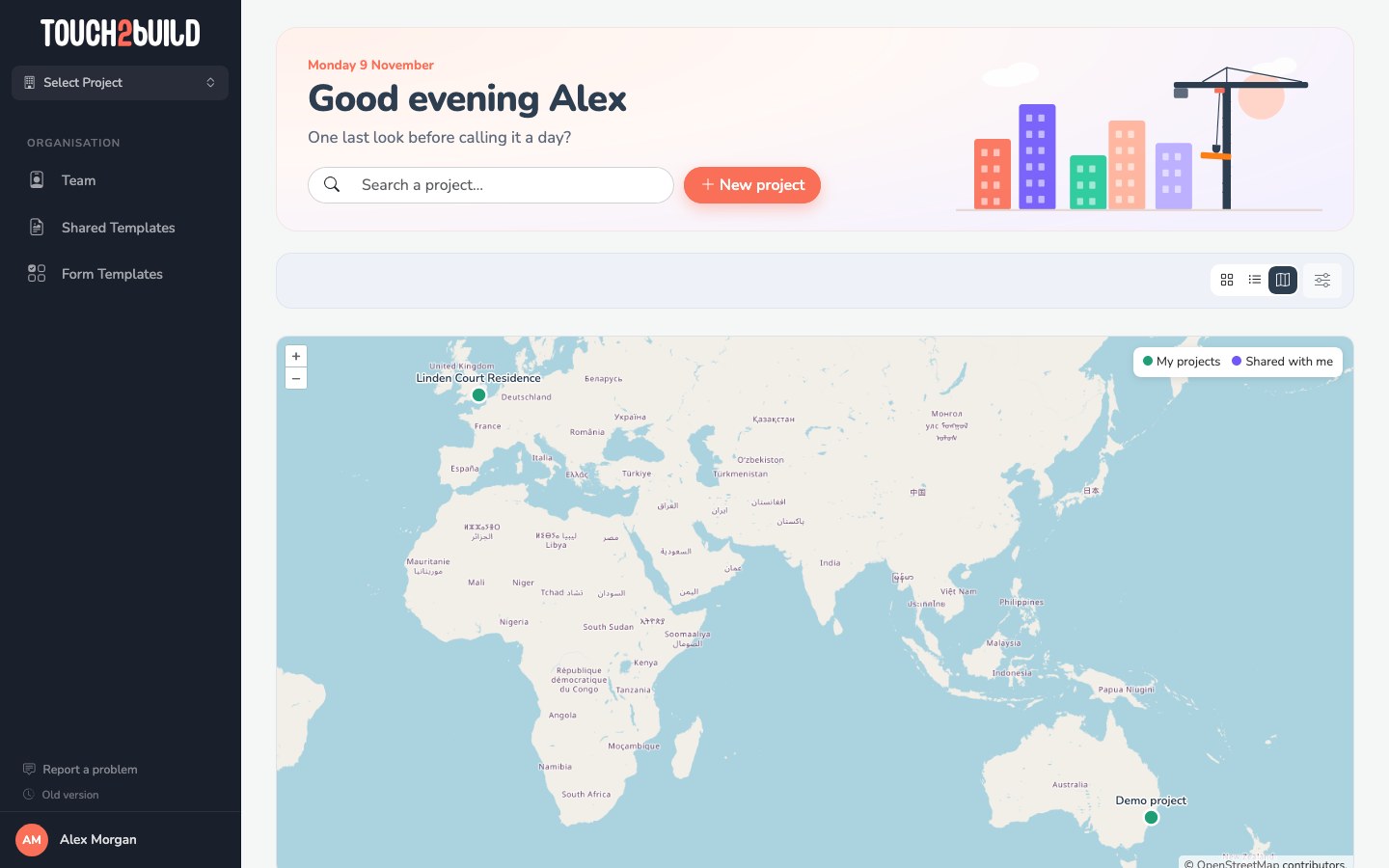
Under the map, the Without position line lists the projects without an address. Add one in the project settings to see them on the map.
Touch2build remembers the display you chose for your next visits in this browser.
Sort your projects in folders
Folders organise your start screen: by client, by region, by year… as you like.
Your folders are personal
They do not change the project. Other members do not see your folders and sort the same project in their own way.
Create a folder
- In the Folders banner, click New folder.
- Type the name, then press Enter.
Put a project in a folder
Two ways:
- drag the project card onto the folder;
- or open the menu of the project, then Move to, and choose the folder.
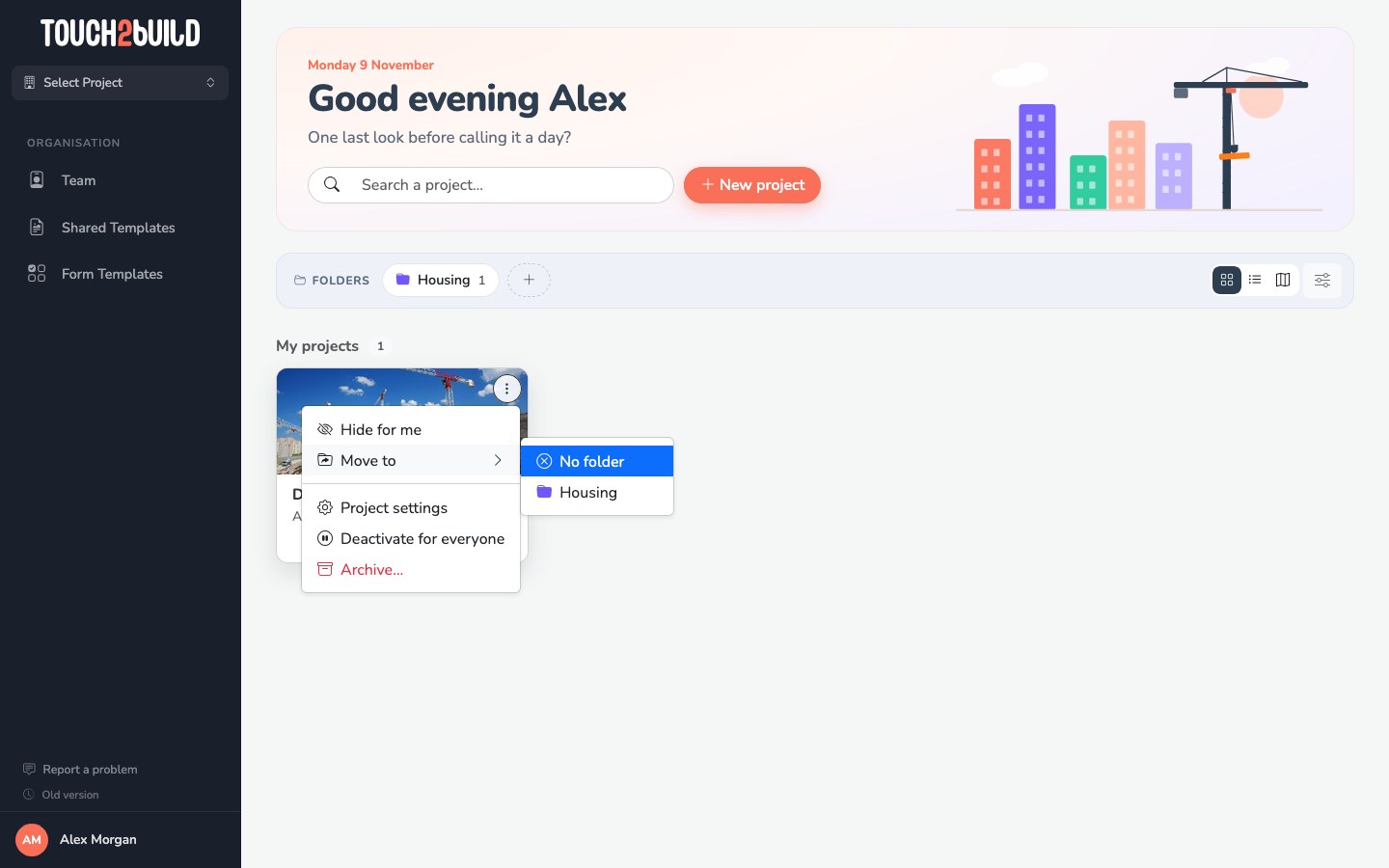
To take a project out of its folders, choose Move to > No folder.
The start screen only shows the projects that are in no folder. A project in a folder can always be found through the search.
Open, rename or delete a folder
Click a folder to open it. The breadcrumb at the top takes you back to Home. Inside a folder, New sub-folder creates a folder within it.
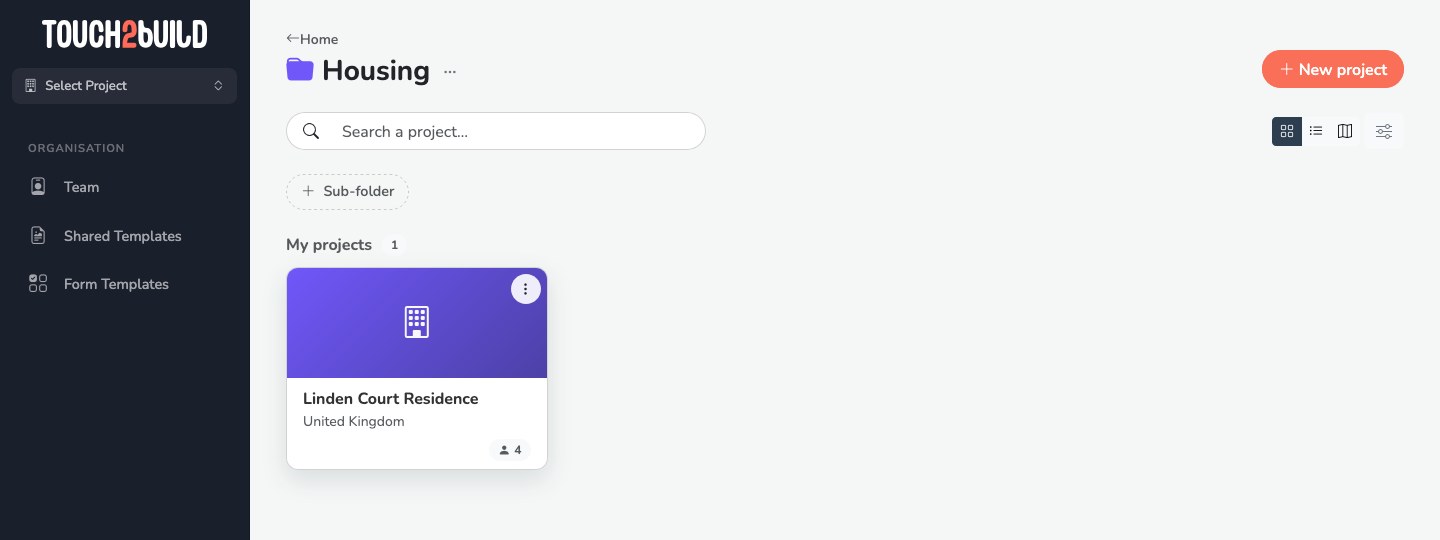
The menu next to the folder name offers:
- Rename;
- a colour, to recognise the folder at a glance;
- Delete the folder: its projects and sub-folders move up one level. No project is deleted.
Hide a project for yourself
A finished site, or a project you were invited to that no longer concerns you? Open its menu and choose Hide for me.
The project disappears from your start screen and from the project switcher. It is no longer downloaded to the mobile app. Other members still see it.
To find your hidden projects, click Display options, on the right of the display buttons, then Hidden projects. This button only appears if you have hidden or deactivated projects. Choose Show again in the project menu to put it back.
Deactivate or archive a project
These actions affect all members. Only the project owners see them in the menu.
- Deactivate for everyone
-
Pauses the project. Members who are not owners lose access to it; owners keep it, marked deactivated. Reactivate for everyone gives access back.
Deactivated projects do not appear on the start screen. To show them, open Display options and turn on Show deactivated projects.
- Archive…
- Removes the project from the application for everyone.
Archiving is final
An archived project cannot be restored from the application. If you only want to remove it from your view, use Hide for me. To pause it, use Deactivate for everyone.