Measure on a drawing
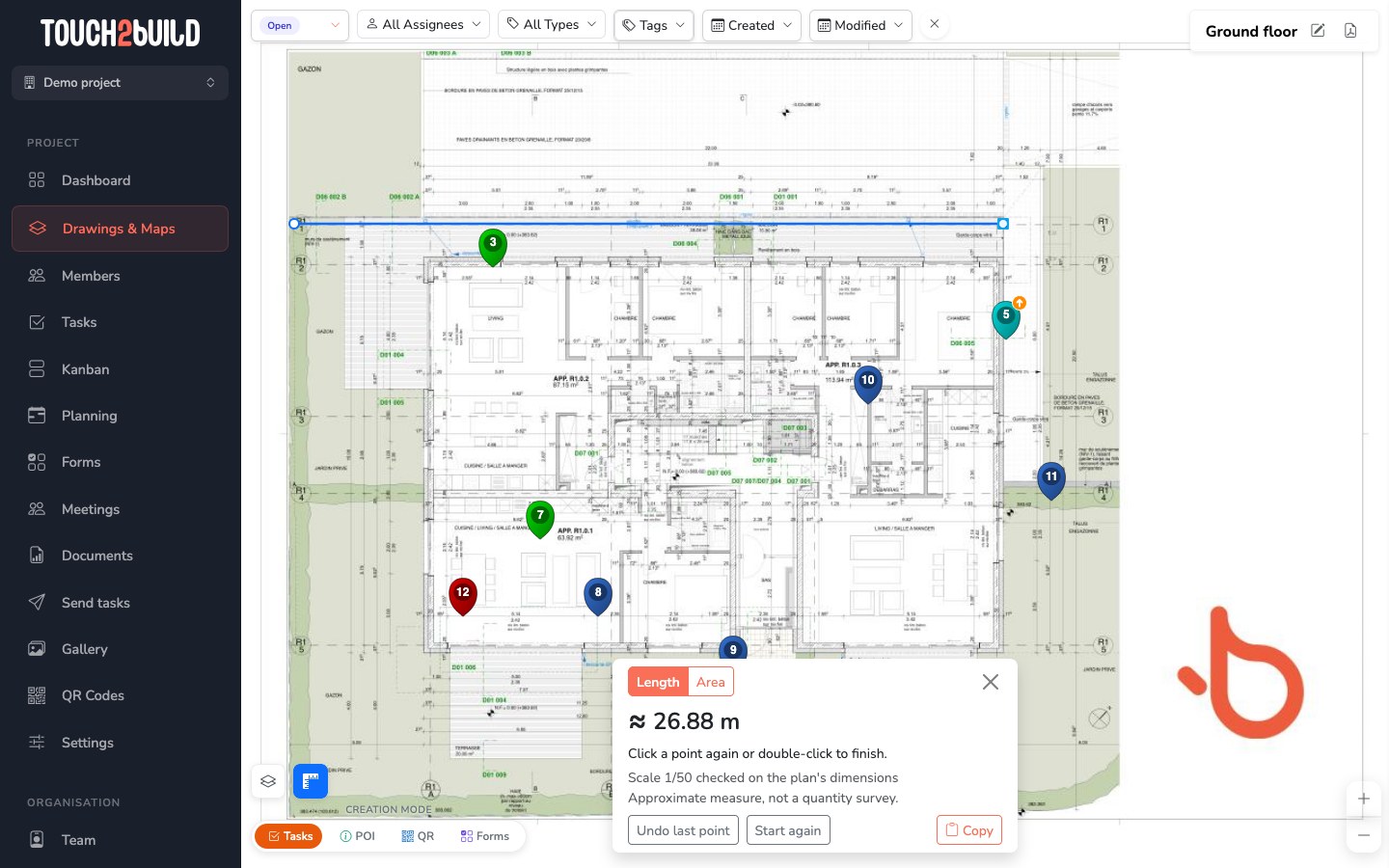
The Measure button gives a length or an area directly on the drawing, with no ruler and no scale calculation: you click the points, and Touch2build shows the value in metres or square metres.
Touch2build only offers measuring on drawings whose scale it knows with confidence. It reads the scale in the title block, then checks it against the drawing's dimensions. When it cannot find it, the button does not appear: you never have to calibrate by hand.
For a full take-off, saved on layers, use the Annotate mode.
Measure a length
- Open the drawing.
- Click the Measure button (a ruler), at the bottom left, next to the layers button. It turns blue.
- Click the first point, then the next: the length appears in the panel at the bottom. You can chain several segments, and the panel gives the total length.
- To finish, double-click the last point, or click a point already placed: the segment up to that point is added, then the measurement stops.
Once a measurement is finished, the next click starts a new one.
Measure an area
- In the measure panel, choose Area.
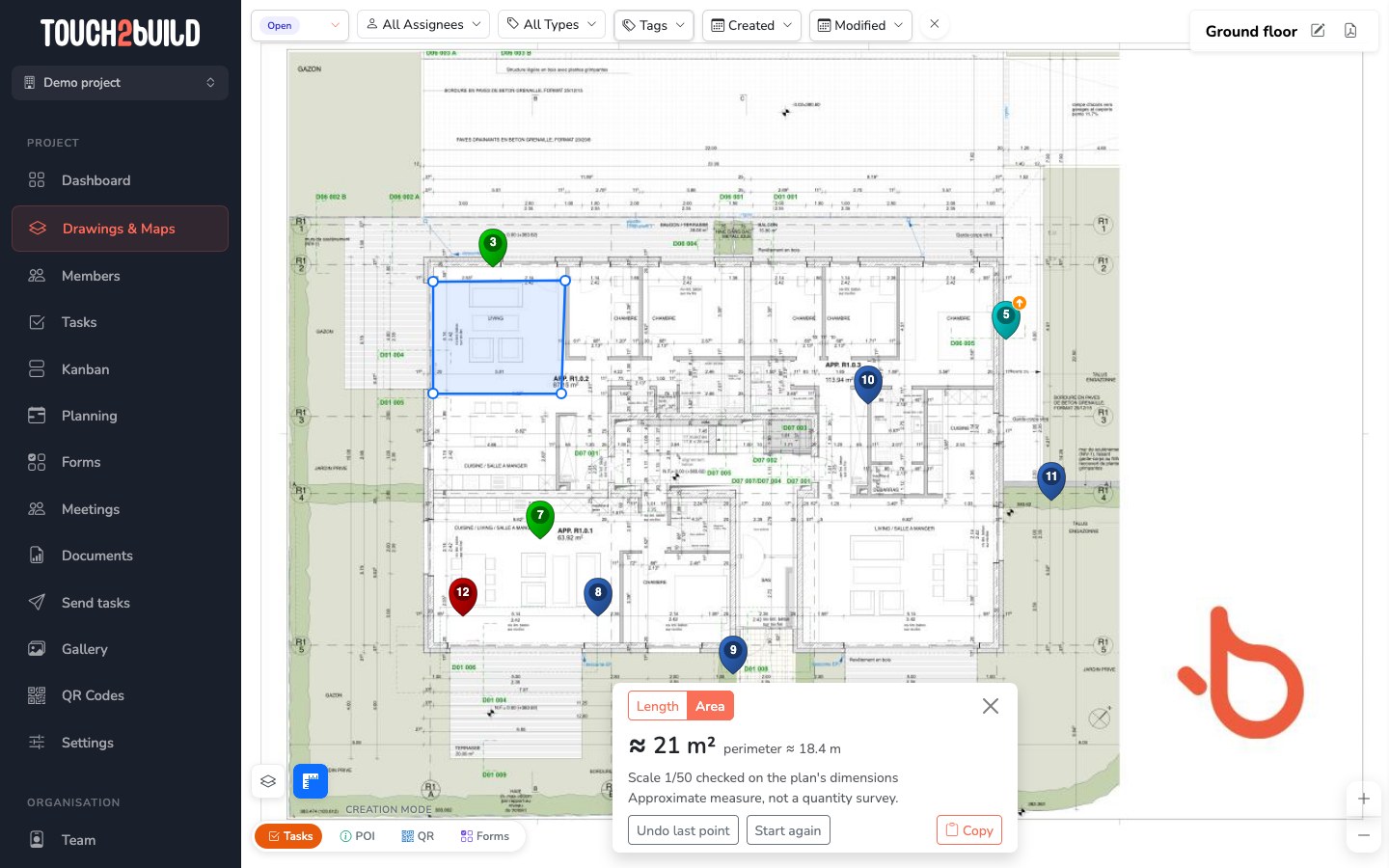
- Click the corners of the area, in the order of the outline. From the third corner, the area and its perimeter are shown.
- To finish, click the first corner or double-click the last one.
The measure panel
- Undo last point
- Removes the last point clicked, even after the measurement is finished.
- Start again
- Clears the current measurement.
- Copy
- Copies the displayed value, for example "≈ 4.72 m", so you can paste it into a task, a comment or an e-mail.
- Length / Area
- Switches the type of measurement. The current measurement is cleared.
To leave measuring, click the Measure button again, close the panel or press Esc. While measuring, clicks place points: they do not create a task and do not move anything on the drawing.
Where the scale comes from
Under each measurement, a line says where the scale used comes from:
- Scale 1/50 checked on the drawing's dimensions
- The scale written in the title block matches the dimensions drawn on the drawing. This is the case where the measurements are most dependable.
- Scale 1/168 computed from the dimensions (the title block says 1/100)
- The drawing's dimensions contradict the written scale. This is typical of a drawing printed at reduced size, for example two 1/100 drawings reduced to fit on one A3 sheet. Touch2build then uses the real scale, computed from the dimensions.
- Scale 1/50 read on the title block
- The scale is written on the drawing, but there are not enough dimensions to check it.
Measurements are always preceded by "≈": this is an indicative measurement, not a replacement for a take-off. On a drawing whose scale is checked, the difference from the dimensions is usually around 1%.
When the Measure button does not appear
The button does not appear when the drawing's scale is not reliable:
- the drawing is a scan or a photo, or its text was converted to outlines on export: Touch2build cannot read anything;
- no scale is written on the drawing;
- the drawing carries several scales (a 1/50 drawing with 1/20 details) or the note "as indicated";
- the drawing is marked not to scale;
- the written format does not match the page (an "A0" drawing saved on an A3 page) and the dimensions do not allow the real scale to be found.
For a drawing exported directly from drawing software, with its title block and dimensions, the button is usually available.
Drawing administrators see the scale found in the Details panel of the drawing, on the Scale line: the scale and where it comes from, or "not found, measuring unavailable". Just after a drawing is imported, the line says "being read…" for a few seconds.
Drawing versions
The scale is read for each file of the drawing. When you replace the file with a new version, its scale is read again: measuring never uses the scale of another version. On an old version, measuring uses the scale of that version. Measuring is not available while two versions are being compared.
Frequently asked questions
Can I set the scale myself?
No. Touch2build only offers measuring on drawings whose scale it knows, so that it never shows a wrong measurement. If the button does not appear on a drawing exported from drawing software, send it to support: support@touch2build.com.
Is the measurement saved?
No. A measurement is for checking a dimension on the spot. To keep it, use Copy then paste the value into a task or a comment.
Do I need a subscription?
No, measuring on drawings is available with every plan, including the free one.
Can I measure in the mobile app?
Not for now: measuring is done in the web app, where the mouse lets you aim at points precisely.