Inspections
An inspection is a round of several forms, placed at the right spots on the drawings: the safety check of each floor, the acceptance of several rooms, the monthly visit of a building and so on.
You prepare it once, as an inspection template. Then you start it each time it has to be done: Touch2build creates all its forms at once, at the right spot, for the right people. When the required forms are sent, you close it, and a Word report gathers the whole round.
Inspections are reserved for the Prepare level. Preparing or editing an inspection template needs the Prepare + templates level: see permissions.
Prepare an inspection
In Forms, open the Templates tab, choose Inspections, then New inspection.
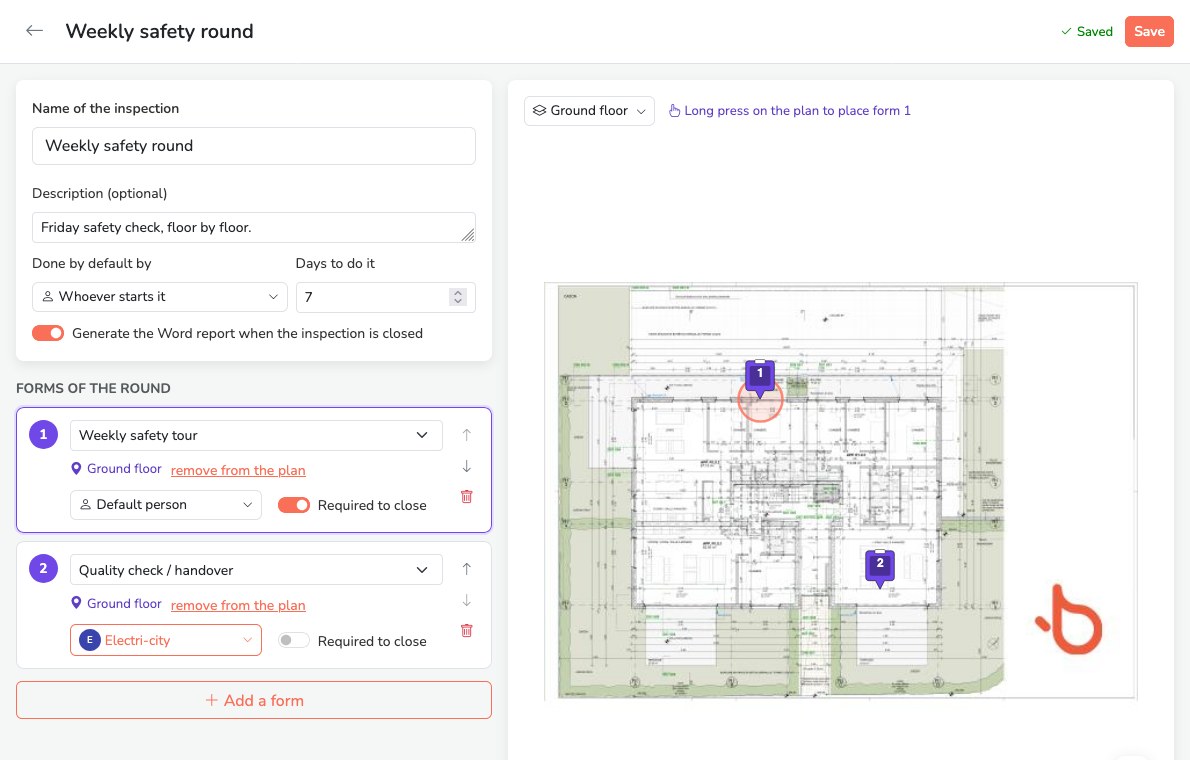
- Give the inspection a name, for example Weekly safety round, and a description if needed.
- Done by default by: the person who usually does the round. Leave Whoever starts it if it varies.
- Days to do it: the time between the start and the due date, 7 days by default.
- Generate the Word report when the inspection is closed: on by default.
-
In Forms of the round, add each form with Add a form:
- choose the form template;
- place it on the drawing: choose the drawing at the top right, then long press at the spot you want. remove from the plan cancels the placement;
- Default person: someone other than the person doing the round, for example the company concerned;
- Required to close: untick it for an optional form.
The arrows change the order of the forms; the bin removes one.
-
Click Save.
The forms of one round can be on different drawings, for example one per floor. A form that is not placed is done without a location.
Like form templates, an inspection template cannot be deleted: archive it so that it is no longer offered.
Start an inspection
In the Inspections tab, click Start an inspection:
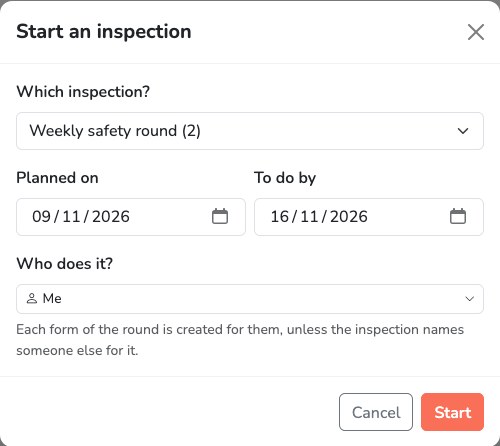
- Which inspection?: the inspection template; the number in brackets is its number of forms.
- Planned on: today by default.
- To do by: calculated with the delay of the template, and editable.
- Who does it?: each form of the round is created for this person, unless the template names someone else for it.
Click Start. The forms are created, each at its location, with the due date of the inspection. The people concerned find them in To fill in, on the web and on their phone.
A regular round
For a weekly inspection, prepare it once, then start it each week from the Inspections tab.
Follow an inspection
The Inspections tab lists the inspections that have been started, with their status, the person doing them, the due date and the progress. Show the closed ones reveals the older ones.
| Status | Meaning |
|---|---|
| To do | No form has been sent yet. |
| In progress | At least one form has been sent. |
| Ready to close | All the required forms have been sent. |
| Closed | The inspection is finished. |
The late badge marks a due date that has passed.
Click an inspection to open it:
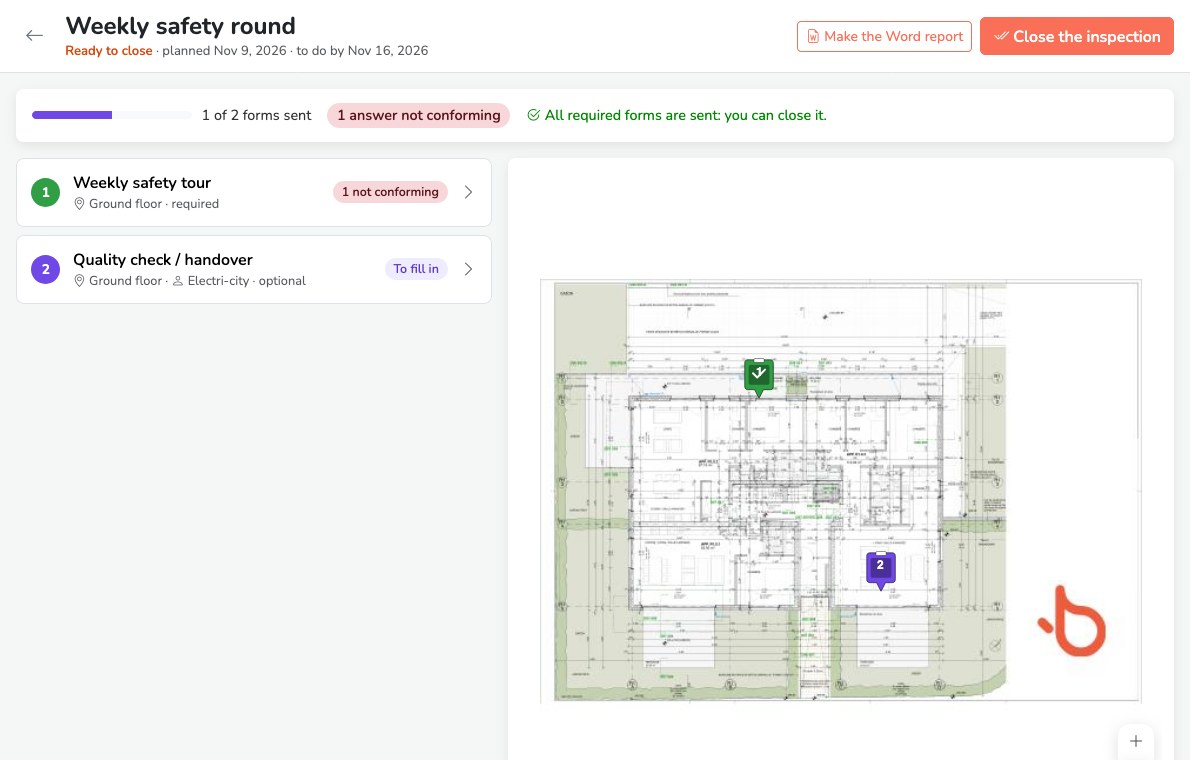
- The top bar sums up the progress: forms sent, not conforming answers and what is left to do before closing.
- On the left, the forms of the round, with their drawing, the assignee and required or optional. Their state: To fill in, Sent, or the number of not conforming answers. Click a form to open it.
- On the right, the drawing with the numbered forms: purple when to fill in, green once sent. The selector at the top changes the drawing when the round covers several.
The forms of an inspection are filled in and sent like the others: see Fill in and track. They show the This form is part of an inspection banner, with a link to the inspection.
Close an inspection
When all the required forms are sent, the inspection moves to Ready to close. Click Close the inspection. While a required form is missing, the button stays greyed out; its tooltip says why.
On closing, the Word report of the inspection is produced, if the template provides for it. It gathers the summary of the round, the drawings with the numbered forms, each form with its answers and photos, and the list of non-conformities. Make the Word report also lets you produce it at any time, even before closing.
A closed inspection can be reopened with Reopen, for example to add a forgotten form. Closing it again produces a new report.
Delete an inspection
The bin at the top of the inspection page deletes the inspection and all its forms. It is offered only while no form of the inspection has been sent: an inspection that has started is kept.