More
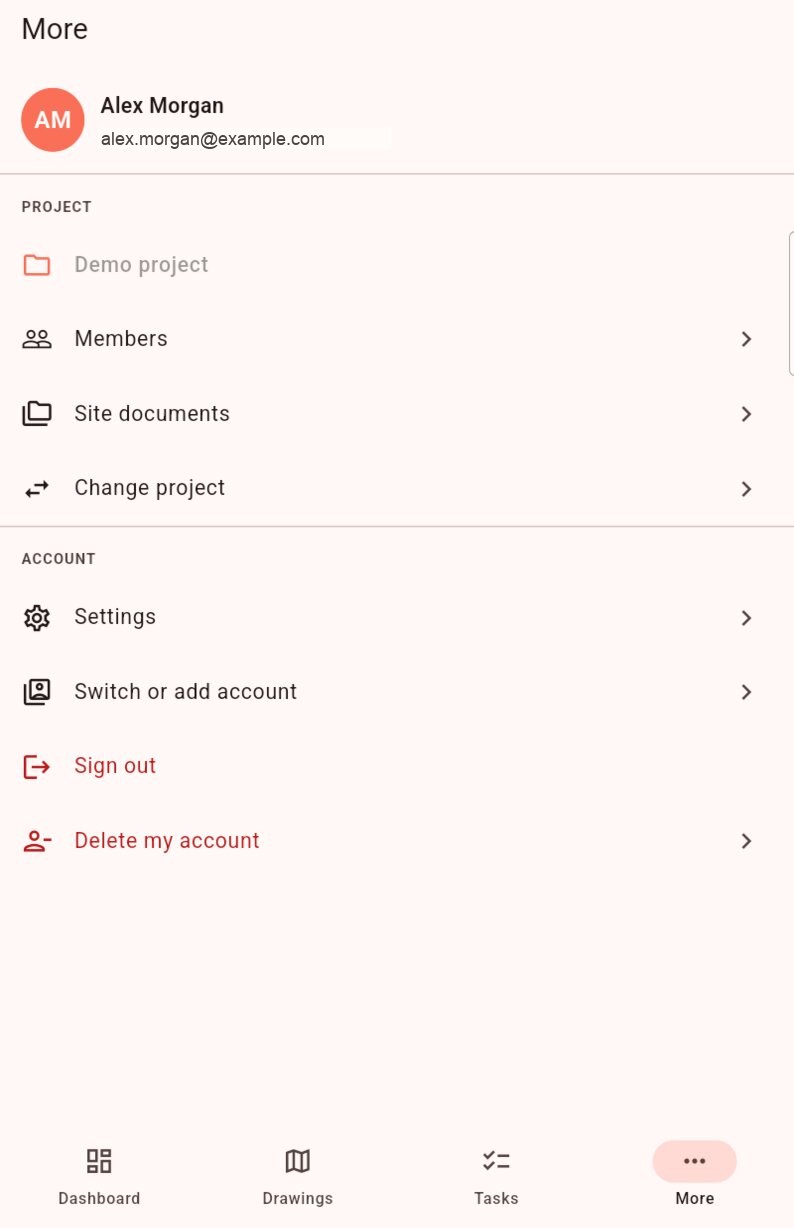
The More tab gathers the rest: the project's members, switching project, your settings and your accounts.
Members
Tap Members to see the project's people and companies, with their pin colour. Tap a member to show their email address.
If you manage the project's members:
- the Add member button lets you add someone on the spot. Enter their Name, Email and choose their Marker color. The email is optional: a known address links the existing account, a new address receives an invitation;
- Remove from project, in a member's page, removes their access to the project. Their Touch2build account is not affected.
Member rights are set in the web app: see Members and rights.
Settings
Tap Settings. The settings apply to this device.
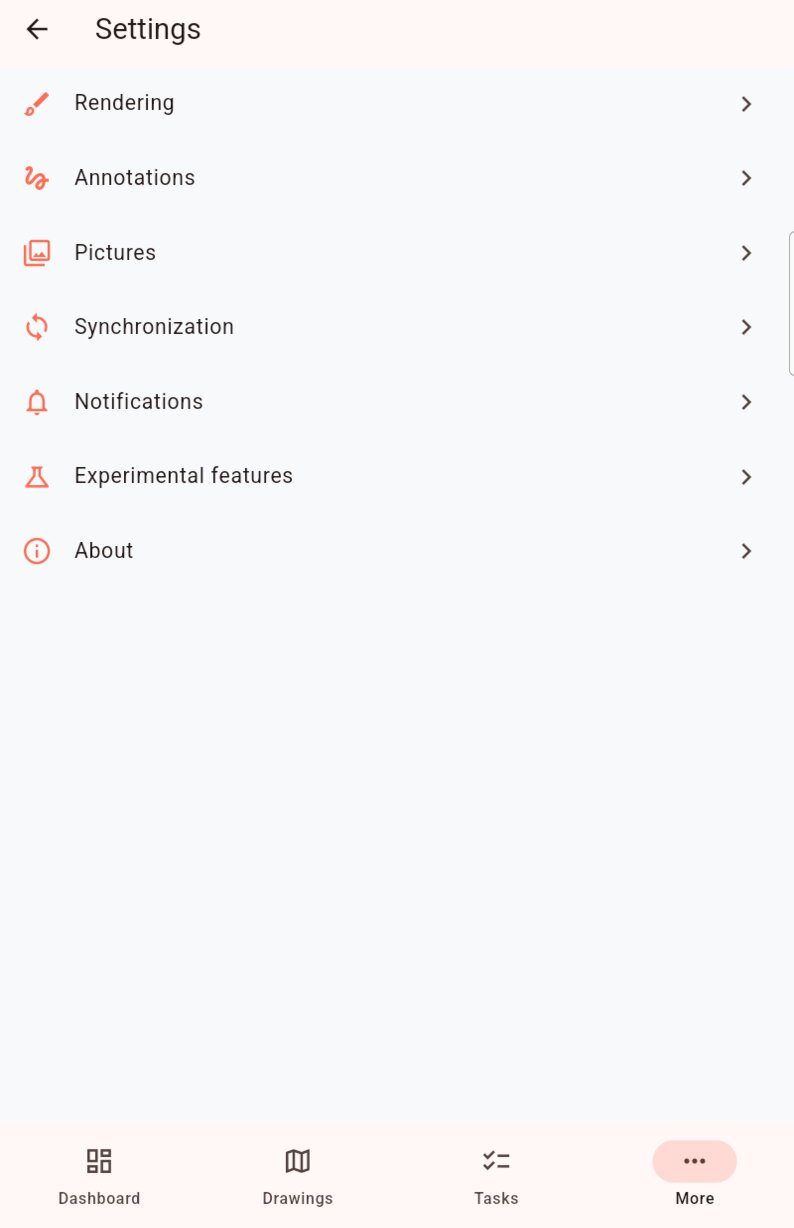
Rendering
- Highlight high priorities
- Adds a badge to the pins of High and Critical tasks: Never, On open tasks or Always.
- Task numbers
- Compact shows 5 in the pins; Full shows 1.5.
Annotations
- Shape recognition
- Turns circles, rectangles, triangles and arrows drawn freehand into clean shapes. On by default.
Pictures
- Save to gallery
- Copies the photos taken in the app to the phone's gallery.
- Save downloaded to gallery
- Also copies the task photos received from the server to the gallery.
- Export existing pictures
- Copies to the gallery, right now, all the task photos already on the device.
Synchronization
- Wi-Fi only
- The app only exchanges data with the server on Wi-Fi. Off by default. See Offline and sync.
- Real-time updates
- The server tells the device when the project changes, so that it updates in the background.
- Force sync now
- Downloads all projects from the server again. Useful if you doubt the data shown.
Notifications
Notifications reach you even when the app is closed. They are off by default:
- Notify on assignment
- When a task is assigned to you. Minimum priority for assignments limits these notifications to important tasks, for example High and Critical.
- Notify on comment
- When a comment is added to a task you follow.
Tap a notification to open the task directly, in the right project.
Tip
At first launch, the phone asks you to allow Touch2build notifications. If you refused, allow them in the phone's settings.
About
The app version, the website and the support address.
Several accounts
Do you work for several companies, with different email addresses? The app can keep several accounts signed in.
- Tap Switch or add account, then Add another account.
- At launch, the app then asks you to Choose account.
Each account has its own projects and its own data on the device.
Sign out
Tap Sign out. The account's data is removed from the device; it stays on the server.
Changes not sent
If some changes have not yet been sent to the server, the app warns you: they would be lost. Connect to the network and wait for the sync before signing out.