Run the meeting
The minutes are built during the meeting. Item by item, you note what is said, the decision and the actions. At the end there is nothing left to write: the minutes are ready.
On a tablet
The meeting works well on a tablet (iPad or Android), in the browser: the buttons are large enough for a finger, and nothing needs hovering with a mouse. On a narrow screen, such as a tablet held in portrait, the contents list on the left is hidden to leave room for the items.
Start
Open the meeting and click Start the meeting. It moves to the In progress stage and the screen follows the order of the minutes.
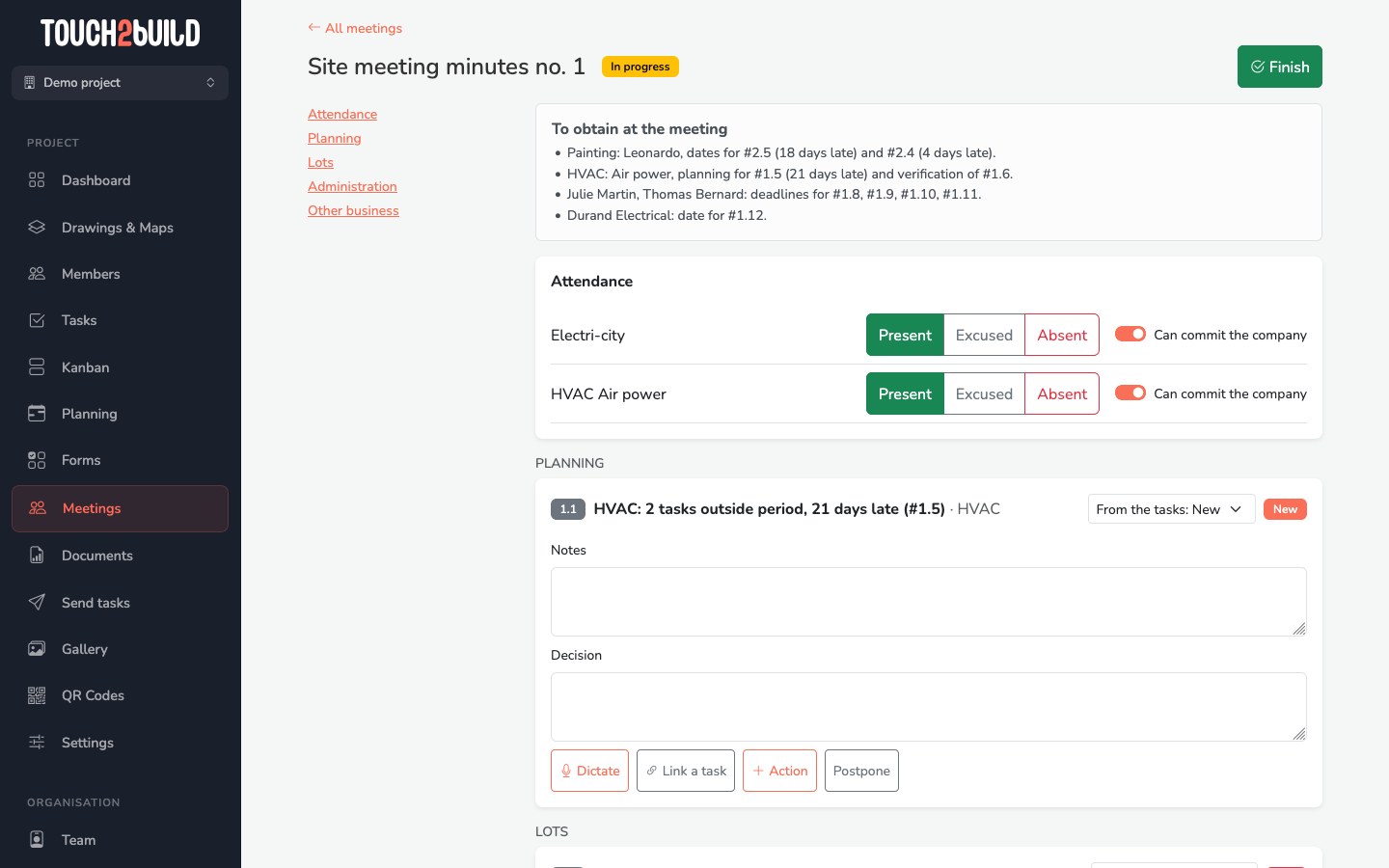
- On the left, the contents list takes you straight to a section: Attendance, Planning, Lots, Administration and so on.
- At the top, the To obtain at the meeting box recalls, company by company, what has to be obtained.
- At the top right, Finish closes the meeting (see Finish the meeting).
Everything you type is saved as you go, with no Save button.
If the network drops
The message "No connection: what you type is kept and will be sent when the network is back" shows, with the number of entries waiting. Carry on as usual, but do not close the page while entries are waiting: they are kept in the page, then sent in order as soon as the network returns.
Attendance
For each convened participant, click Present, Excused or Absent.
For a person who is present, the Can commit the company switch shows whether they have the authority to decide on behalf of their company. A decision taken with a representative who cannot commit their company is fragile: the minutes show it in the Authorised column.
The number of absences of each company since the start of the site is shown next to its name and printed in the minutes. It is useful evidence when the contract provides for penalties for absence.
The previous minutes
From the second meeting, the Previous minutes box asks whether the minutes of the previous meeting are Approved or Approved with comments. The choice is printed in the new minutes.
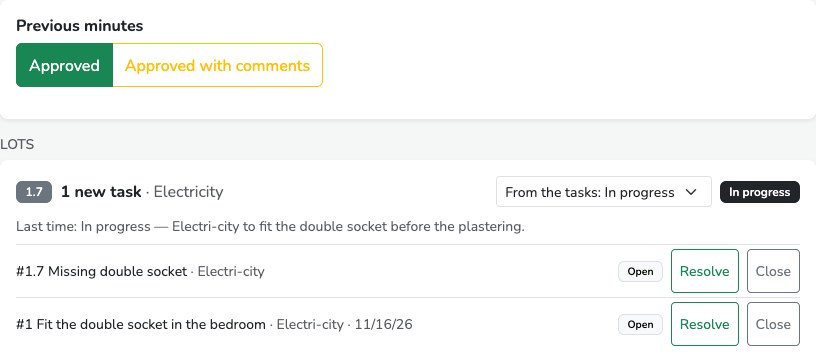
The remarks received on the previous minutes show in this box, with their author, their date and the item they refer to. Read them at the meeting, then click Mark handled for each one. See The remarks.
The items
Each item of the agenda shows:
- its number, its title and its lot;
- its state, with the From the tasks: Late menu (for example);
- for a carried-over item, a Last time: line with the state and the decision of the previous meeting;
- its linked tasks, with their assignee, due date and status;
- the Notes and Decision areas;
- the Dictate, Link a task, Action and Postpone buttons.
The state of the item
The state is calculated from the linked tasks: Late if a task has passed its due date, Done if all are closed, In progress otherwise. An item with no task is New the first time, then In progress when it is carried over.
The state menu lets you choose it by hand, for example to mark a discussion item with no task as done. Go back to From the tasks to let Touch2build calculate it again.
Resolve or close a task at the meeting
Does the company confirm at the meeting that the work is done? Click Resolve on the task line. Have you checked on site? Click Close. The status of the task changes at once across the whole project, and the state of the item updates.
Note and decide
- Notes
- What is observed and said, in telegraphic style: "Living room sockets at 30 cm instead of the 40 cm required by the specification. Electri-city acknowledges the gap."
- Decision
- What is decided, who does what: "Electri-city to redo the living room sockets before the plastering." The decision is printed in bold in the minutes.
Create an action
An action is a task created from the item. Click Action, then fill in:
- What
- What has to be done, in a few words: it is the name of the task.
- Who
- The project member who has to do it, usually the company of the lot.
- By
- The due date.
All three fields are required: an action with no person in charge or no date is not a decision. Click Create the action.
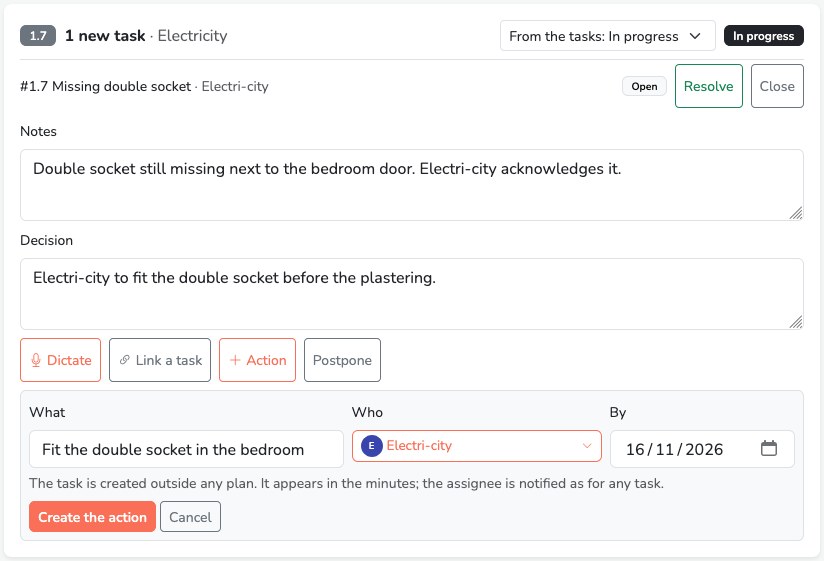
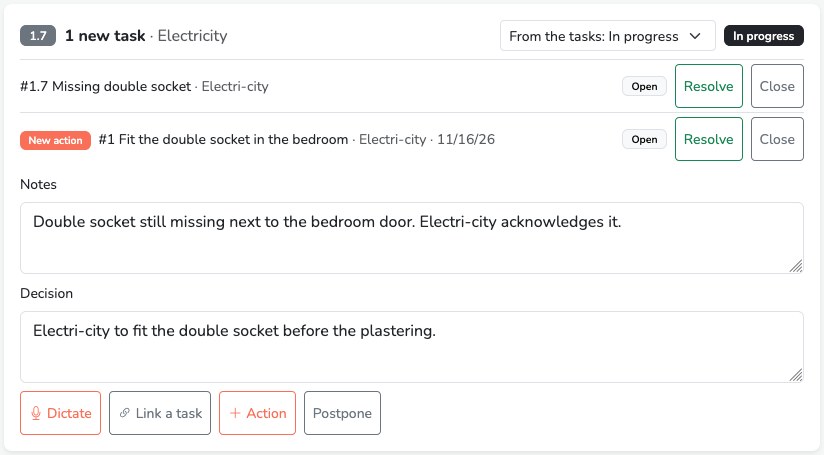
The task is created outside any drawing, with the lot of the item as its tag. The assignee is notified as for any task. It shows at once in the item with the New action badge, and appears in the minutes.
To create actions you need the permission to create tasks. Without it, the message "To create actions, you need the right to create tasks." replaces the button.
Place the action on the drawing
The action is a task like any other: open it afterwards from the task list to place it on the drawing, add a photo or a description.
Link a task at the meeting
A company raises a snag that was not on the agenda? Click Link a task: the search window opens, with the filters and the read-only detail of each task, as during the preparation.
Postpone an item
Short of time, or the person concerned is absent? Click Postpone. The item is greyed out and the button becomes Discuss it today, which cancels the postponement.
Add an item at the meeting
An unexpected subject? The New item (other business) field, at the bottom of the screen, adds an item to the Other business section. Type the title, then Add.
Dictate an item
Rather than typing, you can dictate what is said on an item. Touch2build draws the notes, the decision and the actions from it, which you read through before applying them.
- Click Dictate in the item. The first time, the browser asks permission to use the microphone: accept.
- Speak normally. Recording stops when you click Stop, after 3 seconds of silence, or after 90 seconds.
- The message Writing the notes of the dictation… shows for a few seconds. You can move on to the next item meanwhile.
- A From the dictation card appears in the item, with:
- the Notes and the Decision heard, which you can correct;
- the Actions heard, with the company and the date when they were said;
- What was said, to read the transcript.
- Click Apply: the notes and the decision are added below what is already typed, and the ticked actions are created. Tick Replace what is already typed to replace instead of adding. Ignore drops the proposal.
Nothing is written without your click on Apply. When you close the meeting, Touch2build points out the dictations that were neither applied nor ignored.
Dictation uses an artificial intelligence service hosted in Europe. It needs the project owner to be on the Pro plan or the free trial, and the Voice notes option on your account: if the Dictate button does not appear, write to support. The recording is deleted 30 days after the meeting is closed; the notes stay.
Dictate well
Hold the tablet close to the person speaking and avoid the noise of the concrete mixer: the transcript is much better. Name the company and the date clearly: "Electri-city redoes the living room sockets by 3 November".
The microphone does not work?
"The microphone is blocked": allow it in the browser settings, then try again. "This browser cannot record": use a recent browser (Chrome, Edge, Safari or Firefox).
Finish the meeting
Click Finish. The Finish the meeting window takes stock before closing:
- the participants whose attendance is not recorded;
- the items without notes, decision or task;
- the dictations not yet reviewed;
- the recipients without an e-mail address, who will not receive the minutes.
These are only warnings: you can close anyway.
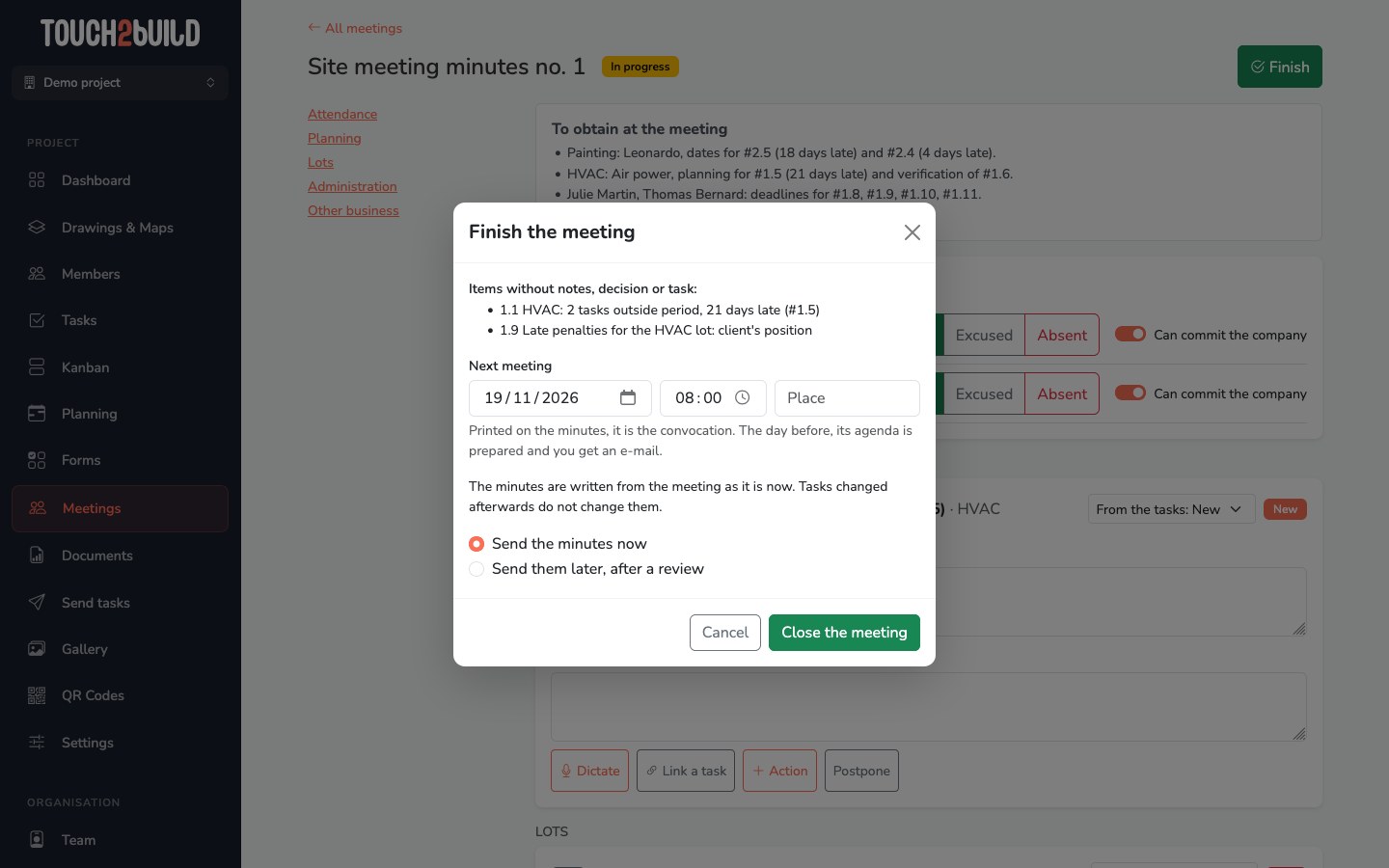
Then enter the Next meeting: date, time and place. It is printed on the minutes and serves as the convocation. The day before, its agenda is prepared and you receive an e-mail (see Prepare a meeting).
Finally, choose:
- Send the minutes now
- The minutes go out as soon as you close, before you even leave the site hut. This is the recommended choice: minutes sent the same day are authoritative.
- Send them later, after a review
- The meeting is closed and the documents are ready, but nothing goes out. Read them through, then click Send the minutes in the closed meeting.
Click Close the meeting.
The minutes are written from the meeting as it is at the time of closing. Tasks changed afterwards do not alter them: they will show with their new state in the next meeting.
The rest happens in Share and follow up.